Why Your Wireless Printer Keeps Saying Offline (And How to Fix It Permanently)
Nothing spikes your blood pressure faster than hitting "Print" five minutes before a deadline, only to see a tiny gray box announce that your printer is suddenly "Offline." Restarting your computer or pulling the power cord might fix it for ten minutes, but the real issue is almost always a silent communication breakdown inside your Wi-Fi router or Windows network ports. In this guide, I will show you how to lock down a permanent static IP address, bypass glitchy default ports, and force your printer to stay awake and connected forever.
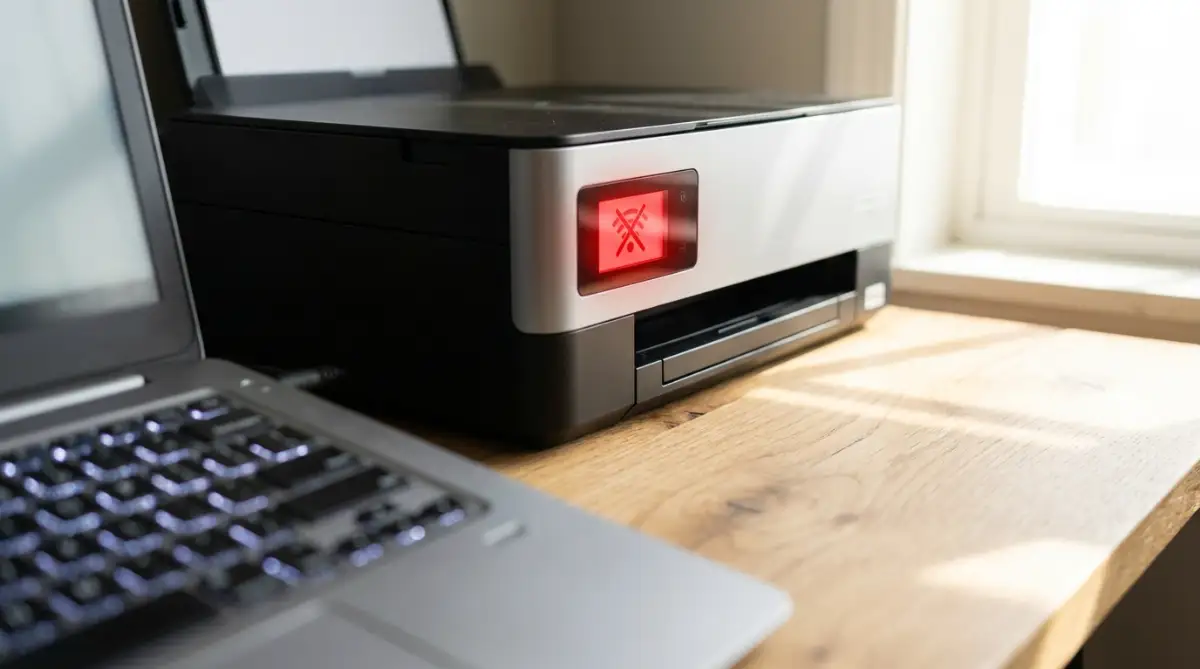
📌 Quick Checklist: Keep Your Wireless Printer Online Forever
- Lock in a Static IP: Stop your router from constantly shuffling printer addresses by switching from Automatic (DHCP) to a fixed manual IP in your device settings.
- Ditch the WSD Port: Windows defaults to unstable WSD ports that disconnect during sleep mode; switch to a Standard TCP/IP port instead.
- Stick to the 2.4 GHz Band: Most printers have older wireless chips that cannot handle 5 GHz networks—connect your PC and printer to the same 2.4 GHz frequency.
- Check Your VPN: Encrypted work VPNs block local network traffic by default; turn on "Local Network Access" or "Split Tunneling" so your computer can reach your desk printer.
Decoding the Invisible Conversation on Your Network
To permanently fix this annoying problem, you have to understand how your computer actually talks to your printer. It is not just magic floating through the air.
Your wireless network is a highly active, busy environment. Your router acts exactly like a strict digital post office, managing traffic between your phone, your smart television, your laptop, and your printer.
If the post office loses the exact address of your printer, your laptop literally does not know where to send the digital document. We are going to look closely at why this connection breaks, and exactly how you can force the post office to remember the address forever.
The Danger of a Shifting Home Address
The absolute most common reason your printer randomly disappears is an issue with its Internet Protocol (IP) address. An IP address is simply the specific set of numbers that acts as your printer's digital home address.
By default, most modern internet routers use a system that hands out "dynamic" addresses. This means your router automatically gives out temporary addresses to devices as they connect and disconnect from the Wi-Fi.
Imagine giving a delivery driver your home address, but your physical house magically moves to a new street every single time you turn off the living room lights. The poor delivery driver will drive around aimlessly and never actually find you.
This is exactly what happens when your printer goes into a deep sleep mode to save electricity. Your router assumes the printer left the network, so it takes that specific IP address back and hands it over to your smartphone instead.
When your printer finally wakes up, the router assigns it a brand new, completely different IP address. However, your computer is still trying to send your document to the old, expired address.
Your computer gets highly confused, assumes the printer is broken, and immediately changes its status to "Offline."
Forcing a Permanent Connection (Static IP)
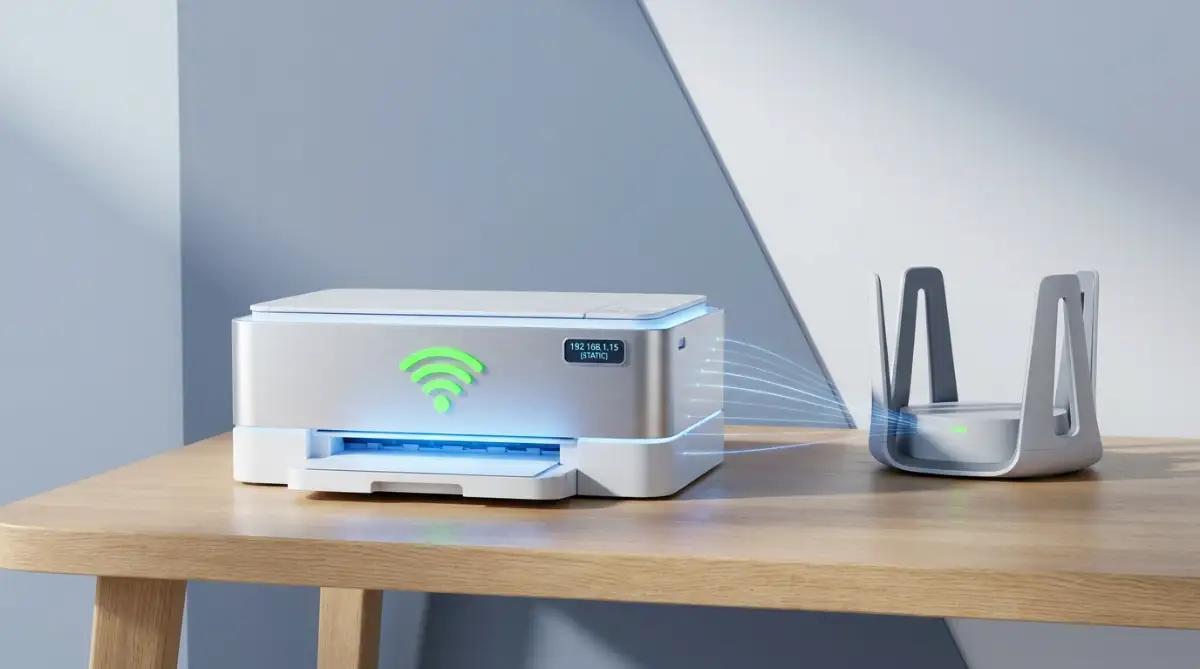
To stop this annoying game of musical chairs, you have to give your machine a permanent, unchangeable address. In the technology world, this is called setting a Static IP.
First, you need to go to your physical printer and use the small digital screen to navigate to the network settings. Look for an option called "Print Network Configuration Page."
This will print a physical piece of paper showing all the secret numbers your machine is currently using. Look closely at the paper and find the specific line labeled "IPv4 Address."
It will look like a sequence of numbers, such as 192.168.1.15. Keep this piece of paper right next to your computer keyboard.
I used to think my machine was physically broken because it dropped off the network every single Tuesday afternoon. My biggest realization came when I found out my internet router was set to automatically shuffle IP addresses once a week. Setting a permanent, static IP address took me exactly four minutes and completely stopped the random Tuesday disconnects forever.
Now, open any web browser on your computer and type that exact sequence of numbers directly into the top address bar. Hit enter, and you will magically access a secret control panel hidden inside your printer.
Navigate to the networking tab inside this control panel, find the IP address configuration, and change it from "Automatic" to "Manual" or "Static." Once you hit save, your router can never take that specific address away again.
Waking Up the Sleepy Traffic Cop
Sometimes, your network connection is perfectly fine, but your computer's internal operating system is heavily confused. Inside a Windows computer, there is a hidden software program called the Print Spooler.
Think of the Print Spooler as a highly organized traffic cop standing in the middle of a busy intersection. When you hit print on five different PDF files, this traffic cop lines them up in a neat row and sends them to the machine one by one.
If this digital traffic cop experiences a sudden glitch or falls asleep on the job, the documents pile up in a massive traffic jam. When the system detects this heavy jam, it automatically marks your device as offline to prevent further data from crashing your computer.
To fix this, you have to manually shake the traffic cop awake. Click on your Windows start menu, type the word "Services," and hit enter.
A large window will open showing an alphabetical list of every single background program running on your machine. Scroll down slowly until you find the exact line labeled "Print Spooler."
Right-click directly on that name and select the "Restart" option. A small loading bar will appear for three seconds, forcefully clearing out the invisible traffic jam and resetting the connection.
If your device instantly pops back online, you immediately know that the spooler was the hidden culprit causing your massive headache.
The Hidden Trap of WSD Ports
When you buy a brand new machine and connect it to your home Wi-Fi, Windows tries to be incredibly helpful. The operating system automatically detects the new hardware and installs it using something called a WSD (Web Services for Devices) port.
Microsoft designed this specific port to make setting up wireless accessories incredibly easy for beginners. However, it is notoriously unstable and highly prone to random disconnections.
WSD ports rely heavily on a constant, uninterrupted network heartbeat. If your machine enters an eco-friendly sleep mode, its digital heartbeat slows way down.
The WSD port stops hearing the heartbeat, assumes the machine was physically unplugged, and changes the status to offline. When the machine wakes back up, the WSD port often refuses to reconnect automatically.
You can easily bypass this terrible automated feature by telling Windows to use a traditional, highly stable communication line instead. You want to switch your connection to a Standard TCP/IP port.
Open your computer's control panel, find the "Devices and Printers" menu, and right-click on your specific machine's icon. Select "Printer Properties," and then click on the tab labeled "Ports."
Click the button that says "Add Port," select "Standard TCP/IP Port," and click "New Port." The computer will ask you for an address.
Simply type in the exact same static IP address you saved on your piece of paper earlier. This forces your computer to communicate directly with the machine using a hard mathematical path, completely ignoring the unstable, glitchy WSD system.
⚙️ Connection Port Showdown: Why Your Default Setup Fails
My Experience: Nine out of ten "ghost" printer disconnections I fix for clients are caused by Windows lazily assigning a WSD port during initial setup. Switching over to a Standard TCP/IP port permanently solves the dropouts.
The Invisible Conflict of Wi-Fi Bands
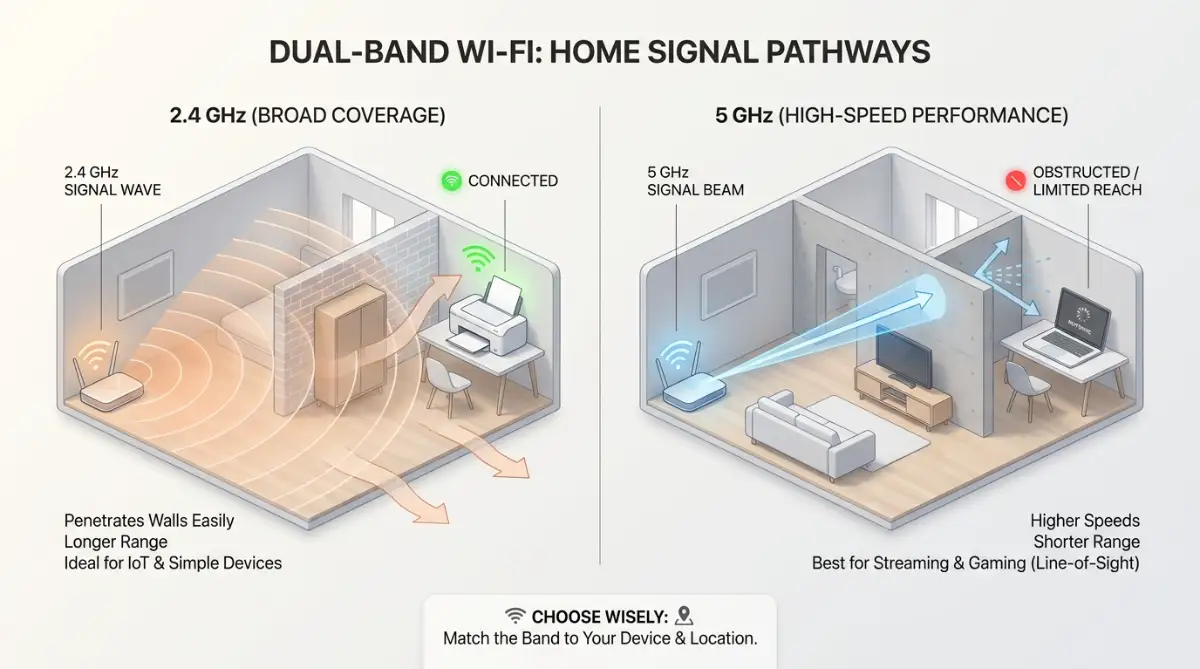
Modern internet routers are incredibly powerful, but they often create a deeply confusing environment for older technology. Almost all new routers broadcast two entirely different wireless signals at the exact same time: a 2.4 GHz band and a 5 GHz band.
Think of the 5 GHz band like a super-fast sports car. It goes incredibly fast and carries heavy data, but it cannot drive through thick walls or heavy wooden doors easily.
The 2.4 GHz band is like a heavy-duty pickup truck. It drives much slower, but it easily pushes right through physical obstacles to reach devices in the next room.
💻 Visual Walkthrough: How to Toggle Windows Back Online
If you prefer following along on your screen rather than reading network menus, watch this quick step-by-step tutorial from GuideRealm. They show you the exact clicks inside Windows to clear stuck queues, toggle your device settings, and force your printer back online in under three minutes:
Most smart home accessories, including expensive wireless printers, are equipped with cheaper, older network cards that only understand the 2.4 GHz signal. Your modern smartphone and your laptop naturally prefer to connect to the faster 5 GHz signal.
If your laptop is connected to the sports car lane, and your printer is connected to the pickup truck lane, your router sometimes struggles to pass messages between them. It treats them like they are living in two completely different buildings.
To fix this communication barrier, you need to ensure your devices are speaking the exact same language. Log into your router's administrative dashboard and look at your wireless settings.
Many providers automatically merge both of these bands into one single Wi-Fi network name to keep things looking simple. You must physically split the bands so they broadcast two separate network names.
You can name one "HomeNetwork_2.4" and the other "HomeNetwork_5G". Once you separate them, connect your laptop and your printing machine exclusively to the 2.4 GHz network.
By forcing both devices onto the exact same frequency lane, the router no longer has to translate the traffic between them. They can easily see each other sitting on the local network, instantly resolving massive offline communication errors.
Navigating the Sneaky VPN Blockade
In our modern digital world, many remote workers use a Virtual Private Network (VPN) to keep their personal data safe from hackers. A VPN acts like a highly secure, invisible tunnel between your laptop and your corporate office servers.
While this security tunnel is amazing for protecting sensitive emails, it creates a massive brick wall inside your own home network.
When you turn your VPN on, all of your internet traffic gets sucked directly into that encrypted tunnel. Your laptop becomes totally blind to everything sitting outside of the tunnel.
This means your computer can securely reach an office server located three thousand miles away, but it literally cannot see the printing machine sitting two feet away on your physical desk.
If your device suddenly goes offline the exact second you start your workday, your VPN is absolutely the guilty party. You do not have to uninstall your security software to fix this annoying problem.
You simply need to open your specific VPN application settings and look for a highly useful feature called "Split Tunneling" or "Local Network Access."
Enabling this specific toggle switch tells your computer, "Keep my work emails safely inside the secure tunnel, but let my local printing traffic drive outside the tunnel." Turning this setting on allows your laptop to securely talk to the internet while maintaining a clear, direct line of sight to your local home devices.
🔍 The 30-Second Diagnostic: Is It Hardware or Network?
If your laptop claims the printer is offline, find out the truth immediately using this quick check:
- Press Windows Key + R, type cmd, and press Enter to open Command Prompt.
- Type ping [Your Printer's IP Address] (for example: ping 192.168.1.15) and hit Enter.
- If you see "Reply from...": Your printer is fully awake and talking to your network. The problem is 100% inside your Windows spooler or port settings.
- If you see "Request timed out": Your printer has dropped off your Wi-Fi band completely or your router handed out a new IP address.
By identifying these hidden digital roadblocks and applying these exact scientific adjustments, you take complete power over your own home office. You can stop fighting with aggressive error messages and finally enjoy the smooth, quiet reliability of your technology.
Professional Fixes for Chronic Printer Disconnections
You already know the basic mechanics of how your printer talks to your internet router. But fixing a badly designed network setup requires a bit more strategy than just turning the power off and on again.
We have to optimize the invisible rules of your digital network. If you configure your software environment correctly once, it will silently keep your devices connected every single day without you even thinking about it.
Let us explore a few high-level networking tweaks that can completely change how your operating system handles wireless printing jobs.
The "SNMP" Status Trap
There is a deeply hidden setting inside Windows that constantly checks to see if your printer is awake and ready. This setting is called SNMP (Simple Network Management Protocol), and it is famously buggy.
When your printer goes to sleep to save power, it stops answering the SNMP requests. Windows immediately panics, assumes the printer is dead, and turns your status to "Offline."
You can stop this panic completely by turning the SNMP feature off. Go back to your "Printer Properties" and open the "Ports" tab.
Click on the port you created earlier and select "Configure Port." You will see a small checkbox labeled "SNMP Status Enabled" at the very bottom of the window.
Uncheck that box immediately and hit save. This stops Windows from constantly checking the printer's power state, forcing the computer to just send the document regardless of whether it thinks the machine is asleep or not. The print job will hit the machine, physically wake it up, and print perfectly.

Dealing with Outdated Network Drivers
Sometimes your network settings are perfect, but the actual translation software is completely broken. This translation software is called a driver.
A driver acts as the official dictionary between your computer and the printer. If your computer updates to a new version of Windows, but you are still using an old driver from three years ago, the two machines can no longer understand each other.
You will send a PDF, but the printer will receive a scrambled mess of error codes and drop offline. You must actively delete the old driver and download a fresh copy.
Q: Do I really need to delete the old driver first?
A: Yes! Installing a new driver over a broken old one is like painting over mold. The problem is still underneath. You must completely uninstall the old software through your Windows settings before downloading the fresh version.
Do not rely on the CD that came inside the printer box, as that software is usually outdated the second it leaves the factory. Always go directly to the official support website for your specific brand (like HP, Canon, or Brother) and download the newest driver package specifically built for your operating system. According to a technical report on hardware compatibility by Microsoft, keeping peripheral drivers fully updated prevents up to 70% of local network communication errors.
The Heartbreaking Reality of "Quick Fixes"
Even highly intelligent people make terrible choices when they are desperate to print a highly important document five minutes before a deadline. The heavy stress of a failing machine often blinds us to the actual damage we are causing to our own computers.
If you panic and try to force the machine to work using aggressive internet "hacks," a simple offline error can easily turn into a permanent network disaster. This frustrating cycle can ruin your whole day and leave your home office totally paralyzed.
Here is exactly what you must avoid to keep your digital environment completely safe and stable.
The Endless Re-Installation Loop
When a printer goes offline, many people think the only solution is to delete the machine from their computer and install it again from scratch. They do this every single time the error pops up.
This is an absolute nightmare for your operating system's registry. Every time you install and uninstall the machine, it leaves behind tiny, broken pieces of code.
Over a few months, your computer gets incredibly confused by these ghost files. It starts creating multiple copies of the exact same printer, labeling them "Printer (Copy 1)" and "Printer (Copy 2)".
When you actually hit print, the computer accidentally sends the document to one of the dead ghost copies instead of the real, active machine. This constant re-installation habit is just like ignoring overlooked habits that quietly destroy your smartphone battery lifespan; it slowly degrades the entire system until nothing works correctly.
You must stop reinstalling the machine. Fix the root network problem using the static IP method we discussed earlier, and leave the installation alone.
Deleting Essential System Files Blindly
If you search deep enough in tech forums, you will eventually find someone telling you to open your "System32" folder and delete specific spooler files manually.
Do not ever do this unless you are a certified IT professional. The System32 folder contains the absolute most critical operating files for your entire Windows computer.
If you accidentally delete the wrong file because you misread a forum post, your entire laptop will crash and refuse to turn back on. The "blue screen of death" will appear, and you will lose every single document saved on your hard drive.
Trying to manually hack your system files to fix a printer is as dangerous as making dangerous password management mistakes that leave your digital identity exposed. The risk of total destruction is incredibly high. If your spooler is stuck, stick to restarting the service safely through the official Windows Services menu, as we covered earlier.
If you do cause a catastrophic crash by deleting a system file, you will be frantically trying to figure out what to do if your hard drive crashed how to rescue your lost files before it's too late. It is far better to be patient with your printer than to destroy your actual computer.
The "Reset Router" Trap
It is incredibly tempting to just yank the power cord out of your internet router every time your printer drops offline. While restarting the router does force everything to reconnect temporarily, it causes massive disruption for everyone else in the house.
If you aggressively reset the router three times a day, you will interrupt active software updates, drop video calls, and potentially corrupt the router's internal memory.
You cannot treat your home network like a cheap toy. It is the digital backbone of your house. Fixing your home network requires the same patience as troubleshooting home Wi-Fi dead zones without buying an expensive router, where you must carefully adjust settings rather than just pulling the plug.
Instead of fighting the router, log into its administrative panel and check the "DHCP Lease Time." Sometimes routers are set to aggressively shuffle IP addresses every two hours. Changing this lease time to 14 days or longer gives your devices a much more stable environment to communicate in.
Your Ultimate Print Success Strategy
Navigating the frustrating world of wireless printing does not have to be a terrifying or exhausting experience. You now hold the exact same diagnostic knowledge that professional IT technicians use to fix corporate office networks.
By taking a few short minutes to set a static IP, switch to a reliable TCP/IP port, and disable buggy SNMP checks, you completely remove the fear of sudden disconnections. You are no longer crossing your fingers and praying the document actually prints when you click the button.
Instead, you are confidently commanding your local network like a seasoned digital professional. This simple shift in your technical habits gives you incredible power over your own home office equipment.
You have the total ability to handle annoying network errors smoothly and intelligently. Stop letting a plastic box ruin your productivity, secure your network settings, and take complete, fearless control of your digital workday starting right now.
I used to literally sweat every time I had to print a shipping label for my business because the machine would disappear off the network completely at random. The exact day I finally assigned a static IP and bypassed the terrible WSD port, my stress vanished instantly. You totally deserve an office setup that just works, so take ten minutes right now to lock down your network settings and enjoy the peace of mind!
Common Questions About Wireless Printing Issues
Why does my printer always go offline after it falls asleep?
When your printer enters sleep mode to save energy, it slows down its network communication. Some routers assume the device is turned off and take its IP address away, or Windows disables the WSD port because it stops hearing the printer's digital "heartbeat," instantly triggering the offline status.
Is it better to use a USB cable instead of Wi-Fi?
If your printer is sitting right next to your computer and you do not need to print from a smartphone, a direct USB cable is infinitely more reliable. A physical cable completely bypasses complex router settings, IP address shuffling, and wireless signal interference, guaranteeing a 100% stable connection.
What does "Print Spooler Error" actually mean?
The print spooler is a background Windows software program that lines up your documents in order before sending them to the machine. If a large PDF file gets corrupted while processing, the spooler crashes and creates a traffic jam, forcing the computer to mark the printer as offline until the service is restarted.
Can having too many devices on my Wi-Fi cause printing problems?
Yes, absolutely. If you have thirty smart home devices, phones, and televisions all fighting for bandwidth on a cheap, older router, the router can become overwhelmed and start dropping connections to save memory. This usually causes older devices, like wireless printers, to get kicked off the network first.
Why does my phone print perfectly but my laptop says the printer is offline?
Your smartphone and your laptop use completely different communication protocols to talk to the printer. Apple iPhones use "AirPrint," which directly broadcasts a signal to the machine, while a Windows laptop relies on strict IP addresses and driver software. If the laptop says offline but the phone works, the issue is 100% a software setting inside Windows, not a physically broken printer.
Disclaimer: The information provided in this article is strictly for educational and informational purposes only and does not constitute professional IT support or guaranteed hardware repair advice. Operating systems, router administrative panels, and network menu layouts vary heavily by smartphone manufacturer, computer brand, and specific router models. Always consult with your device's official user manual or contact a certified technical support specialist regarding the exact specifications, network configurations, and driver management rules for your personal home office equipment.