
The Suffocating Panic of the "Drive Not Found" Error
I almost threw up when my computer flashed a grey box saying my external hard drive wasn't readable. My entire college thesis was on that drive, and I had no backup. I panicked, unplugged the cable, and plugged it back in a dozen times, hoping for a miracle. It didn't work. But I learned that your files are usually still there, hidden behind a broken digital map. Let me show you how to safely get them back without spending a fortune on recovery labs.

My 30-Second Data Rescue Checklist
- Stop using the drive instantly. Saving even one small file can permanently overwrite your lost data.
- Listen closely. If you hear rhythmic clicking or scraping, unplug the drive immediately—it is a mechanical failure.
- Always save recovered files onto a completely separate, healthy external drive, never back onto the broken one.
- Do not use the Windows "chkdsk" command on corrupted partitions; it will destroy damaged files.
The Golden Rule of Data Rescue: Absolute Quarantine
Before you download any magic repair software or start clicking buttons randomly, you have to understand the most critical biological rule of data storage. When you accidentally delete a file, or when a drive becomes corrupted, the actual photograph or document is not instantly erased from existence.
Your computer operates exactly like an old, massive public library. The hard drive is the giant room full of bookshelves, and the file system is the digital librarian sitting at the front desk.
The Librarian Analogy:
When you save a picture of your dog, the librarian puts that picture on a specific shelf and writes the exact shelf number down in a master index book. When you delete that picture, or when the drive gets corrupted, the librarian does not physically run to the shelf and burn the picture.
Instead, the librarian simply takes a red pen and crosses the shelf number out of the master index book. The picture of your dog is still sitting perfectly intact on that exact shelf in the back of the library.
However, because the shelf number is crossed out, the librarian now considers that specific shelf "empty and available for new books."
If you download a new movie or save a new text document, the librarian might walk back to that exact shelf, pull out your dog's picture, throw it in the trash, and put the new movie in its place. This physical replacement process is called overwriting, and once a file is overwritten, it is permanently dead and completely impossible to recover.
Your Immediate Action Plan:
You must treat a corrupted drive exactly like a highly contagious medical quarantine zone. The exact second you realize files are missing or the drive is corrupted, you must absolutely stop writing any new data to that specific disk.
Do not download recovery software onto the broken drive, do not save a new text document, and do not even restart the computer if the operating system is installed on that failing drive. If it is an external USB drive, simply unplug it from the wall immediately and set it gently on your desk.
By freezing all activity, you guarantee that the librarian never has a chance to place a new book on top of your precious missing files.
I actually made the devastating mistake of trying to "fix" a broken SD card by running the basic Windows repair tool directly on it. My biggest realization was that the repair tool aggressively wrote new code all over the card to fix the errors, which permanently crushed and overwrote all my missing wedding photos.
Identifying the Type of Drive Failure
Now that your drive is safely quarantined, you have to play the role of a mechanical doctor. Hard drives fail in two completely different ways: Logical Failure and Mechanical Failure.
You must diagnose which type of failure you are dealing with before you try to recover the data. If you treat a mechanical failure like a logical failure, you will instantly grind your hard drive into completely unreadable metal dust.
Symptom Check 1: The Mechanical Death Rattle
Traditional Hard Disk Drives (HDDs) are not solid blocks of memory. They are highly complex, physical machines filled with spinning metal disks and a tiny robotic arm that reads the data, exactly like an old-school vinyl record player.
When you plug the drive in, put your ear very close to the plastic casing and listen carefully to the sounds it makes. A healthy drive will emit a very soft, smooth, continuous humming sound as the metal plates spin up to speed.
If you hear a loud, rhythmic clicking noise, a harsh scraping sound, or a loud repetitive beeping, you are experiencing a Mechanical Failure.
The Broken Record Scenario:
That loud clicking sound means the tiny robotic reading arm has physically broken off its track. It is repeatedly slamming against the side of the metal casing, trying desperately to find the start position.
If you leave the drive plugged in while it makes this noise, the broken arm will literally drag across the spinning metal plates, physically scraping the magnetic data right off the disks.
Your Actionable Advice:
If you hear clicking, grinding, or scraping, you must immediately unplug the drive from the power source. Software cannot fix a physically broken robotic arm.
You absolutely cannot recover this data yourself using a laptop program. Your only option for a mechanical failure is to mail the drive to a professional "clean room" data recovery laboratory, where engineers wearing full hazmat suits will physically open the metal casing and manually replace the broken arm.
Symptom Check 2: The Logical Software Crash
If you plug the drive in and it sounds completely normal—just a smooth, quiet hum—but your computer still says "Drive is not formatted" or "Access Denied," you are dealing with a Logical Failure.
A logical failure means the physical metal parts are working perfectly, but the digital librarian lost the master index book. The file system itself has become corrupted due to a sudden power outage, a nasty computer virus, or unplugging the USB cable without clicking "Safely Remove Hardware" first.
Because the physical disks are perfectly safe, you have an extremely high chance of recovering every single file using specialized software right from your own desk.
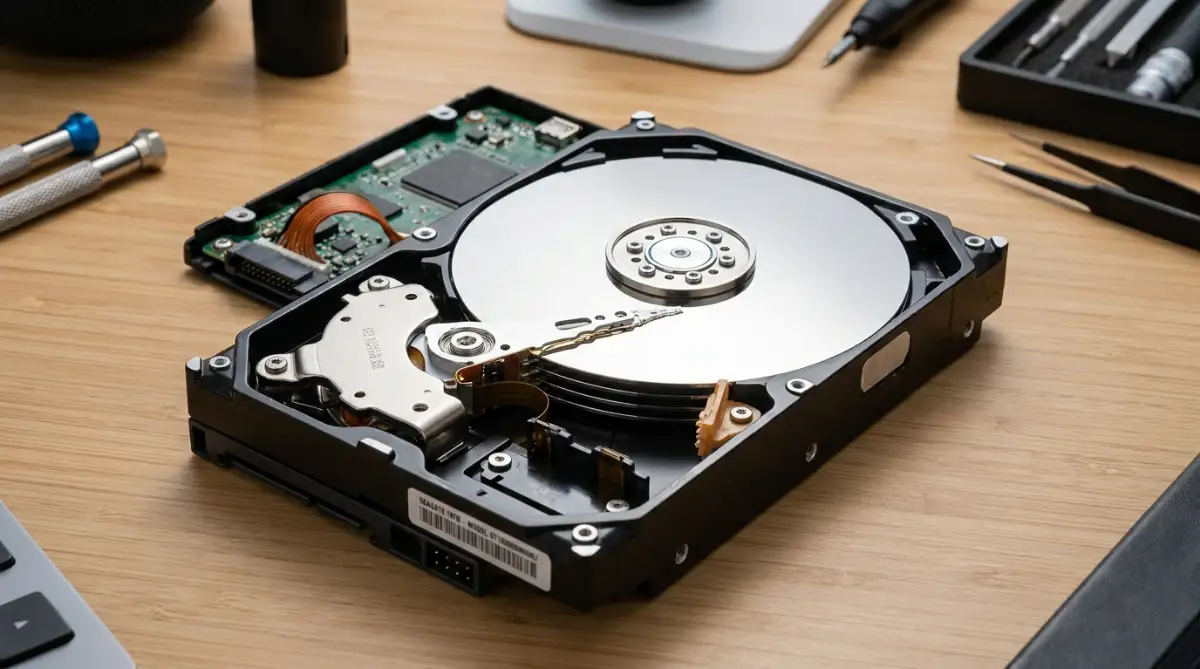
If you are feeling completely confused about whether your drive is physically broken or just experiencing a software glitch, you must watch this clear audio breakdown of what a dying hard drive actually sounds like.
The Safe Extraction Strategy: Using Recovery Software
If you have confirmed that your drive is suffering from a logical software crash, you are ready to begin the extraction phase. You will need three specific things to perform this operation safely: a healthy working computer, a reliable data recovery software program, and a brand new, completely empty external hard drive to hold the rescued files.
The Golden Rule of File Destination:
You must never, under any circumstances, try to save the recovered files back onto the broken drive you are scanning.
If you tell the software to pull a lost photo out of the broken drive and save it back onto that exact same broken drive, you are forcing the drive to overwrite itself while it works. This will instantly corrupt the file as it tries to save it.
Always plug a second, brand new USB drive into your computer. You will tell the software to scan the broken "Drive A," but save all the rescued files safely onto the brand new "Drive B."
Advanced Recovery Secrets for Severely Corrupted Drives
Once you understand the basic process of keeping your broken drive completely isolated from new data, we must look much deeper into the software recovery process. Data extraction is not a simple automated task; it requires a highly strategic approach to prevent further damage.
According to digital preservation guidelines from the National Archives, handling corrupted digital media requires specialized software that interacts with the hard drive in a strictly "read-only" state [1]. You must learn to use these established technical frameworks to protect your fragile files during the scanning phase.
My Diagnostic Triage Scale:
- Status: Green (Safe to DIY): Drive hums quietly, but computer says "unformatted." Files are likely intact.
- Status: Yellow (Caution): Drive disconnects randomly or runs incredibly slow. Create a sector-by-sector clone immediately.
- Status: Red (Stop immediately): Drive clicks, scrapes, or remains completely silent. Power down to avoid scratching the physical plates.
Technical whitepapers shared by storage engineers at Western Digital reveal that running a deep sector scan can sometimes cause an already failing hard drive to overheat and crash permanently [2]. Knowing how to monitor your drive's temperature is highly important before you start a scan that might take twelve hours to complete.
Many panicked users trust fake software advertisements instead of reading actual technical recovery guides. Just as relying on television leads to surprising Miranda rights misconceptions from TV dramas when dealing with real-world law, relying on shady free scanning tools leads to massive, sudden data loss.
If you try to bypass safety rules or run a basic disk repair utility on a RAW partition, you risk erasing the hidden files forever. You must avoid these software errors just as you would avoid the silent DIY solar mistakes that destroy your home insurance payout to protect your wealth and peace of mind.
Just as dangerous password management mistakes that leave your digital identity exposed can ruin your digital security, neglecting your data recovery protocols can permanently ruin your digital memories. Let us explore the advanced, pro-level secrets you can use to pull your files out of the digital wreckage today.
The Magic of Creating a Sector-by-Sector Disk Image
If your hard drive is making very faint clicking noises or randomly disconnecting from your computer, you have a very limited window of time before it dies completely. You cannot afford to run a slow recovery scan directly on the dying drive.
Instead, you must use a professional technique called Disk Imaging. Disk imaging software creates a perfect, mathematical clone of your entire broken drive and saves that clone as a single, massive file on your healthy computer.
The Photocopy Analogy:
Imagine you have an incredibly old, fragile historical map that is slowly falling apart in your hands. You would never try to read it by touching it with your fingers over and over again, because it would crumble into dust.
Instead, you take one high-resolution photograph of the map and put the fragile original back into a safe vault. You then use the photograph to study the details safely.
Creating a disk image is exactly like taking that photograph. Once you create the digital clone, you unplug the failing physical hard drive and put it away safely.
You then run your data recovery software directly on the clone file you saved on your healthy computer. This brilliant method completely removes the physical stress from the broken drive, allowing you to scan the data as many times as you want without causing a mechanical crash.
Navigating the "RAW File System" Error
Sometimes you will plug your external drive in, and Windows will pop up an aggressive message saying, "You need to format the disk in drive D: before you can use it." If you open your disk management tool, you will see that your drive is listed as RAW instead of NTFS or FAT32.
A RAW drive simply means the operating system can no longer read the master file table. It is like someone ripped the table of contents out of a massive encyclopedia.
The pages of information are still perfectly intact inside the book, but Windows has absolutely no idea how to find chapter four.
Your Actionable Strategy:
Never, under any circumstances, click the "Format Disk" button when Windows asks you to. Formatting the disk will create a brand new table of contents, which instantly tells the computer to overwrite all your existing files.
Instead, ignore the Windows warning message completely and open a reputable data recovery program like Recuva, EaseUS, or Disk Drill. Because these programs are specifically designed to read RAW data, they will bypass the missing table of contents entirely.
They will slowly scan every single page of the encyclopedia manually, looking for the specific code signatures of JPG photos and PDF documents, allowing you to extract them safely.
How Recovery Software "Sees" Your Files:
When a drive partition goes RAW, the software scans for specific file headers:
- PNG/JPG: Looks for hex values like 89 50 4E 47 to rebuild images.
- PDF: Searches for %PDF at the start of a sector.
- ZIP/Office: Looks for PK (Zip file format) to salvage documents.

Silent File Management Traps That Will Destroy Your Rescue Mission
Even highly intelligent computer users make terrible choices when they are desperate to fix a frozen, corrupted hard drive quickly. The heavy panic of losing an important work project often blinds us to basic software logic and safe computing habits.
If you fall into these incredibly common traps, your digital rescue mission will eventually experience a complete, permanent failure. This frustrating cycle can easily ruin your weekend, destroy your personal memories, and wipe out your digital identity.
Here is exactly what you must avoid to keep your sensitive files completely safe and secure.
The "Chkdsk" Command Line Disaster
When people see a corrupted hard drive error, they often search online forums for a quick, free fix. Many outdated tech forums will tell you to open the Windows command prompt and run a tool called "chkdsk" (Check Disk) to magically repair the drive.
This is an absolute disaster waiting to happen if you have not backed up your files first. The Check Disk tool was designed by Microsoft to force a broken hard drive to function again, not to safely recover your missing data.
When you run this command on a corrupted partition, the tool aggressively tries to rebuild the broken file system. If it finds a file that is blocking the repair process, it will simply chop that file into pieces, rename it as a useless .chk file, and permanently destroy your original photograph or document.
Always run your full data recovery scan and pull your files off the drive before you ever attempt to repair the disk using the command prompt.
Saving Rescued Files Back to the Broken Drive
I mentioned this rule earlier, but it is the single most common mistake beginners make during the recovery process. You run a deep scan, the software finds your missing family photos, and you hit the "Recover" button with a massive sigh of relief.
But when the software asks you where you want to save the rescued photos, you accidentally select the exact same broken drive you just scanned.
This is a massive, highly destructive psychological trap.
By saving a rescued file back onto the broken drive, you are literally forcing the drive to overwrite the very data you are trying to save. It is like trying to pull a person out of a sinking boat by stepping onto their shoulders.
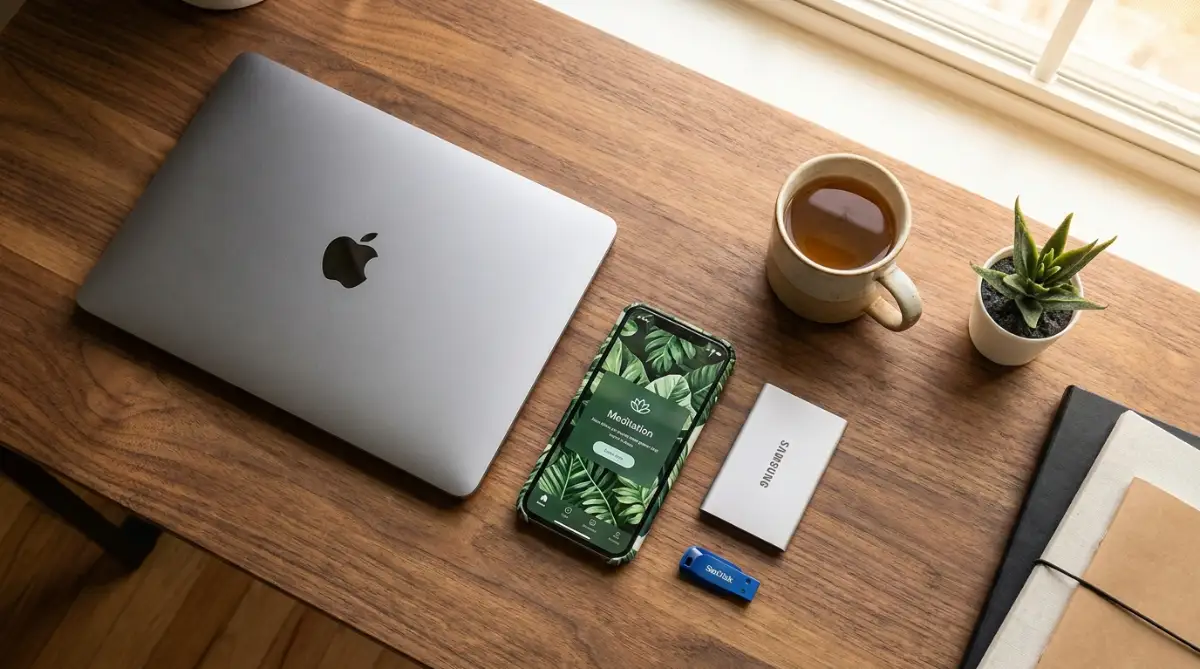
Always plug a completely separate, healthy USB thumb drive or external hard drive into your computer and save your rescued files there.
DO's and DON'Ts For Safe File Recovery:
- DO use a secondary computer to download and install your recovery software.
- DO NOT ever open a hard drive's physical metal casing outside of a certified clean room laboratory.
- DO be incredibly patient, as a deep sector scan on a 1TB hard drive can easily take over twelve hours.
- DO NOT unplug the USB cable during an active scan, as sudden power loss causes instant data corruption.
If your computer is struggling to maintain a connection during a long scan, you must fix your hardware setup first. Just like avoiding dangerous morning routine mistakes that secretly destroy your daily productivity fixes your human energy levels, keeping your USB ports clean fixes data transfer drops.
Common Questions About Hard Drive Data Recovery
Can I recover files after I already emptied the Windows Recycle Bin?
Yes, you absolutely can. Emptying the recycle bin does not physically destroy the files; it simply tells the operating system to cross their names off the master index. As long as you have not downloaded new movies or games that overwrote that specific space, recovery software can easily find them.
Why does the recovery software find files with weird, random names instead of my original file names?
When the master file table gets corrupted, the computer loses the specific names and folder structures you created. The recovery software can only see the raw file type (like a .jpg or .docx) and assigns it a random number, meaning you will have to manually open and sort the files after rescuing them.
Is it possible to recover data from a hard drive that was dropped in a swimming pool?
If a traditional hard drive suffers heavy water damage, you must never plug it in or try to dry it out with rice or a hairdryer. You must seal it in a plastic bag and send it immediately to a professional laboratory, as turning on a wet drive will instantly short-circuit the internal motherboard and permanently fry the memory chips.
How much does professional data recovery actually cost if software fails?
If your drive suffers a severe mechanical failure (like clicking or grinding), professional clean room services typically start around $500 and can easily exceed $2,000 depending on how much manual labor is required to rebuild the tiny robotic reading arm.
Your Action Plan for Digital Resurrection
Navigating the terrifying world of hard drive corruption does not have to be an overwhelming or panicky experience. You now hold the exact same strategic knowledge that professional IT support technicians use to rescue corporate servers every single day.
By taking a few short minutes to understand logical failures, isolate the broken drive, and use read-only software, you completely remove the fear of permanent data loss. You are no longer crossing your fingers and hoping Windows magically fixes the problem.
Instead, you are confidently commanding your own data rescue mission like a seasoned technical professional. This simple shift in your digital routine gives you incredible power over your entire technology future.
Your Data Rescue Checklist for Today:
- Quarantine the Drive: Unplug your corrupted hard drive from the wall immediately to stop background processes from overwriting your files.
- Prepare the Lifeboat: Plug a brand new, completely empty external hard drive into your computer to act as the safe destination for your rescued files.
- Download the Software: Install a reputable data recovery program like Disk Drill or Recuva directly onto your computer's main C: drive, never on the broken drive.
- Run the Deep Scan: Start the software, select the corrupted drive, and walk away from your desk for several hours to let the computer do the heavy lifting safely.
Your personal photographs and professional documents are incredibly valuable pieces of your life history. Do not let a sudden hardware glitch or a moment of panic force you into making irreversible technical mistakes.
Read your software prompts slowly, double-check your saving destinations carefully, and take complete, fearless control of your digital resurrection starting right now.
Disclaimer: The information provided in this article is for educational and general informational purposes only and does not constitute professional technical support, forensic data recovery, or hardware repair advice. Hard drive architectures, file systems, and corruption severity vary heavily by brand, manufacturer, and specific physical damage. Always consult with a certified data recovery specialist or a professional IT laboratory if your hard drive is making loud clicking noises, as running software on a mechanically failing drive can cause permanent, unrecoverable data loss.