
Why Is My Computer Fan So Loud? (And How to Fix It Fast)
There is nothing more nerve-wracking than having your computer fan suddenly rev like a roaring jet engine while you are doing nothing more than browsing a simple webpage. High fan speeds mean your processor is fighting severe heat, and ignoring that noise is the fastest way to permanently bake your motherboard. In this guide, I will show you how to identify the real cause behind loud fans, how to safely clean out packed dust vents without frying components, and how simple software settings can instantly return your workspace to total silence.
📌 Quick Checklist to Silence a Roaring Computer Fan:
-
Never use your laptop on a bed: Soft blankets swallow rubber feet and seal off bottom intake vents, suffocating your processor instantly.
-
Clean vents every three months: Thick dust blankets trap heat inside the copper heatsink, forcing fans to spin at 100% capacity.
-
Thermal paste dries out: If your computer is more than three years old, dried-up thermal compound cannot transfer heat away from the chip.
-
Never use a household vacuum: Vacuums generate static electricity and spin fans way too fast, sending dangerous electrical spikes backward into your motherboard.
Decoding the Inner Workings of a Cooling System
To actually solve this noisy problem, we have to look past the plastic casing and understand how computers manage internal temperatures. Your computer's processor (CPU) and graphics chip (GPU) are absolute powerhouses packed onto tiny pieces of silicon.
When these chips process data, they generate an intense amount of electrical heat. If that heat has nowhere to go, the microscopic circuits will literally fry themselves into a permanent piece of useless metal within seconds.
To prevent this fiery disaster, engineers install a metal block called a heatsink directly on top of the hot chip. They attach a tiny, spinning electric fan right next to it to blow the trapped heat out through the side vents of the computer chassis.
Under normal circumstances, this system works like a well-oiled machine. The computer measures the temperature of the processor in real-time.
If the chip is cool, the fan spins slowly and quietly. If the chip gets hot, the motherboard tells the fan to spin faster to push more air through the system.
When your fan sounds like a roaring jet engine during basic tasks, it is telling you one very clear story: the internal temperature is dangerously high, and the system is panicking. Let us break down the specific reasons your computer is trapped inside a constant heatwave.
The Silent Blanket of Household Dust
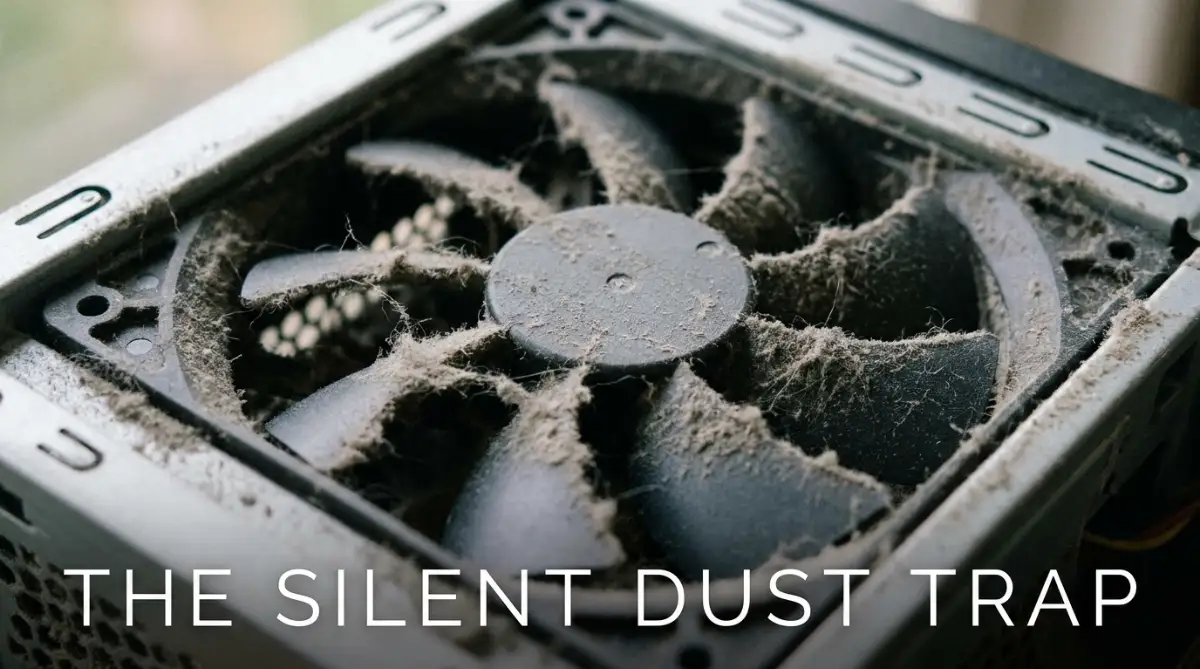
Let us tackle the most common physical culprit first: dust bunnies. Over months and years of normal daily use, your computer acts like a tiny, aggressive vacuum cleaner.
As the cooling fan pulls air in through the side vents to cool the metal heatsink, it also pulls in millions of microscopic floating particles.
These dust particles get trapped inside the tight metal fins of the heatsink. Day after day, week after week, this dust packs together tightly, forming a thick, gray felt-like blanket across the airflow path.
When this wooly blanket blocks the vents, the fresh air can no longer reach the hot metal. The processor temperature spikes instantly.
Your motherboard panics and screams at the fan to spin at one hundred percent capacity. But because the dust blanket is blocking the exit, blowing more air does nothing.
The fan just screams louder and louder, trapped in a desperate, losing battle against a wall of pocket lint and pet hair.
🎧 The Fan Sound Decoder: What That Noise Actually Means
My Rule of Thumb: If the noise sounds like smooth rushing air, your problem is 90% thermal and dust-related. If the noise sounds like physical scraping, your problem is 100% mechanical bearing failure.
I once opened up a client's desktop computer that had been running loud for a year, and I pulled a solid wall of cat hair out of the CPU fan that looked like a tiny mouse pelt. Once I cleaned it out, the computer went dead silent.
🎬 Official Tech Walkthrough: Lower Fan Noise in Windows Settings
If you want an immediate software fix before opening up your computer chassis, watch this step-by-step guide directly from the engineers at HP Support. They show you how to tweak hidden Windows power plan settings and system cooling policies to quiet aggressive fan spikes in under three minutes:
Now that your power settings are dialed in, let us examine the silent chemical breakdown happening under your heatsink: dried-out thermal paste.
The Drying Out of Thermal Paste
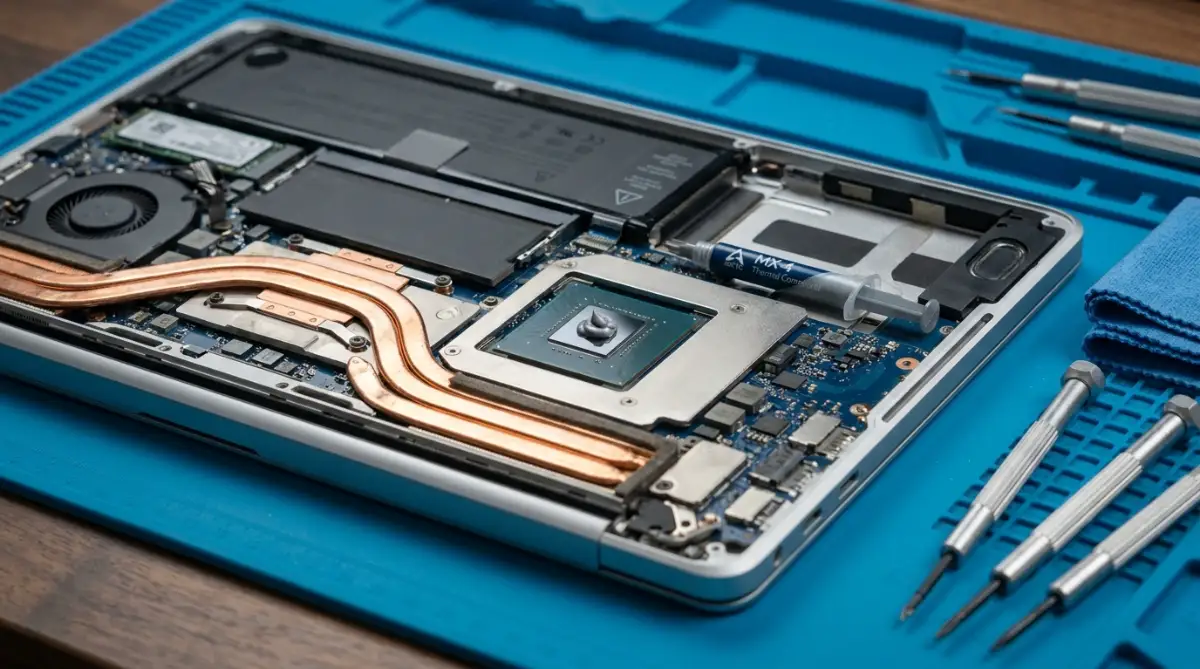
There is another invisible, highly technical reason your computer might be screaming even if the outside looks completely clean. Between your hot processor chip and the metal cooling heatsink, manufacturers apply a special gray substance called thermal paste.
This paste is a heat-conducting compound designed to fill in the microscopic air gaps between the two metal surfaces, ensuring heat transfers smoothly away from the chip.
However, thermal paste is not permanent. Because it is subjected to constant heating and cooling cycles day after day, it slowly dries out over the years.
Eventually, that soft paste turns into a hard, cracked, chalky crust. When this happens, it stops transferring heat efficiently.
The processor gets burning hot, even when you are just opening a text document, because the heat cannot jump across the dried-up gap into the heatsink. The metal cooling block feels surprisingly cool to the touch, while the chip itself is melting inside.
The system reads the extreme chip temperature and commands the fan to scream at maximum speed to compensate for the bad thermal contact. Replacing this dried-up paste requires taking the computer apart and applying a fresh pea-sized drop, which instantly drops temperatures by twenty degrees.
Runaway Background Processes
Sometimes your computer cooling system is physically clean, and your thermal paste is totally fine, but the software is working the processor into the ground. When you open your task manager, you might be shocked to discover twenty hidden applications running silently in the background.
Web browsers with dozens of suspended tabs, aggressive anti-virus scans, cloud storage synchronization tools, and broken update scripts can trap your CPU at one hundred percent capacity.
Your computer treats typing a simple email the exact same way it treats rendering a 3D game if the background processes are choking the system resources.
The processor works overtime, generating massive heat spikes, which forces the fan to roar to life. Taking control of your digital startup programs and cleaning up your software is just as important as dusting the hardware.
If your phone or tablet is also running sluggishly because of hidden digital clutter, you might need to understand how to speed up your phone with simple steps to clear app cache on android to keep your devices running cool and fast.
The Blocked Airflow Trap
Where do you usually use your laptop? If your answer is "sitting on my plush living room couch," "lying down in bed," or "resting on my thick woolen lap blanket," you have found the primary source of your noise problem.
Laptops are specifically engineered with intake and exhaust vents placed carefully along the bottom and back edges of the plastic chassis.
When you place a laptop on a soft, fluffy surface like a bedspread or a couch cushion, that soft fabric acts like a moldable sponge. It pushes upward, completely swallowing the rubber feet of the laptop and sealing the intake vents shut.
You are literally suffocating your computer.
With zero fresh air entering the bottom vents, the internal heat gets trapped instantly. The fans spin up to maximum velocity, desperately trying to suck air through a wall of blankets, but they achieve nothing.
Always use your laptop on a hard, flat wooden desk or a specialized metal cooling stand that elevates the chassis. Giving those bottom vents an inch of clearance changes everything.
Failing Fan Bearings and Physical Obstruction
Sometimes the noise is not just rushing air; it is a mechanical failure. Inside your computer fan, there is a tiny electric motor with microscopic metal or ceramic bearings that allow the blades to spin smoothly at thousands of rotations per minute.
Over a long period of time, these bearings can wear down, dry out of lubrication, or get slightly bent from a physical drop or bump.
When a bearing fails, the fan blades wobble slightly on their axis. Instead of spinning in a clean, balanced circle, the plastic blades start vibrating and scraping against the inner plastic housing.
This creates an awful rattling, buzzing, or grinding noise that sounds like a lawnmower engine inside your laptop. If your fan sounds physically broken or clicks rhythmically, no amount of software updates or dust cleaning will save it.
You have to physically unscrew the back of the machine and swap out the cheap fan assembly for a brand-new replacement part.
Power Plan Misconfigurations
Your computer's operating system features advanced power management profiles that dictate how aggressively the processor uses electricity. If your power plan is accidentally locked onto "High Performance" mode all day long, the computer constantly feeds maximum voltage to the processor.
This means your CPU runs at peak clock speed even when you are just staring at a blank desktop screen.
When maximum voltage is constantly applied, the chip generates continuous, unnecessary heat. The fans respond by ramping up to cool down a chip that doesn't even need to be running fast.