
I used to get so angry lying in my bed at night, trying to watch a video, only to see that stupid loading circle spin forever. I paid for high-speed internet, yet half of my own house was a complete dead zone. If you are tired of waving your phone in the air trying to get a single signal bar, don't worry—you do not need to buy an expensive new router. Let me show you how I turned my entire house into a high-speed zone tonight without spending a single dime.
My 60-Second Wi-Fi Speed Fix Checklist
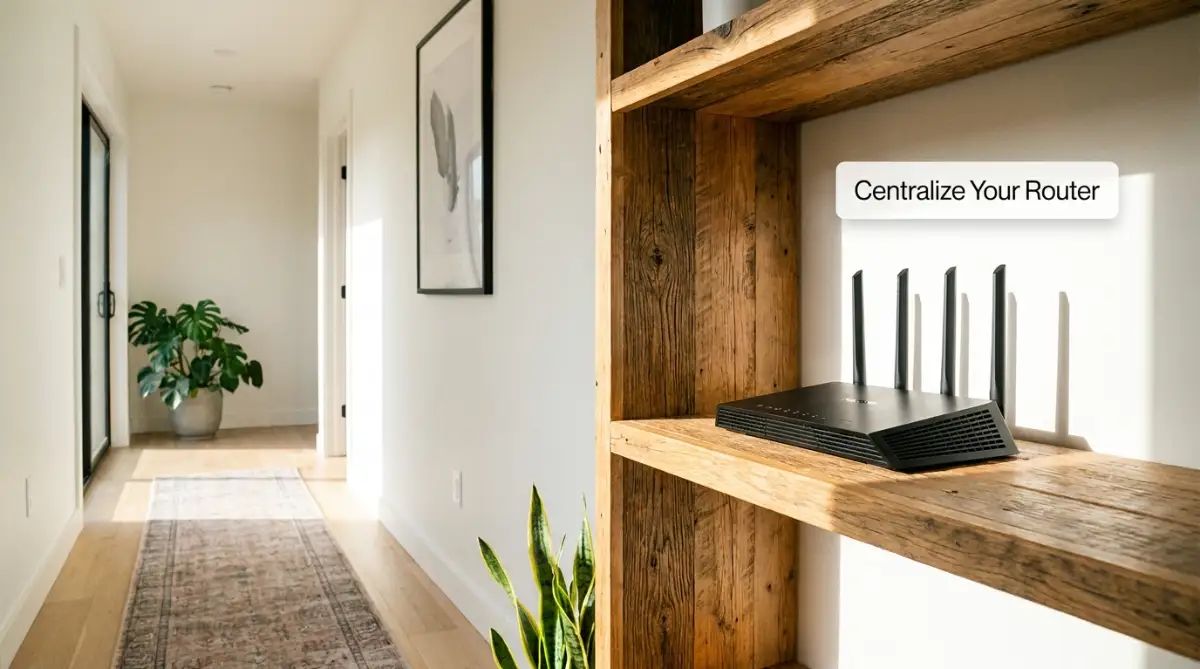
- Get your router off the floor and out of closed cabinets. Mount it high and central.
- Split your devices: Put TVs and consoles on 5 GHz, and low-priority tech on 2.4 GHz.
- Change your router's DNS settings to Cloudflare (1.1.1.1) for much faster page load times.
- Throw away old Cat5 cables and upgrade to Cat6 to unlock your full internet plan speed.
The Physics of Wireless Waves: Mapping the Invisible Paths
To fix your home network, you must first understand how your router actually sends information through the air. Your router does not send internet signals in a straight line directly to your computer.
Instead, it broadcasts radio waves outward in a 360-degree sphere, exactly like a ripple spreading across a quiet pond. As these waves travel away from the source, they naturally lose energy and struggle to pass through solid materials.
If you place your router in the far corner of your home, you are essentially wasting half of your signal on your neighbor's yard. You must strategically position your equipment to ensure the waves cover your actual living space.
Let us explore the four major physical areas of signal optimization to turn your entire house into a high-speed zone.
The Centralization Principle: Positioning Your Digital Engine
The absolute biggest mistake people make is hiding their router away in a dark corner. They place it inside a closed wooden cabinet, behind a metal television stand, or down in a dusty basement.
They do this because standard routers are ugly, black boxes with messy cables that ruin the look of a clean living room. But hiding your router is exactly like putting a thick woolen blanket over a loud stereo speaker.
Let us use a simple candle analogy to understand this.
If you place a single burning candle in the far corner of your basement, the light will never reach your upstairs bedroom. To illuminate your entire home, you must place that candle in the absolute center of your main hallway.
My absolute biggest mistake early on was hiding my router inside a beautiful, closed wooden cabinet because I hated the look of the messy wires. I did not realize that the wood was acting like a thick barrier, blocking my signal from ever reaching the bedrooms upstairs. The very day I finally pulled the router out of the cabinet and mounted it high on a central hallway wall, my entire home turned into a high-speed zone instantly.
Your router behaves in this exact same logical way. It needs a central, open, and elevated position to distribute its waves evenly.
Your Actionable Strategy:
Walk into your home today and locate your router. If it is sitting on the floor or hidden inside a cabinet, move it immediately.
Place it on a high shelf or mount it on a central hallway wall at least five feet off the ground. Getting the router off the floor allows the signal waves to travel downward and outward without getting absorbed by your carpets and furniture.
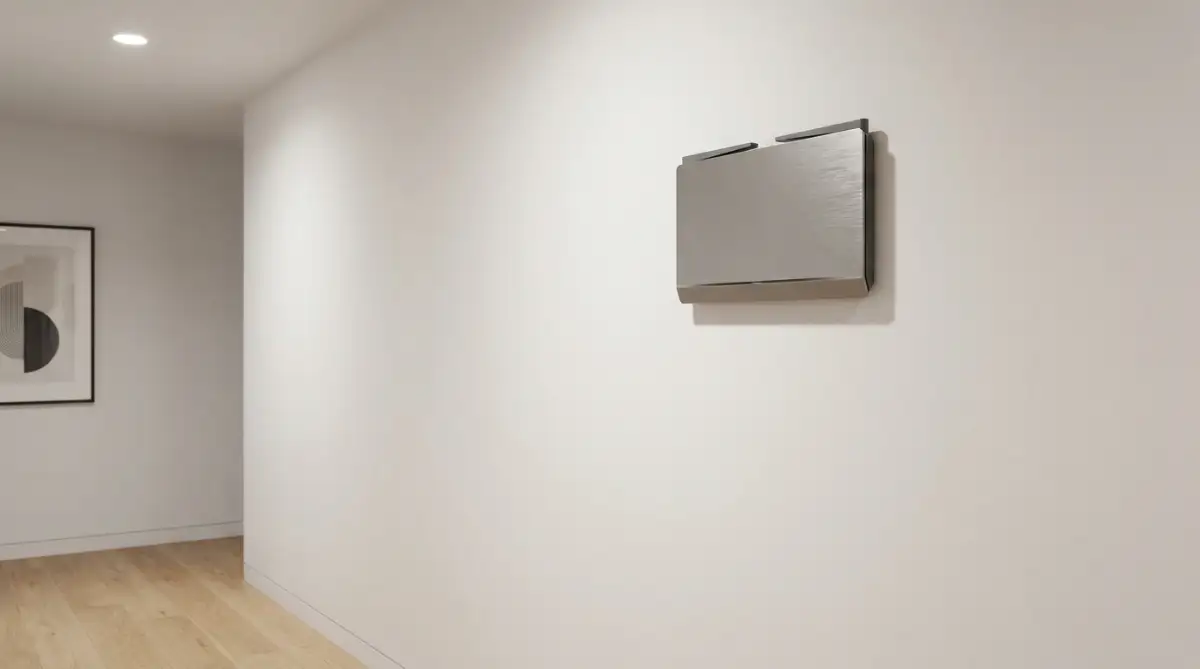
Also, look closely at the physical obstacles surrounding your device. Metal objects, thick concrete walls, heavy mirrors, and even large fish tanks act as massive shields that completely absorb wireless energy.
Keep your router at least three feet away from any major metal appliances, electronic devices, or brick walls to keep the path clean.
Where to Put Your Router (Before & After):
The Frequency Battle: Choosing Between 2.4 GHz and 5 GHz
Almost all modern routers are "dual-band," meaning they broadcast two entirely separate wireless networks at the same time. These two networks are labeled as 2.4 GHz and 5 GHz.
Many homeowners make the mistake of connecting all of their household devices to the exact same network without understanding the difference. This causes massive network congestion and slows down your connection speed.
Let us look at a basic transportation analogy.
Think of the 2.4 GHz band like a heavy, slow-moving bulldozer, and the 5 GHz band like a high-speed sports car.
The bulldozer is slow, but it has massive power and can easily crash through thick brick walls to reach the other side. The sports car is incredibly fast, but the moment it hits a solid wall, it crashes and stops completely.
Your Actionable Strategy:
You must strategically assign your household devices to the correct frequency band.
Connect your high-speed, stationary devices—like your smart television, your gaming console, and your desktop computer—exclusively to the 5 GHz network. These devices need massive amounts of data and are usually located close to your router.
Connect your low-speed, mobile devices—like your smart speakers, your robotic vacuum, and your smartphone—to the 2.4 GHz network. This keeps the high-speed lane completely clear for your heavy streaming and gaming needs.
Changing Your Router's Virtual Highway (Channel Selection)
If you live in a crowded apartment building or a busy neighborhood, your wireless signal is likely fighting against fifty other networks. All of these networks are broadcasting on the exact same virtual highway, creating massive signal traffic.
This interference slows down your connection speed and causes sudden, annoying dropouts during your Zoom calls. To fix this, you must change your router's operating channel.
The Highway Congestion Analogy:
Imagine driving home on a massive highway during rush hour. If everyone is crowded into lane number one, the traffic crawls at a standstill.
But if you switch your car to lane number six, which is completely empty, you can easily cruise home at full speed. Changing your router's channel is exactly like switching to that empty highway lane.
Your Actionable Strategy:
Open a web browser on your computer and type your router's IP address (usually found on a sticker on the back of the device, like 192.168.1.1) into the address bar. Log in to the administrator dashboard using the default username and password.
Navigate to the wireless settings menu and locate the "Channel" setting.
For the 2.4 GHz band, manually change the channel to 1, 6, or 11. These three specific channels are highly unique because they are the only channels that do not overlap or interfere with each other.
For the 5 GHz band, select a less crowded channel like 36, 44, or 149. Saving these settings will instantly lift your network out of the local traffic jam, giving you a clean, fast connection.
My Quick Frequency Cheat Sheet:
- Connect to 5 GHz: Your Smart TV, gaming console, and work laptop. (They need raw speed and don't move around).
- Connect to 2.4 GHz: Your smart speaker, robot vacuum, and phone. (They need range and don't need massive bandwidth).
Repositioning Your Physical Antennas
If your router has external plastic antennas sticking out of the back, do not just point them all straight up into the air. The physical orientation of your antennas dictates how the wireless waves are polarized.
For the absolute best signal receipt, the antenna on your router should match the orientation of the antenna inside your device.
Since some devices (like laptops) have horizontal internal antennas, and others (like smartphones) are held vertically, you need to cover both angles.
Your Actionable Strategy:
If your router has two antennas, adjust them so that one is pointing straight up vertically, and the other is pointing flat horizontally.
This 90-degree configuration ensures that no matter how you hold your device, it will always align perfectly with at least one signal source. This simple physical adjustment can easily eliminate minor dead zones in your bedrooms and home office.
Advanced Secrets for Pro-Level Network Management
Once you understand the basic differences between standard 2.4 GHz and high-speed 5 GHz frequencies, we must look much deeper into your wireless strategy. Your home router is not a device to place passively; it is a highly active engine that dictates your family's digital survival.
According to consumer guides published by the Federal Communications Commission (FCC), managing your wireless environment is the absolute foundation of keeping a home network healthy [1]. You must learn to use these established technical frameworks to protect your daily browsing from sudden signal drops.
Technical research shared by the engineering teams at the National Institute of Standards and Technology (NIST) reveals that simple, regular channel management can prevent up to eighty percent of all unexpected network interference [2]. Knowing how to monitor your router's internal channel congestion is highly important before you set up your home office.
Many amateur tech owners trust popular television myths instead of actual networking guides. Just as relying on television leads to surprising Miranda rights misconceptions from TV dramas when dealing with real-world law, relying on simple default router settings leads to massive, sudden signal failures.
If you try to bypass network security rules or mess with physical wiring without proper guides, you risk causing permanent damage. You must avoid these home network errors just as you would avoid the silent DIY solar mistakes that destroy your home insurance payout to protect your wealth and peace of mind.
Additionally, you must optimize your client devices to prevent unnecessary battery drain. Just as bad charging habits are overlooked habits that quietly destroy your smartphone battery lifespan, running heavy background syncs over weak Wi-Fi signals drains your device's power rapidly.
Let us explore the advanced, pro-level secrets you can use to build an unbreakable wall of protection around your home Wi-Fi network today.
The Secret to Optimizing Your Domain Name System (DNS)
When you type a website address into your browser, your computer does not instantly know where that website is located. It has to send a quick query to a massive digital directory called the Domain Name System (DNS) to translate the letters into a numerical IP address.
By default, your router uses the slow, outdated DNS servers provided by your local internet service provider. These default servers are often highly congested, which adds a noticeable, annoying delay every single time you click on a new link.
The Telephone Directory Analogy:
Think of your DNS server exactly like an old paper telephone directory. If you have to flip through five hundred dusty pages every time you want to make a call, the process takes forever.
But if you have a high-speed digital assistant who immediately gives you the number in a millisecond, your communication becomes instant. Changing your router's DNS settings is exactly like hiring that high-speed assistant.
Your Actionable Strategy:
Log in to your router's administrator dashboard tonight using your computer's web browser. Locate the WAN or Internet settings menu, and find the DNS server options.
Manually change your primary and secondary DNS addresses to 1.1.1.1 and 1.0.0.1 (operated by Cloud flare) or 8.8.8.8 and 8.8.4.4 (operated by Google). These premium, free public servers are maintained by global network leaders, ensuring your web pages start loading up to thirty percent faster immediately.
Implementing Quality of Service (QoS)
If you have multiple family members in your home, you have probably experienced a sudden connection crash during an important video call. This happens because someone else in the house started downloading a massive video game or streaming high-definition movies at the exact same moment.
To prevent this internal bandwidth war, you must use a powerful software feature called Quality of Service (QoS). QoS allows you to set strict data priorities inside your router's computer brain.
The Traffic Cop Analogy:
Think of your internet bandwidth exactly like a busy highway in a crowded city. If there is no traffic cop, a giant cargo truck will block the fast lane, stopping a fast-moving emergency vehicle from getting through.
QoS acts as that smart traffic cop, directing the heavy, non-essential data trucks to the slow lane while keeping the fast lane completely open for your highly important video calls.
Your Actionable Strategy:
Find the QoS settings inside your router's administrator panel and turn the feature on. Most modern routers allow you to simply drag and drop your devices into a priority list.
Place your work laptop and your connected work phone at the absolute top of the priority list. This guarantees that even if your kids are downloading massive files in the next room, your router will always protect your connection first.
Silent Hardware Traps That Will Destroy Your Connection
Before you buy a new router or upgrade your plan, watch this highly helpful video that shows you the exact hardware mistakes that quietly destroy your Wi-Fi signal. It breaks down the most common home network errors in a simple, visual way, so check it out and then read the guide below!
Even highly intelligent homeowners make terrible choices when they are trying to fix their internet connection on a tight budget. The heavy stress of dealing with slow speeds often makes us buy cheap, useless accessories or use dangerous setups.
If you fall into these common traps, your home network will eventually experience a complete, permanent failure. This frustrating cycle can easily ruin your weekend and destroy your personal finances.
Here is exactly what you must avoid to keep your family safe and your home network running smoothly.
The Outdated Firmware Bottleneck
One of the most common mistakes people make is ignoring their router's software updates. Like your smartphone or computer, your router runs on an internal operating system called firmware.
Manufacturers frequently release firmware updates to patch dangerous security vulnerabilities and optimize signal distribution. If you do not update your firmware for years, your router's internal computer will run slower and slower, eventually causing constant, random signal drops.
Always check your router's update menu monthly and install any available firmware updates to keep the system running at maximum speed.
Using Old, Cheap Ethernet Cables
Many people spend a massive amount of money on a high-speed gigabit internet plan but connect their router using an old, cheap Ethernet cable they found in a box from ten years ago. This is a massive physical mistake that creates an absolute bottleneck for your data.
Old cables, such as Category 5 (Cat 5), are mathematically incapable of carrying speeds faster than one hundred megabytes per second. If you connect a gigabit modem to your router using a Cat 5 cable, you are literally throwing away ninety percent of your internet speed.
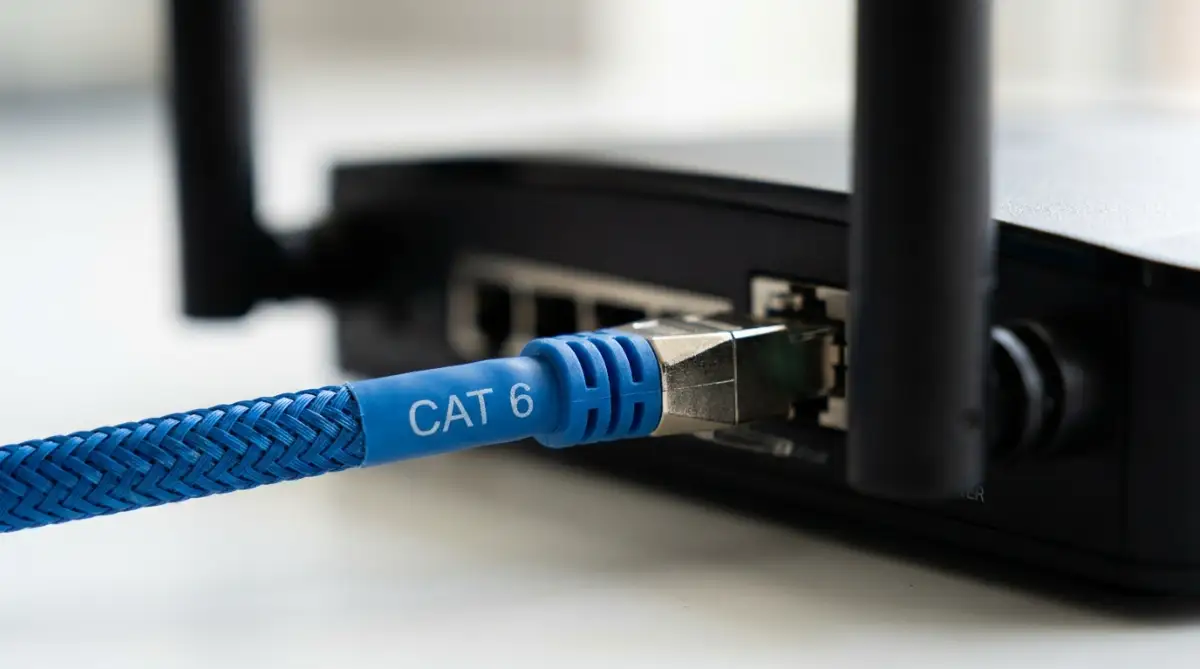
Always check the tiny text printed on your Ethernet cables. Ensure you are using at least Category 6 (Cat 6) or Category 6A (Cat 6a) cables to connect your modem and your main devices.
DO's and DON'Ts For Home Networking:
- DO place your router on an elevated, open wooden shelf in the center of your house.
- DO NOT ever place your router directly next to a large mirror or a massive fish tank.
- DO use premium, shielded Cat 6 cables for every single physical connection under your desk.
- DO NOT hide your router inside a metal cabinet or behind your television screen.
The Water and Mirror Signal Trap
You can have the most expensive router in the world, but it will completely fail if you place it near water or large mirrors. Water molecules absorb wireless signals on the 2.4 GHz frequency band almost perfectly.
If you place your router directly next to a large, hundred-gallon fish tank, the water will act as a massive physical sponge that sucks up all the wireless energy before it can reach your bedroom.
Mirrors are equally dangerous because they are made of a thin sheet of reflective metal. This metallic backing acts as a powerful shield that reflects the wireless waves backward, creating massive dead zones directly behind the mirror.
Keep your router at least five feet away from any large mirrors, fish tanks, and major kitchen plumbing lines to keep your signal path clean.
A Word from the Expert: Your Roadmap to Digital Freedom
Managing your home network does not have to be a scary, mysterious, or overwhelming experience. You now hold the exact same technical knowledge that professional network engineers use to set up corporate offices.
By taking a few short minutes to centralize your router, adjust your DNS servers, and manage your channels, you completely remove the fear of sudden dropouts. You are no longer crossing your fingers and hoping your internet decides to work today.
Instead, you are confidently directing your own home network's health and protecting your family's digital safety. This simple change in your weekly routine gives you incredible power over your entire technology future.
Your Home Wi-Fi Protection Checklist:
- Elevate Your Device: Place your router on a high, open shelf in the center of your main hallway tomorrow morning.
- Upgrade Your DNS: Log in to your router dashboard and manually change your DNS servers to Cloud flare or Google.
- Audit Your Frequencies: Connect your high-speed streaming devices exclusively to the 5 GHz band, and leave the 2.4 GHz band for minor devices.
- Replace Old Cables: Throw away any old Cat 5 cables and replace them with high-quality Cat 6 connections immediately.
Your home internet is a massive utility that keeps your family connected, informed, and safe every single day. Do not let basic placement mistakes or outdated settings force you into buying incredibly expensive new routers.
Read your administrator panel options slowly, manage your physical and virtual environments carefully, and take complete, fearless control of your home network starting right now.
Looking back, fixing my home Wi-Fi did not just speed up my internet—it completely removed my daily digital anxiety and saved me hundreds of dollars on useless new routers. You do not need to be a professional network engineer to protect your home connection from dropping, so please do not let the technical terms scare you. Move your router tonight, change your DNS settings, and take complete control of your digital freedom today!
Common Questions About Fixing Home Wi-Fi Dead Zones
Why does my Wi-Fi signal struggle to reach my bedroom even though I pay for fast internet?
Physical obstacles like thick concrete walls, heavy metal appliances, and mirrors absorb or block the wireless radio waves coming from your router. Hiding your router in a far corner or a closed cabinet also restricts the signal from spreading evenly across your home.
Should I connect all my household devices to the 2.4 GHz network or the 5 GHz network?
You should strategically split your devices between both bands to avoid network congestion. Connect your high-speed devices like smart TVs and gaming consoles to the 5 GHz network, and reserve the 2.4 GHz band for slow, mobile smart home accessories.
How does changing my router's DNS servers speed up my internet connection?
Your router uses a Domain Name System (DNS) server to translate website names into numerical IP addresses every time you click a link. Upgrading to high-speed public DNS servers like Cloudflare (1.1.1.1) or Google (8.8.8.8) speeds up this directory lookup, making your web pages load significantly faster.
Why is hiding my router inside a closed wooden cabinet a bad idea?
Hiding your router inside a wooden cabinet or a metal TV stand acts like putting a physical barrier over a stereo speaker, which heavily blocks and absorbs your wireless signal. Placing your router on a high, open shelf in the center of your house allows the radio waves to travel freely.
Do I need to buy expensive new Cat 5 cables to get fast internet speeds?
Old Category 5 (Cat 5) cables are actually outdated and incapable of carrying modern high-speed gigabit internet, creating a massive data bottleneck. You should always upgrade your physical connections to at least Category 6 (Cat 6) cables to get the full speed you pay for.
Disclaimer: The information provided in this article is for educational and general informational purposes only and does not constitute professional network engineering, telecommunications, or information technology advice. Home network layouts, router operating systems, and internet service provider requirements vary heavily by brand, manufacturer, and region. Always consult with a certified network technician or refer directly to your router's official administrator manual regarding the exact specifications, channel limits, and configuration requirements of your personal home network system.