
Why Bluetooth Headphones Cut Out in Crowds (And How to Fix It)
Nothing ruins a good morning commute faster than your wireless headphones cutting into robotic static the exact second you step onto a crowded train or walk into a packed gym. You paid hundreds of dollars for premium earbuds, but in heavy foot traffic, your audio drops out because thousands of phones, smartwatches, and Wi-Fi networks are all fighting for the exact same radio space. In this guide, I will show you why your own body blocks Bluetooth signals, how to switch to congestion-proof audio settings, and how to keep your music playing smoothly in the busiest crowds.
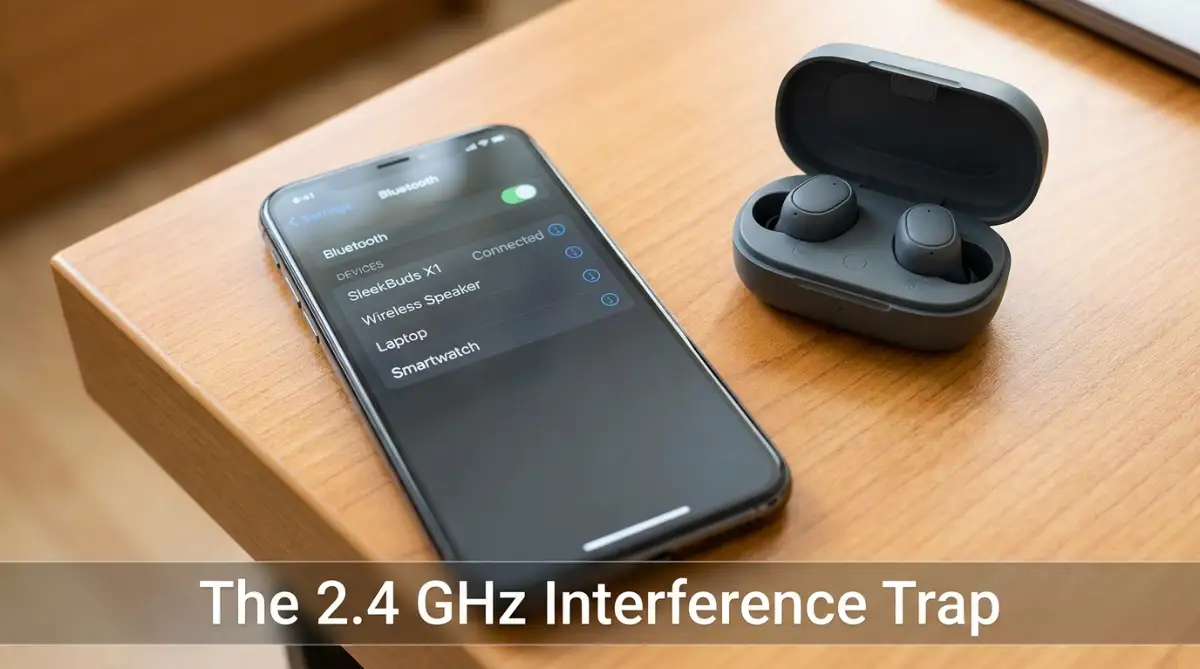
Quick Rules to Stop Bluetooth Cutouts in Crowds:
-
Clear the body barrier: Human tissue absorbs 2.4 GHz frequencies; moving your phone from your back pocket to a higher front pocket instantly restores signal strength.
-
Downgrade your codec in crowds: Heavy high-res codecs like LDAC choke in radio traffic; switch to standard SBC for an unshakeable connection.
-
Unlink extra devices: Disconnect smartwatches or fitness trackers temporarily so your phone's single Bluetooth radio can focus 100% on your audio.
-
Never enter crowds on low battery: When headphones drop below 15%, battery-saver modes throttle radio antenna output, making dropouts inevitable.
Decoding the Invisible Radio Highway
To actually solve this annoying connection problem, you have to completely change how you visualize Bluetooth technology. When you plug a traditional wired headphone into an old-school audio jack, the sound travels down a private, physical copper tunnel.
Nothing in the outside world can interrupt that direct physical wire unless someone physically snips it with a pair of scissors. Bluetooth, however, does not get its own private tunnel.
It shares a crowded public highway regulated under Federal Communications Commission (FCC) radio frequency rules known as the 2.4 GHz radio frequency band. Imagine this band as a massive twelve-lane highway floating invisibly through the air around you.
When you are sitting alone in your living room, you are the only car driving on that entire twelve-lane highway. The road is completely empty, and your audio data travels at maximum speed without hitting any traffic.
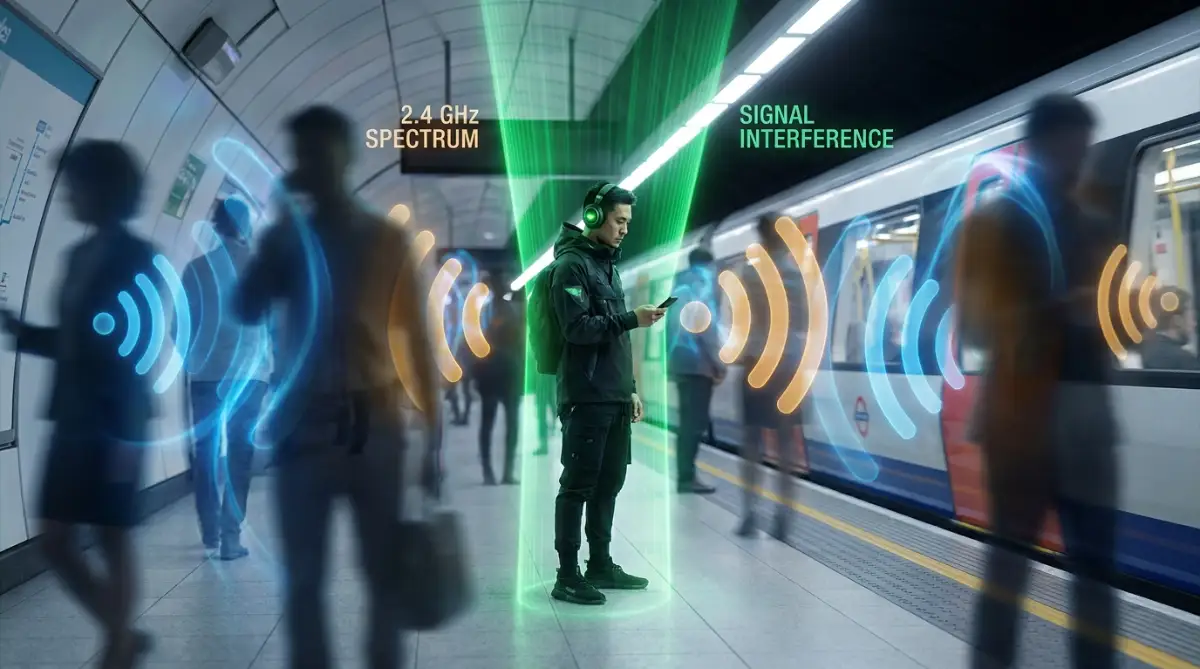
When you walk into a crowded train station, the environment changes instantly.
Every single commuter standing around you has a smartphone in their pocket. Dozens of people are wearing active smartwatches, wireless fitness trackers, and competing headphones.
Suddenly, that empty highway is completely gridlocked with thousands of digital vehicles trying to drive in the exact same lane. This is called signal interference, and it is the absolute enemy of a stable audio stream.
The Problem with Microscopic Antennas
Your smartphone and your headphones are marvels of modern engineering, but they are heavily restricted by their physical size. To fit a Bluetooth receiver inside a tiny earbud, engineers have to use a microscopic antenna.
On top of that, engineers have to limit the electrical power flowing to that antenna so your battery does not die in twenty minutes.
Because the antenna is tiny and the power output is weak, your Bluetooth signal has zero brute strength. It cannot punch its way through a massive wall of competing radio waves.
When your phone tries to send a packet of music data through a crowded room, that packet frequently gets smashed and lost.
Your phone realizes the data never arrived, so it frantically tries to send the exact same packet again. This constant resending of lost data creates that robotic audio stutter. Eventually, the phone gives up and drops the connection entirely to protect its processor.
💻 Quick Fix for PC Users: Stop Windows from Cutting Your Audio
If your wireless headphones or mouse randomly disconnect while paired to your computer, the issue is often a hidden Windows power-saving feature that turns off your Bluetooth radio to save battery. Watch this quick screen walkthrough from MDTechVideos. They show you how to adjust your Bluetooth Support Service settings so Windows never puts your audio stream to sleep mid-song:
Clearing the Physical Blockers
While invisible radio traffic is a massive issue, you also have to consider the physical obstacles standing directly between your phone and your ears. Bluetooth is a short-range signal that deeply dislikes physical density.
The most problematic obstacle in your daily life is actually your own body.
According to IEEE wireless research on signal absorption the human body is mostly water, and water acts like a thick physical barrier that absorbs 2.4 GHz radio frequencies. If you keep your phone deep in your back pocket, and your earbud receiver is in your opposite ear, you have a terrible physical setup.
That weak radio signal has to blast directly through your dense torso to reach your head.
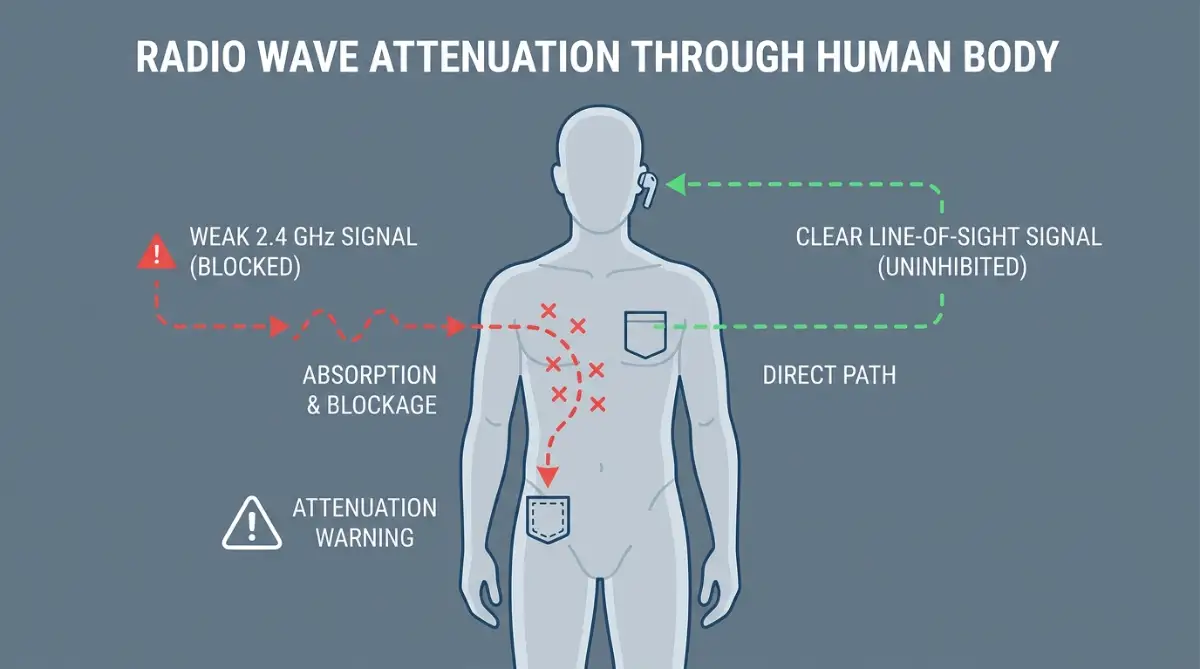
Combining the heavy blocking of your body with the chaotic radio traffic of a crowded room makes a connection drop practically guaranteed. If you experience stuttering at the gym, the fastest fix is to take the phone out of your pocket.
Hold it in your hand or move it to a high jacket pocket on the same side as your primary earbud. Establishing a clean line of sight removes half the stress on your connection instantly.
⚡ The 10-Second Crowd-Survival Checklist (Stop Stuttering Fast)
If your music starts cutting out the moment you step into a busy train station, do these three physical adjustments immediately:
-
1. Move Phone to Chest Level: Take your phone out of your tight jeans back pocket. Water-dense human tissue blocks up to 80% of 2.4 GHz radio strength.
-
2. Match the Primary Earbud Side: Most wireless earbuds have one "master" receiver (usually the right side). Put your phone in the jacket pocket on that same side.
-
3. Turn Off Smartwatch Syncing: Temporarily airplane-mode your watch so your phone's Bluetooth chip stops dividing its limited antenna power between two data streams.
The Network Reset Solution
If you have adjusted your physical phone placement and the connection still drops, your software cache might be heavily corrupted. Over years of use, your smartphone builds up a massive library of past Bluetooth connections.
It tries to remember the digital handshakes for your car stereo, your smart TV, and every speaker you have ever touched. This digital clutter confuses the Bluetooth radio.
To fix this, you need to dive into your system settings and perform a complete network reset. This action wipes out all your saved wireless profiles and gives your phone a completely clean slate.
When you re-pair your headphones to the fresh system, the daily dropouts usually vanish. It is a simple, highly effective way to clear out digital cobwebs.
Updating the Hidden Firmware
We are all used to updating our phone operating systems, but most people completely ignore the software running inside their actual wireless headphones. Modern premium earbuds run their own internal operating system, known as firmware.
When manufacturers discover connection bugs in crowded areas, they write software patches to make the Bluetooth radio more aggressive. They push these fixes out through their official companion apps.
If you never download the app or ignore the update notifications, you are choosing to live with outdated factory software. You must check for firmware updates at least once a month to keep your hardware optimized.
Prioritizing Your Device Bandwidth
In our modern lives, we love connecting everything together at once. You might walk through the city with your phone linked to your earbuds, your smartwatch, and a fitness tracker.
This creates a massive bottleneck on your phone's Bluetooth chip. The single tiny radio inside is desperately trying to stream high-quality music while pulling heart rate data from your wrist every three seconds.
When you enter a crowded area, the overloaded phone processor panics and drops the heaviest data stream, which is your music. If you know you are heading into a heavily congested zone, temporarily disconnect your smartwatch from the Bluetooth menu.
Freeing up that extra bandwidth allows your phone to dedicate one hundred percent of its power strictly to maintaining your audio stream.
Managing Audio Codecs for Stability
Smartphones and headphones follow official Bluetooth Special Interest Group standards using specific compression formulas called codecs to send music through the air. High-end codecs try to send massive amounts of rich audio data, which requires a perfectly clean radio highway.
If you walk into a crowded subway station while using a heavy, high-quality codec, the connection will crash under the weight of the data.
Many modern smartphones allow you to dive into developer settings and manually change your Bluetooth codec to a lighter, more stable setting like SBC. The music might lose a tiny fraction of crispness, but the smaller file size slips through heavy radio traffic much easier, completely preventing the connection from dropping.
🎛️ Codec Showdown: Which Setting Survives Subway Interference?