
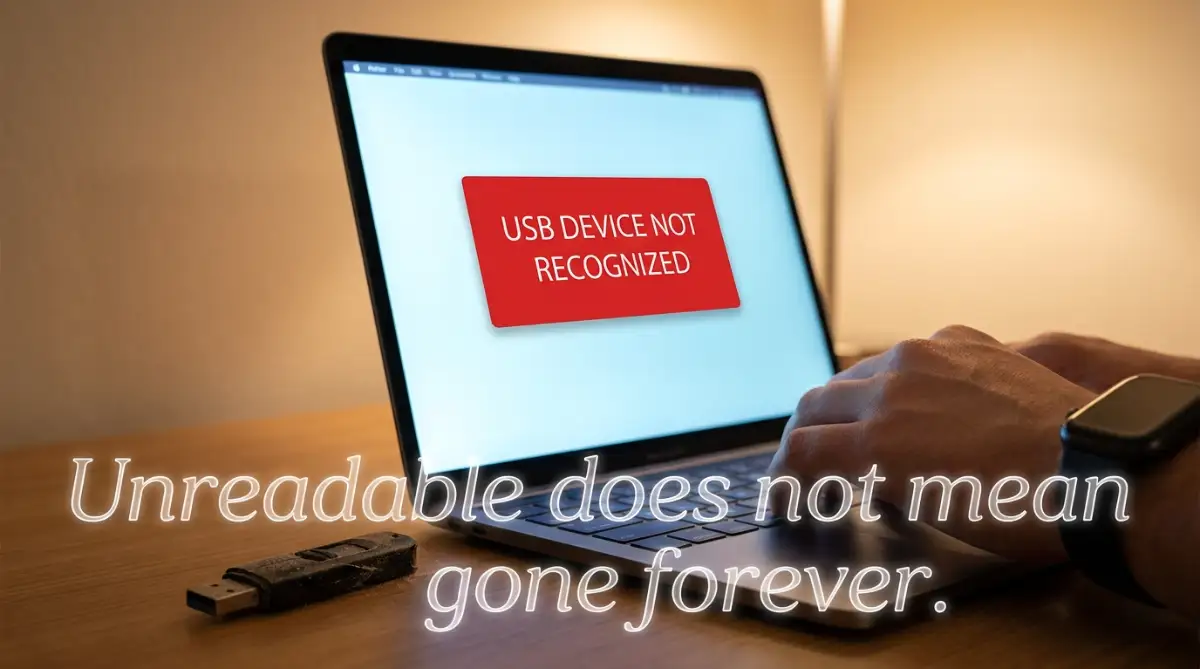
You plug your flash drive into the computer, fully expecting to see your folders pop up. Instead, Windows hits you with a harsh, gray error box: "USB Device Not Recognized." Your stomach instantly drops. I have been in that exact spot—staring at the screen, terrified that months of hard work just vanished into thin air. But before you start panicking or pulling out your credit card for sketchy recovery software, take a deep breath. Your files are not gone yet. I am going to show you exactly how to bypass this annoying glitch and force your computer to read your drive again.
Quick Fix Summary (TL;DR)
- Do not click format: If Windows asks you to format the drive, hit cancel immediately to protect your files.
- Change the physical port: Move the USB stick to a port directly on the back of your computer motherboard for a stronger power connection.
- Use built-in tools first: Try the free CHKDSK command before buying expensive recovery software.
- Clone before you scan: If the drive is dying, always create a digital backup clone before running deep recovery software.
Demystifying the "Device Not Recognized" Error
Before we start running any technical scans, we need to understand why Windows has suddenly decided your drive is an alien object. Your USB drive is essentially a tiny, highly sensitive filing cabinet that communicates with your computer through a set of strict rules.
When those rules get broken, the computer simply stops trying to read the cabinet to protect its own operating system. This is a safety measure, not a permanent death sentence for your files.
Most of the time, the problem is not a physical break inside the USB stick; it is a temporary case of software amnesia. Let's look closely at the actual physical and digital layers of this error.
The Invisible Battle of the USB Port
The very first thing you must check is the physical connection port on your computer. USB ports are constantly exposed to open air, meaning they collect a massive amount of pocket lint, dust, and sticky residue over time.
If there is a thin layer of dirt sitting on the metal contact pins inside the port, the electrical current cannot flow smoothly. The computer will sense that something was plugged in, but the weak signal will trigger the dreaded "Device Not Recognized" error.
Always blow a short, dry burst of air into the port to clear out any hidden debris before trying again.
Additionally, try plugging your drive directly into the back of your desktop computer instead of the front panel. The back ports are soldered directly to the main motherboard, providing a much stronger, steadier stream of electricity to power the drive's memory chips.
Pro Tip: I spent two full days thinking my backup drive was completely broken because I was plugging it into a cheap, unpowered USB hub on my desk. My biggest realization came when I plugged the drive directly into the main port on the back of my computer; the files instantly popped open on my screen. Always connect directly to the main power source to avoid simple signal drops.
Testing the RAW File System Language Barrier
Sometimes, Windows can see the physical drive, but when you click on it, a message pops up demanding that you format the disk before using it.
You must absolutely refuse to click that format button. Formatting a drive permanently erases every single file on the memory chip, making recovery incredibly difficult.
This error happens because your drive's file system has suddenly turned into a RAW format. A file system is simply the language your drive uses to talk to your computer.
If a sudden power drop or an accidental unplugging happens while the drive is active, the language file gets corrupted. Windows can no longer understand the language, so it assumes the drive is blank and demands a fresh format.
A Quick Comparison of USB Recovery Methods
The Power of the Built-In Command Prompt
Before you buy any expensive data recovery programs, you must try the most powerful built-in tool Windows has to offer. It is a completely free utility called CHKDSK (Check Disk), and it is specifically designed to repair broken file system languages.
You do not need to be a software programmer to run this scan. It requires exactly one simple line of text, and the computer does all the heavy work for you.
Running the Repair Scan Safely
First, you must find your unreadable drive's specific letter in your file explorer, even if you cannot open it. Let's assume your USB drive is currently labeled as Drive E.
Go to your Windows start menu, type "Command Prompt," right-click on the application, and select "Run as administrator."
When the black window opens, you type chkdsk E: /f /r and hit enter.
This specific command tells Windows to physically scan every single sector of Drive E, locate any broken file system language, and forcefully repair the connections. The scan might take several minutes to finish depending on the size of your drive.
If the repair is successful, the black window will show a summary of the fixed files, and your drive will instantly appear back in your file explorer.
My Honest Warning: The first time I ran a CHKDSK scan, the black window froze at 11% for over twenty minutes. I almost panicked and closed the window. Do not do that! If you close the prompt while it is actively fixing the file language, you can permanently damage the drive. Go make a cup of coffee and let the system do its job.
Resetting the Amnesic USB Drivers
If the Command Prompt scan tells you it cannot open the drive for direct access, the issue is likely a corrupted communication driver. Windows uses a tiny piece of software called a driver to understand how to read the USB hardware.
If you use your computer daily, these drivers can easily become confused or outdated. You can force Windows to throw away the broken driver and install a fresh one.
Open your Device Manager by right-clicking on your start button and selecting it from the menu. Look at the very bottom of the list for "Universal Serial Bus controllers" and expand the menu.
If you see a yellow warning triangle next to any item, right-click it and select "Uninstall device."
Once the device is uninstalled, simply unplug your USB drive, restart your computer completely, and plug the drive back in. Windows will realize the driver is missing and automatically download a brand new, working version from the internet.
This simple digital refresh is just as important as knowing how to speed up your phone simple steps to clear app cache on android. Keeping your digital pathways clean prevents minor errors from turning into massive, permanent hardware blocks.
Have you ever wondered exactly what a corrupted USB drive looks like on a microscopic level when its partition map breaks? Watch this highly detailed visual breakdown of how data recovery experts repair broken memory chips in a clean-room lab:
The Myth of the Freezer Recovery Method
If you search the internet for how to fix a dead USB drive, you will eventually find a popular guide telling you to wrap your drive in plastic and stick it in the freezer overnight.
This is a highly dangerous myth that will likely destroy your remaining hope of saving your data.
Always keep your devices completely dry and away from extreme temperatures. Protecting your electronics is a daily habit, similar to dangerous morning routine mistakes that secretly destroy your daily productivity. You must handle your tech with care to ensure it survives.
Quick Look: USB Failure Symptoms vs. Reality
Advanced Recovery Tactics: How Tech Experts Force Denied Drives to Speak
When a simple command prompt scan fails to bring your unreadable drive back to life, it is time to move past basic consumer tricks. You do not have to throw the physical drive away or pay hundreds of dollars to a professional lab.
There are advanced, highly technical strategies you can deploy right from your home computer. These techniques are designed to bypass the broken communication pathways of your USB drive and talk directly to the internal flash memory chips.
Let us look closely at the pro-level secrets that data recovery engineers use to pull files from the most stubborn, unreadable devices.
The Magic of Creating a Bit-by-Bit Sector Clone
Every single time you plug a physically failing USB drive into your computer, the internal memory cells experience a massive amount of physical wear and tear. If the drive is slowly dying, running active recovery scans directly on the live USB will quickly burn out the remaining healthy cells.
To prevent this sudden hardware death, you must create a perfect, bit-by-bit digital clone of the entire drive first. You can use free, highly trusted open-source imaging tools like Win32 Disk Imager or DDRescue.
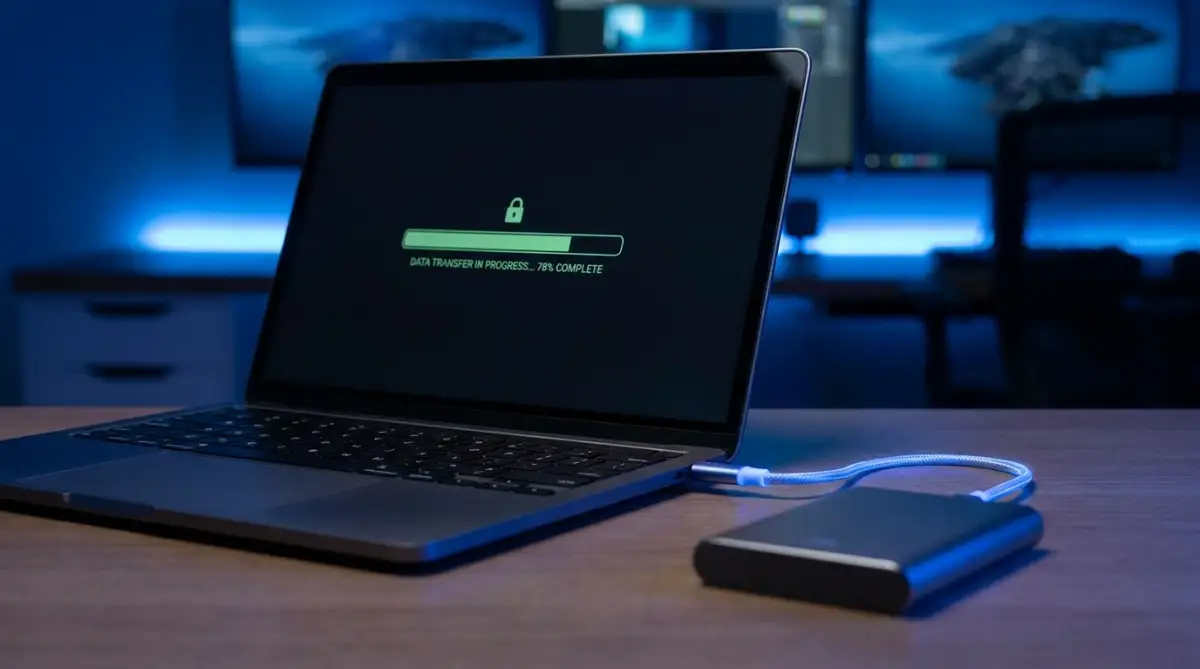
These programs read every single microscopic electronic sector of the drive and save it as a single, massive .img file on your computer's healthy hard drive. Once this digital clone is created, you can unplug your vulnerable USB drive and store it safely in your desk drawer.
You can then run your deep recovery software scans directly on the saved .img file on your computer. This completely removes any risk of physical hardware failure during the long, exhausting recovery process.
Decoding the RAW File System with Specialized Partition Recovery
Sometimes, the operating system can see the physical USB stick, but it shows the drive space as completely unallocated or "RAW." This happens when the partition table, which acts as the master directory map of your drive, gets completely corrupted.
You do not need to format the drive to fix this partition map. Instead, you can use specialized partition recovery software like TestDisk to physically rebuild the boot sector.
These advanced tools scan the hidden headers of your drive, locate where the old partition used to start and end, and write a brand-new master boot record back onto the chip. Once the partition table is successfully repaired, Windows will instantly recognize the original file system without you losing a single folder.
Utilizing Non-Destructive Deep Scan Recovery Software
If the partition table is too heavily damaged to be repaired, your final software weapon is a non-destructive deep scan tool. Programs like Recuva, PhotoRec, or EaseUS are designed to bypass the broken file directory entirely.
They read the raw, unstructured data sitting on the memory chips and identify files by their unique digital signatures. For example, every JPEG image on earth starts with the exact same sequence of digital characters.
The software scans the raw chip for these specific signatures, reconstructs the files piece by piece, and saves them to a completely separate folder on your computer's main hard drive. According to IEEE Computer Society research on data reconstruction algorithms, even when a drive's file directory is completely destroyed, up to ninety percent of the raw data can still be successfully reconstructed using signature matching.
A sudden USB failure mid-project feels like a massive, terrifying disaster, much like when your hard drive crashed how to rescue your lost files before it s too late. But by using these deep signature scans, you can easily pull your important work back from the edge of the digital grave.

Silent Pitfalls That Will Turn Your Temporary USB Glitch Into Permanent File Loss
When a computer suddenly displays a terrifying error message, our natural human instinct is to react instantly with high emotion. We get incredibly desperate to see our files, which makes us make quick, unthinking decisions.
Unfortunately, these panicked decisions are exactly what turn a highly fixable software glitch into a permanent, unrecoverable hardware disaster. Let's look closely at the worst mistakes people make when dealing with unreadable USB drives.
The Catastrophe of Clicking the "Format" Button
This is arguably the most common and destructive mistake made by everyday computer users. You plug your unreadable USB drive into your laptop, and a message instantly pops up reading: "You need to format the disk in drive X: before you can use it."
Because you are in a rush to access your folders, you think, "I will just format it quickly to fix the error, and then I will use a recovery program to get my files back."
Formatting paints over the old file signatures, making it almost impossible for recovery software to reconstruct your original files. Never, ever click that format button if there is a single important document still sitting on the drive.
Running Free Recovery Software Directly On The Corrupted Drive
When people search the internet for help, they often download the first free recovery tool they find. They install the software and immediately instruct it to scan the unreadable USB drive and save the recovered files directly back onto the exact same USB drive.
This is a complete, unmitigated disaster for your data. When the software tries to save a recovered file onto the corrupted USB, it writes new data onto the memory cells.
This new data will physically overwrite the other deleted files that were still waiting to be scanned and saved. You are essentially destroying your remaining files while trying to save them.
Always install your recovery software on your computer's main hard drive, and always save any recovered files to a completely separate, healthy external storage device. Ignoring these basic digital safety guidelines is a massive risk, much like making dangerous password management mistakes that leave your digital identity exposed. You must always protect your data's physical boundaries aggressively.
Subjecting the Drive to Extreme Thermal and Physical Stress
We have all seen people get incredibly angry at their technology when it refuses to work. They will plug the USB drive in, hear the error sound, and violently wiggle the metal connector back and forth inside the laptop port out of pure frustration.
This physical wiggling is incredibly dangerous for the delicate internal circuitry. The four thin gold pins inside the USB plug are soldered directly to a tiny green circuit board.
If you wiggle the connector with force, you will snap those microscopic solder joints, completely cutting off the electrical flow to the memory chips. If your laptop port is running hot, leaving your USB plugged in can also cause severe thermal damage to the silicon memory controllers.
Just like gamers must save your console simple ways to spot and avoid overheating issues, smart tech users must keep their devices cool and clean. If your USB feels hot to the touch, unplug it immediately and let it cool down before trying another recovery scan.
Skipping Regular Off-Site Backups
The biggest mistake of all is treating a cheap, ten-dollar USB flash drive as your primary, long-term storage vault. These tiny portable drives are built using cheap flash memory chips that are highly susceptible to sudden electrical surges and static shocks.
They are meant for temporary file transfers, not permanent archives. If you keep the only copy of your master thesis or your tax documents on a single USB stick in your pocket, you are taking a massive gamble with your future.
Your Personal Blueprint for Total Data Freedom
We have completely shattered the massive myths surrounding unreadable USB drives today. You now clearly understand that keeping your digital files safe is not a matter of luck; it is a systematic process of building strong digital boundaries.
When you take proactive, planned actions to protect your devices, the terrifying power of these hardware failures completely disappears. You can finally handle your files with absolute, unshakeable confidence.
Your 15-Minute Technical Action Plan
Do not wait until your next major project crashes to start thinking about your data safety. You need to take physical action today to protect your digital assets.
Here is exactly what you should do this week to secure your digital perimeter:
- Collect every single USB flash drive in your house and run a quick CHKDSK scan on them to check for bad sectors.
- Discard any old, physically bent, or extremely slow flash drives that show warning signs of failure.
- Download a free sector cloning tool and save it in your utility folder so you are always ready for an emergency.
- Buy a high-quality, durable external hard drive specifically to act as your local, offline backup vault.
Finding yourself stranded without a backup is like trying to connect to the internet while troubleshooting home wi-fi dead zones without buying an expensive router. You are completely cut off from your work when a single, simple backup plan could have saved your entire week.
I spent nearly three weeks in a state of constant panic when my primary work drive went completely silent years ago, convinced I was going to lose my entire portfolio. But once I sat down, learned the exact mechanics of sector cloning, and started maintaining a strict weekly backup routine, my constant data anxiety vanished entirely. I promise you, if you take the time to follow this strict technical blueprint tonight, you will never have to worry about a broken flash drive ever again.
Frequently Asked Questions About USB File Recovery
Can a dangerous computer virus make my USB drive completely unreadable?
Yes, absolutely. Certain types of malicious software are specifically programmed to modify your USB drive's boot sector or change the file system language to RAW to prevent you from accessing your files. If you suspect your drive has been infected, always run a deep, offline security scan using Windows Defender or a reputable antivirus tool before attempting any manual partition repairs.
Is it safe to use free data recovery software I download from the internet?
While many free recovery tools are highly effective, you must be incredibly careful about where you download them. Many malicious websites host fake "recovery" tools that are actually packed with dangerous spyware designed to steal your personal data. Only download software directly from the official, verified websites of reputable companies like Recuva, TestDisk, or PhotoRec.
Why does my USB drive say "write-protected" when I try to delete a file?
When a USB flash drive's internal controller senses that the memory chips are reaching the absolute end of their physical lifespan, it will permanently lock the drive into a "write-protected" mode. This is a built-in safety feature designed to let you read and copy your files off the drive one last time before the memory chips die completely. You must immediately copy all your files to a healthy drive, as you can never unlock a write-protected drive.
Can a professional data recovery lab save files from a physically snapped USB?
Yes, a professional clean-room lab has highly advanced tools that can physically desolder the NAND flash memory chip from the broken circuit board. They then place the raw chip into a specialized reader machine to pull the data directly, bypassing the broken USB connector completely. However, this microscopic hardware repair is incredibly expensive and should only be used for highly valuable data.
What is the absolute safest file system format to use for an external USB drive?
If you primarily use Windows computers, the absolute safest and most stable file system is NTFS, as it features built-in error correcting capabilities. However, if you constantly need to transfer files between Windows laptops and Apple Mac computers, you should format your drive to exFAT, which is highly compatible with both operating systems without causing data corruption.
Why does my USB drive get incredibly hot to the touch during a simple file transfer?
All flash memory drives generate a small amount of physical heat when they are actively reading and writing data. However, if your USB drive becomes painfully hot to the touch within seconds of plugging it in, there is likely a severe physical short circuit inside the metal connector. You must unplug the drive immediately to prevent it from permanently melting the internal memory chips or damaging your computer's USB port.
Disclaimer: The information provided in this article is strictly for educational and informational purposes only. Electronics maintenance and data recovery procedures involve highly delicate physical components and complex operating system commands. Attempting to run deep scans, partition repairs, or command prompt utilities carries a risk of permanent data loss or system instability if done incorrectly. Always consult a certified IT specialist or a professional data recovery lab for personalized assistance regarding critical business or personal data.