Getting a mid-month text from your mobile carrier announcing that you have burned through your entire high-speed data plan is infuriating, especially when you barely streamed a single video. Most users assume phone companies are quietly overcharging them, but the real culprit is almost always your phone's default background settings silently syncing photos, pre-loading feeds, and updating widgets while your screen is locked. In this guide, I will show you how to hunt down the sneaky apps draining your gigabytes, how to turn off automatic cellular leaks, and how to make a modest data plan last all month without breaking a sweat.
📌 What You Must Know to Stop Mobile Data Leaks:
-
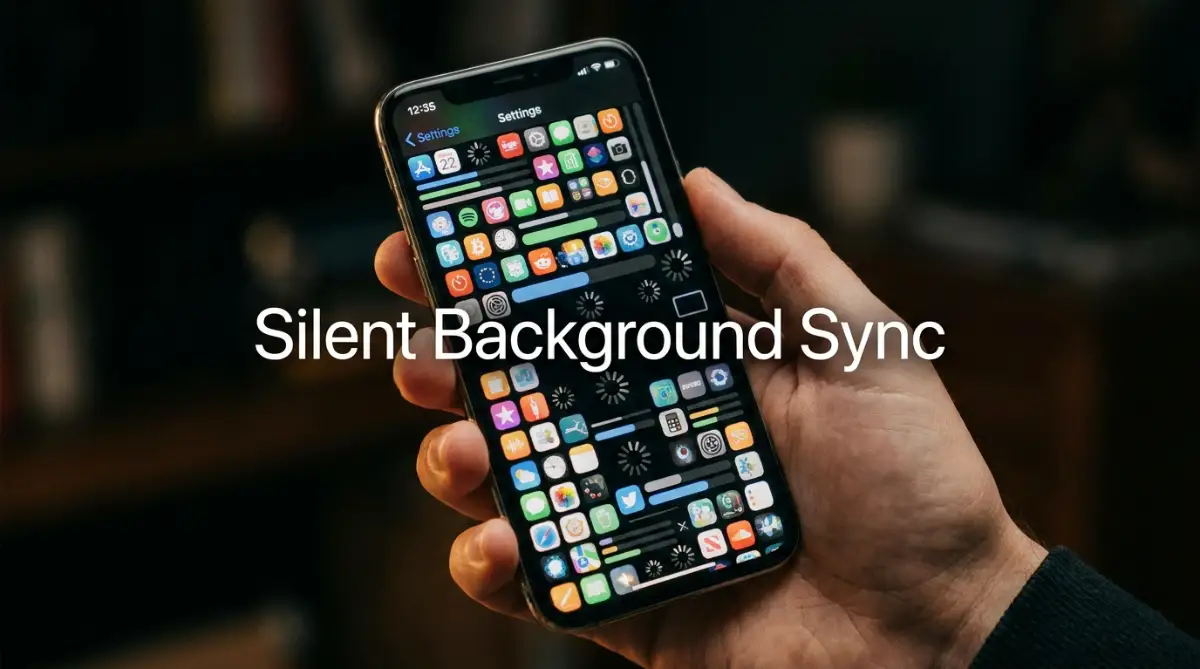
Background refresh burns gigabytes: Apps quietly download radar maps, news updates, and social feeds even when your phone is locked in your pocket.
-
Turn off Wi-Fi Assist immediately: This default feature automatically switches you to cellular data whenever your home Wi-Fi signal stutters, triggering surprise bills.
-
Lock down messaging downloads: Set WhatsApp, iMessage, and Telegram to download photos and videos over Wi-Fi only.
-
Never back up photos over cellular: Toggle off cellular syncing in Google Photos and iCloud so 4K videos only upload when you are connected at home.
Identifying the Invisible Network Leeches
To fix this massive leak, we first need to completely change how we think about modern mobile applications. In the old days, you opened an app, used it, and then closed it to stop its activity entirely. Today, apps are designed to be incredibly aggressive and desperate for your attention at all hours of the day.
When you put your phone in your pocket, dozens of applications are still actively having loud conversations with the internet. They are constantly pulling tiny pieces of information down from the cloud so they are ready the exact second you unlock your screen. This feature is called background app refresh, and it is the absolute biggest offender of silent data consumption.
Think of it like leaving the water running in your kitchen sink while you go to sleep. A tiny drip might not seem like a big deal, but if fifty different apps are dripping all night long, your water bill will explode. This constant refreshing happens so smoothly that you never actually see the loading screens.
The Weather and News Update Trap
Most people absolutely love having a digital widget on their home screen that shows the current temperature or breaking news headlines. It feels incredibly convenient to glance at your screen and know exactly if you need an umbrella today. However, that simple convenience comes with a very heavy, hidden price tag.
For that weather widget to display accurate information, it has to constantly talk to a radar satellite using your cellular network. If you travel across the city, the app uses your GPS location and pulls down entirely new radar maps every few minutes. The same exact rule applies to news applications that constantly refresh their digital feeds to show you the latest political updates.
I used to have four different sports widgets running simultaneously because I hated missing a game score. I realized those tiny boxes were silently pulling almost a full gigabyte of data every single month just to show me numbers. If you do not actively stare at a widget every hour, you need to delete it from your home screen immediately.
🎬 Cybersecurity Spotlight: Why Background App Leaks Put You at Risk
When mobile apps run silently in the background, they do more than just burn through your paid data allowance—they constantly broadcast your location and usage habits to remote servers. Watch this practical guide from the cybersecurity team at NordVPN. They break down how sneaky background data leaks occur and the immediate steps you should take to protect your device:
Now that you have seen the privacy risks of silent network leaks, let us look at the next massive data hog sitting quietly on your phone: messaging apps.
The Automatic Media Download Disaster
Messaging apps like WhatsApp, iMessage, and Telegram are heavily responsible for destroying your monthly data cap. When a friend sends you a funny three-minute video of their dog, your phone usually downloads it immediately. The app does this so the video plays instantly the moment you finally click the chat bubble.
Now, multiply that single video by five active group chats filled with friends sending memes, voice notes, and high-resolution pictures all day long. Your phone is quietly pulling massive, heavy files from the cellular network while it sits silently on your desk. You might not even open the group chat for three days, but you have already paid the data cost for everything sent.
You must immediately dive into the settings menu of every single messaging application you use. Look for the specific section labeled "Storage and Data" or "Media Auto-Download." You need to change the setting so that videos and pictures only download automatically when you are connected to a safe Wi-Fi network.
The Hidden Cloud Backup Betrayal
Your smartphone takes incredibly beautiful, high-resolution photographs that take up a massive amount of digital space. Companies like Google and Apple want to protect your memories, so they automatically back up these photos to their cloud servers. This is a fantastic safety feature, but it becomes a massive financial threat if it happens over a cellular connection.
Imagine taking fifty pictures at a weekend wedding while you are far away from a Wi-Fi connection. If your phone decides to immediately upload those heavy image files to the cloud, it will obliterate your data plan in under an hour. The phone does not care that you only have ten percent of your monthly data limit remaining.
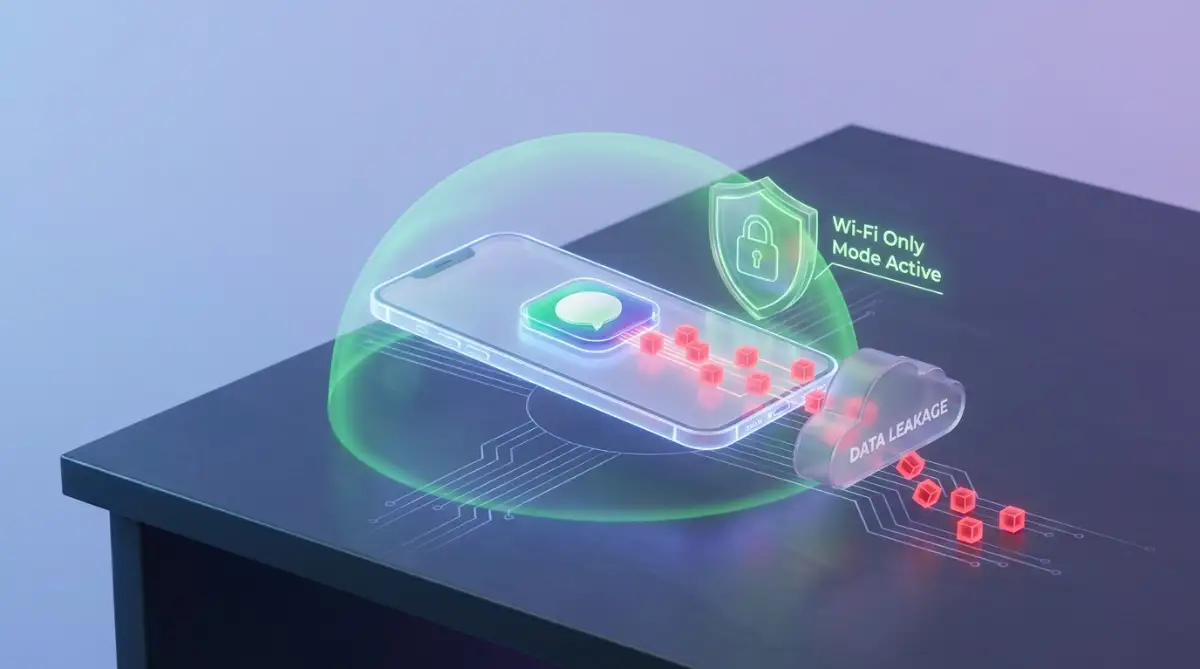
You have to explicitly tell your cloud storage apps exactly when they are allowed to upload your heavy files. Go into your Google Photos or iCloud settings and completely disable the "Use Cellular Data for Backup" option. This forces the phone to patiently wait until you arrive home and connect to your unlimited home internet before uploading anything.
The Social Media Pre-Loading Trick
Have you ever wondered why videos on Instagram or TikTok start playing instantly as soon as you scroll past them? It feels like magic, but it is actually a highly aggressive, data-hungry engineering trick called pre-loading. The app literally downloads the next five videos in your feed before you even scroll down to see them.
The developers do this because they know that if a video takes three seconds to buffer, you will probably close the app entirely. They would rather waste your cellular data than risk losing your precious screen time. This means you are constantly paying to download videos you might scroll past and never actually watch.
Almost all major social media platforms have a hidden feature buried deep in their menus called "Data Saver" mode. Turning this specific feature on stops the app from aggressively downloading heavy videos before you actually tap on them. It might take an extra half-second for a video to start playing, but it will literally cut your social media data consumption in half.
📊 Silent Data Culprits: The Monthly Burn-Rate Breakdown
My Rule of Thumb: If you have limited cellular data, your cloud backups should never touch your mobile network. A single weekend birthday party or family gathering can upload fifty 4K photos in the background and wipe out your entire monthly plan before dinner!
Unmasking the Wi-Fi Assist Feature
There is a highly controversial setting hidden inside modern smartphones designed to keep your internet connection perfectly smooth. Apple calls it "Wi-Fi Assist," while Android uses different names like "Smart Network Switch." The basic concept is that if your current Wi-Fi connection gets weak, the phone automatically switches over to your cellular data without telling you.
This sounds like a great idea until you realize how often your home Wi-Fi actually fluctuates. You might be sitting in your bedroom streaming a massive 4K movie, assuming you are safely on your home network. If the router signal drops for just one minute, the phone quietly switches to cellular, and you end up streaming that massive movie using your expensive data plan.
I actually got hit with a forty-dollar overage charge because my phone silently switched to cellular while I was downloading a heavy software update in my basement. That single incident completely changed how I manage my network settings. You must find this specific network assist feature in your main settings and turn it off immediately.
-
📱 How to Kill "Wi-Fi Assist" (Step-by-Step Settings Paths)
Stop your phone from secretly switching to expensive cellular data when your home signal stutters:-
For iPhone (iOS): Open Settings → Tap Cellular (or Mobile Data) → Scroll all the way to the very bottom past your apps → Toggle Wi-Fi Assist to OFF.
-
For Android (Samsung / Pixel): Open Settings → Tap Connections → Select Wi-Fi → Tap the three dots (or Intelligent Wi-Fi) → Toggle Switch to mobile data to OFF.
Why It Matters: Disabling this single feature stops your phone from secretly streaming Netflix on your mobile data plan whenever your bedroom Wi-Fi signal drops to two bars.
-
Advanced Tricks to Stop Background Data Bleed
Once you have the basics under control, you need to set up permanent roadblocks so these apps cannot simply turn their tracking features back on after an update. Many people do not realize that every time you update your phone's software, certain factory settings silently revert back to their default state. To maintain absolute control, you must dive into the deepest layers of your cellular menu.
Your first major target should be the location services menu. We discussed weather widgets earlier, but almost every single app on your phone occasionally asks the GPS where you are standing. If fifty apps are tracking your movement across town, your phone is constantly sending tiny packets of data back to those corporate servers.
You need to change the location tracking permission for non-essential apps from "Always" to "While Using." This forces the app to go completely blind and silent the second you put your phone back in your pocket. Setting strict software boundaries is exactly like knowing how to troubleshoot home wi-fi dead zones without buying an expensive router; you just need to position your signals correctly.
Another brilliant trick is taking total control of your podcast and music streaming applications. People often create massive playlists and just assume the songs are saved directly to their phone's internal memory. In reality, the app is quietly streaming those songs over the cellular network every single time you hit play.
You must manually go into your Spotify or Apple Music settings and hit the "Download" button while connected to your home Wi-Fi. This physically saves the audio files to your device, completely eliminating the need for cellular data on your morning commute.