Waking up with a burning, bumpy red rash under your smartwatch sensor makes you feel like throwing a four-hundred-dollar gadget straight into the trash. Most people assume they are suddenly allergic to the silicone strap or nickel casing, but the real culprit is usually trapped sweat, constant haptic vibration, and optical sensors firing non-stop into your skin. In this guide, I will show you how to identify the difference between a real material allergy and sensor burn, which background health settings you must tweak immediately, and how to wear your watch comfortably without peeling skin.
The reality is that you are probably not allergic to the watch materials at all. Most major tech companies use extremely high-grade, hypoallergenic materials specifically designed to prevent medical allergies. Your skin is actually screaming for help because of how the internal software and your physical wearing habits interact. I spent weeks testing every possible solution, and I want to share the exact hidden settings that finally healed my wrist and let me enjoy my watch again.
📌 What You Must Do to Stop Smartwatch Skin Irritation:
-
Tone down sensor frequency: Switch your heart rate scanner from "continuous" to "every 10 minutes" to cut heat exposure and double your battery life.
-
Turn off automatic overnight SpO2: Red and infrared oxygen sensors generate intense localized heat; disable background sleep scans.
-
Switch wrists at night: Give your primary wrist an eight-hour break while you sleep so skin can breathe, dry out, and recover.
-
End workout modes promptly: Leaving exercise modes active keeps high-intensity green LEDs firing at maximum brightness long after you leave the gym.
Changing How the Watch Talks to Your Skin
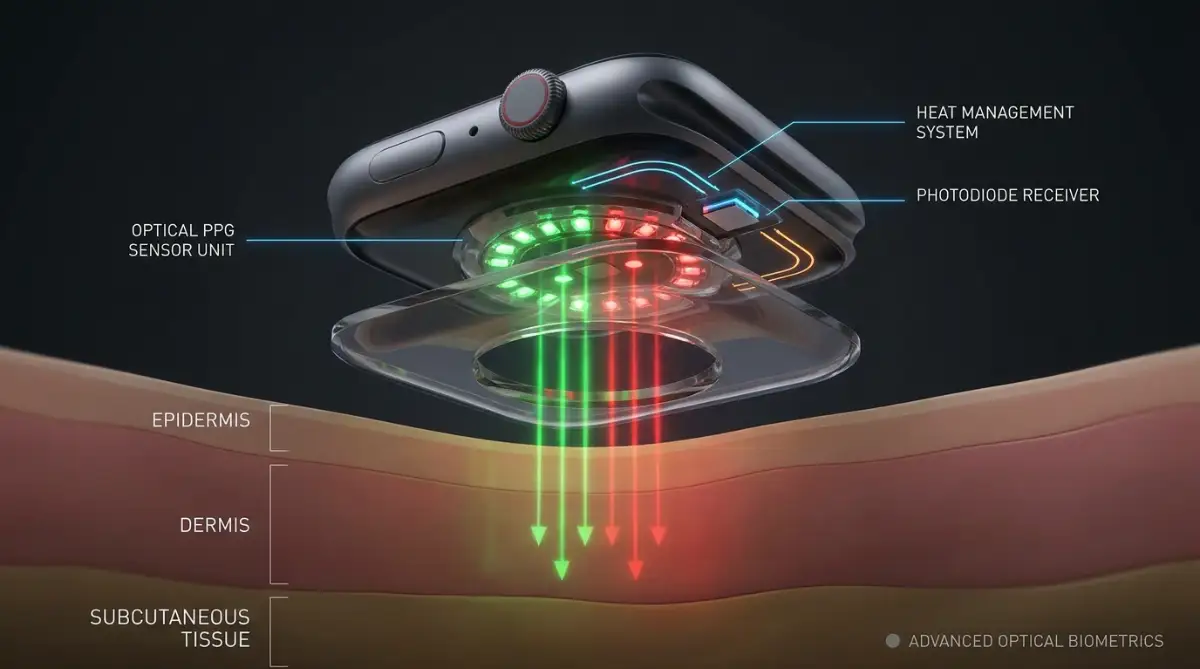
To fix this painful problem, we first have to understand exactly what the back of your smartwatch is actually doing all day long. When you flip the watch over, you will see a small cluster of green or red LED lights flashing repeatedly. These optical sensors are actively pushing light through your skin to read your blood flow and calculate your heart rate.
While these lights are generally completely safe, having them fire aggressively into sensitive skin for twenty-four hours straight can cause severe physical irritation. This condition is often known as "contact dermatitis," and it is triggered by trapped heat, sweat, and constant sensory friction. The absolute best way to stop the rash is to tell the watch to simply calm down.
🔍 Quick Diagnostic: Is It a Metal Allergy or Sensor Friction?
Before you spend fifty dollars on expensive hypoallergenic bands, check where your rash is located:
-
Band-Line Rash (Allergy / Moisture Trap): Redness appears around the sides of your wrist where the silicone touches your skin. Solution: Swap to a breathable nylon weave strap.
-
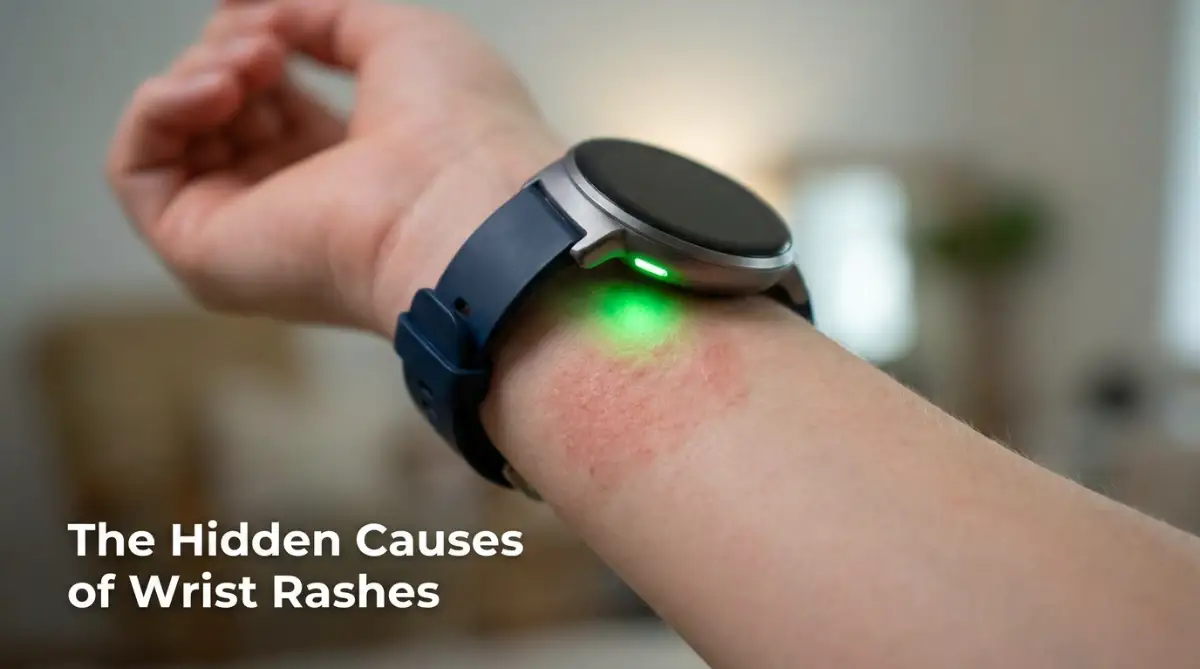
Sensor-Circle Rash (Heat & Friction Burn): Redness forms a small, coin-sized circle directly underneath the glass optical sensor window. Solution: Tone down continuous background heart rate and SpO2 tracking.
My Rule of Thumb: If the rash matches the exact circular shape of the flashing LED cluster, your skin is reacting to thermal energy and trapped acidic sweat, not the metal casing.
Most people have absolutely no idea that you can control exactly how often these intense sensors fire into your arm. The factory settings are designed to gather maximum data, completely ignoring how your physical skin reacts to the constant sensory heat.
Taming the Aggressive Heart Rate Sensor
When you buy a brand-new smartwatch, the heart rate sensor is usually programmed to take a reading every few minutes. If you are an Olympic athlete, you might actually need that massive amount of medical data. But if you are just sitting at an office desk typing emails, this constant flashing is totally unnecessary and actively irritating your skin.
You need to open the companion app on your smartphone and dive deeply into the privacy or health settings menu. Look for the specific toggle that controls the "Continuous Heart Rate" or "Background Heart Rate" monitoring. You do not have to turn the sensor off completely, as that ruins the purpose of having a smartwatch.
Instead, look for an option to change the reading frequency from "continuous" to "every ten minutes" or "manual only." By simply slowing down how often the green lights flash, you instantly reduce the amount of heat and friction hitting your skin. This tiny software tweak also has the incredible bonus effect of doubling your daily battery life.
Managing the Blood Oxygen (SpO2) Scanner
In recent years, almost every premium watch has added a feature that measures your blood oxygen levels. Unlike the green heart rate lights, the SpO2 sensor usually uses a much stronger red or infrared light to penetrate deeper into your tissues. Because this light requires more energy, it generates significantly more physical heat against your wrist.
Many watches are set up to automatically run this intense blood oxygen scan multiple times while you are sleeping. If you wake up with a perfectly round, red circle exactly where the sensor touches your arm, this feature is the likely culprit. The heavy red light is essentially giving your skin a very mild, localized heat rash every single night.
Unless your doctor specifically asked you to monitor your blood oxygen while you sleep, you should disable the background scanning feature immediately. You can always open the specific app on the watch to take a manual reading whenever you feel sick. Turning off the automatic background scans removes the heaviest source of heat from your sensitive skin.
🌡️ Sensor Intensity Guide: What Is Cooking Your Wrist?
Pro Tip: Infrared SpO2 sensors draw significantly more wattage than standard green heart rate monitors. Disabling automatic overnight oxygen scans stops the watch from acting like a warm heating pad against your arm while you sleep.
The Sleep Tracking Heat Trap
Sleep tracking is arguably one of the most popular features of modern wearable technology. However, wearing a tight, electronic block of metal on your wrist under heavy, warm blankets creates a massive biological problem. Your body naturally sweats while you sleep to regulate your core temperature.
When that salty sweat gets trapped tightly underneath the watch sensor for eight straight hours, it becomes highly acidic. The salt and natural body oils mix together, slowly eating away at the top layer of your skin. This creates a perfect environment for terrible bacterial rashes to form overnight.
🎬 Wearable Tech Spotlight: Hidden Smartwatch Settings for Daily Comfort
If you want to customize your device so it stops buzzing, overheating, and irritating your wrist, watch this practical walkthrough from tech reviewer Mike O'Brien. He shares top hidden features, power-saving shortcuts, and everyday wearing tips that keep your smartwatch comfortable all day and night:
Now that you know how to fine-tune your wearable's core features on screen, let us look at the simplest bedtime physical habit that gives your skin room to breathe:
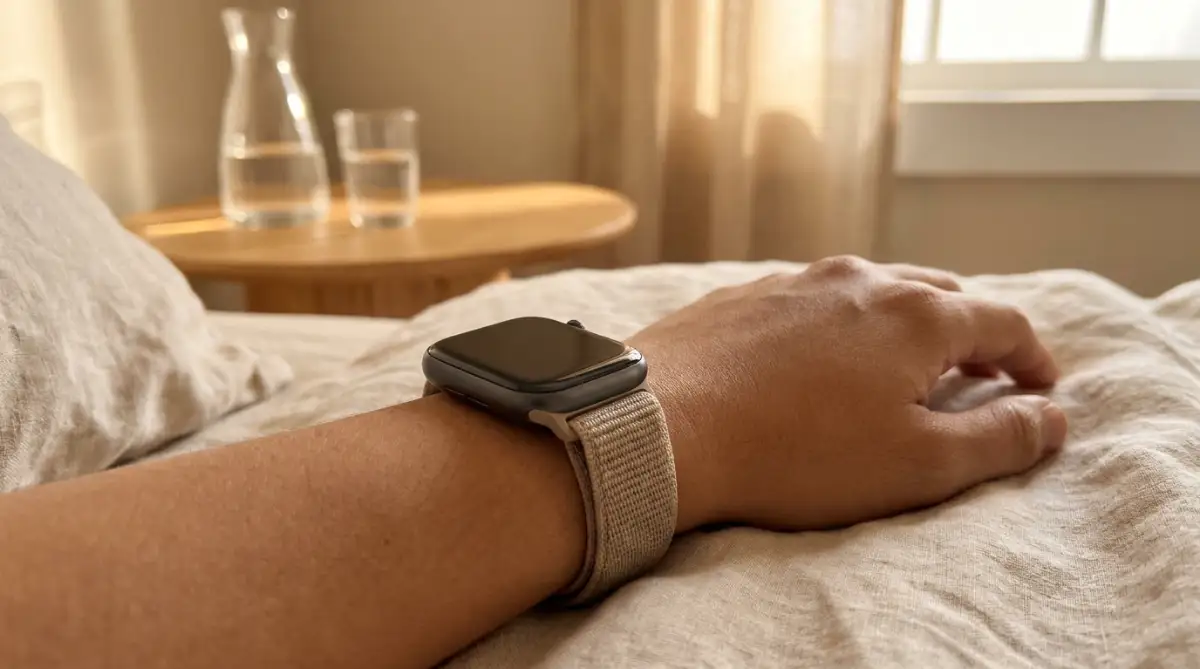
If you refuse to give up your daily sleep data, you must physically change how you wear the device at night. Before you get into bed, take the watch off and switch it to your opposite, non-dominant wrist. This incredibly simple habit gives the skin on your primary wrist a solid eight hours to breathe, dry out, and physically heal from the daily friction.
Automating the "Do Not Disturb" Schedule
Every time you get a text message, an email, or a news alert, a small motor inside the watch aggressively vibrates against your wrist bone. If you are in a highly active group chat, that physical motor might strike your skin fifty times in a single hour. This constant, repetitive physical vibration creates micro-abrasions on the surface of your skin, leading directly to a red, angry rash.
You must set hard boundaries for exactly when the watch is allowed to physically touch you. Open the notification settings on your phone and completely disable the vibration alerts for any app that is not absolutely urgent. You really do not need a physical vibration on your arm just to know someone liked your picture on social media.
On top of that, you need to set up a strict, automated "Do Not Disturb" schedule for your sleeping hours. Tell the software to completely turn off the vibration motor and the screen-wake feature between ten at night and seven in the morning. Stopping the physical vibrations gives your sensitive skin a massive break from the constant mechanical rubbing.
Advanced Digital Tweaks for Maximum Comfort
Once you turn off the constant background heart rate scanning, you can unlock even deeper digital features to protect your sensitive skin. Many users barely scratch the surface of their device's operating system, leaving incredibly powerful customization options completely untouched. By diving into the advanced software menus, you can force the device to run much cooler and significantly reduce physical friction.
One of the absolute best hidden tools inside your wearable is the ability to customize the physical vibration intensity. Most premium smartwatches come out of the box with the haptic feedback motor set to maximum power by default. This means every single time you receive a spam email, a harsh, mechanical shockwave is sent directly into your wrist bone.
These constant, high-powered vibrations cause the metal casing of the watch to rub aggressively against your skin hundreds of times a day. You can easily dive into your device's sound and haptics menu to drastically lower this vibration strength. Changing this setting to a gentle, quiet tap significantly reduces the mechanical micro-friction generated against your top layer of skin.
Reviewing official Apple Watch settings for adjusting haptic intensity shows that lowering this physical feedback also preserves massive amounts of battery life throughout the day. When the battery drains slower, the entire internal processor stays significantly cooler, which directly prevents thermal heat from transferring to your arm.
Another amazing software trick is utilizing the built-in "Water Lock" feature, even if you never take your watch into a swimming pool. When you turn this specific feature on and then disable it, the watch uses a specialized sonic sound frequency to physically blast trapped moisture out of the tiny speaker grills. Clearing this hidden moisture prevents daily sweat from quietly leaking out and sitting stagnant on your skin while you type at your office desk.
If your watch feels physically warm against your arm during a busy afternoon, you should immediately enable "Low Power Mode" or "Battery Saver." This hidden software feature acts exactly like finding simple ways to spot and avoid overheating issues with your expensive home electronics. It forces the internal processor to slow down, shut off unnecessary background tasks, and immediately cool off. A cooler processor guarantees that the metal casing resting against your arm stays completely at room temperature.

The Software Traps That Trigger Skin Reactions
Watching someone permanently abandon a highly expensive piece of health technology simply because they misconfigured the software is incredibly frustrating. We buy these amazing digital tools to improve our daily habits, but leaving the factory settings untouched often leads to painful physical consequences. These severe wrist rashes rarely happen by random accident; they are almost always the direct result of a few overlooked digital mistakes.
The absolute worst mistake you can make is forgetting to turn off the "Active Workout" mode after finishing your gym session. When you start a workout on your screen, the software commands the green optical sensors to fire at absolute maximum brightness without pausing. The device assumes you are running a marathon and tries desperately to track your elevated heart rate through your heavy sweat.