
Getting a sudden "Storage Full" warning right when you're trying to record a special video is beyond frustrating. I used to panic and frantically delete precious family photos, thinking my phone was permanently out of space. It turns out, my photo gallery wasn't the enemy—my phone was just drowning in invisible app cache. Let's look at how to clear out that hidden digital trash and instantly free up gigabytes of space without losing a single photo.
Your Fast-Track Smartphone Storage Guide:
- Stop Deleting Photos: Your photo gallery isn't the main storage hog; hidden app cache files and temporary junk mail are choking your phone.
- The Chef Analogy: Cache data acts like ingredients left on a counter for quick cooking, but over time it turns into a massive mountain of digital trash.
- The Safe Button: Always tap "Clear Cache" for a safe, surgical strike; never tap "Clear Data" unless you want to erase your app logins and game saves.
- Use the Native Janitor: Avoid third-party "cleaner" apps that show ads and drain your battery; rely on Android's built-in Storage Manager instead.
My Quick "Storage Audit" Checklist 📱
Before you start tapping buttons randomly, check these three hidden areas where space disappears:
- WhatsApp Media: Auto-downloaded voice notes and family memes eating gigabytes.
- Trash Folders: Recently deleted photos still sitting in your gallery bin for 30 days.
- Offline Playlists: Downloaded Spotify or Netflix shows you finished watching months ago.
Decoding the Invisible Trash: What Is Cache Data?
Before we start pressing buttons and deleting things, we need to understand what is actually stealing your precious memory space. When people see the "Storage Full" warning, they immediately rush to their photo gallery and start deleting pictures of their kids or their vacations.
This is a heartbreaking mistake. Your photos actually take up a very small percentage of your phone's total storage capacity compared to the hidden data created by your daily apps.
To fix this problem safely, we have to look closely at something called cache data.
The Digital Blueprint Analogy
Think of your favorite social media app exactly like a busy chef working in a highly popular restaurant kitchen. If the chef has to run down to the basement every single time a customer orders a simple salad, the cooking process takes forever.
To speed things up, the smart chef takes a few basic ingredients—like tomatoes and lettuce—and leaves them sitting right on the kitchen counter for easy access. In the digital world, cache data is exactly like those vegetables sitting on the counter.
When you open a shopping app or a news website, your phone downloads tiny pieces of data, like standard logos, font styles, and small background images. The phone permanently saves these tiny files in a hidden "cache" folder so that the next time you open the app, it loads incredibly fast.
The Hidden Accumulation Problem:
Saving a few tiny logos is highly efficient for your phone's processor. But over several months, your phone downloads millions of these temporary files from hundreds of different websites and applications.
If you use a popular video-scrolling app for an hour a day, that single app will silently download gigabytes of temporary background videos to your hard drive just in case you decide to watch them again. Over time, that tiny pile of vegetables on the counter turns into a massive, rotting mountain of trash that completely suffocates the kitchen.
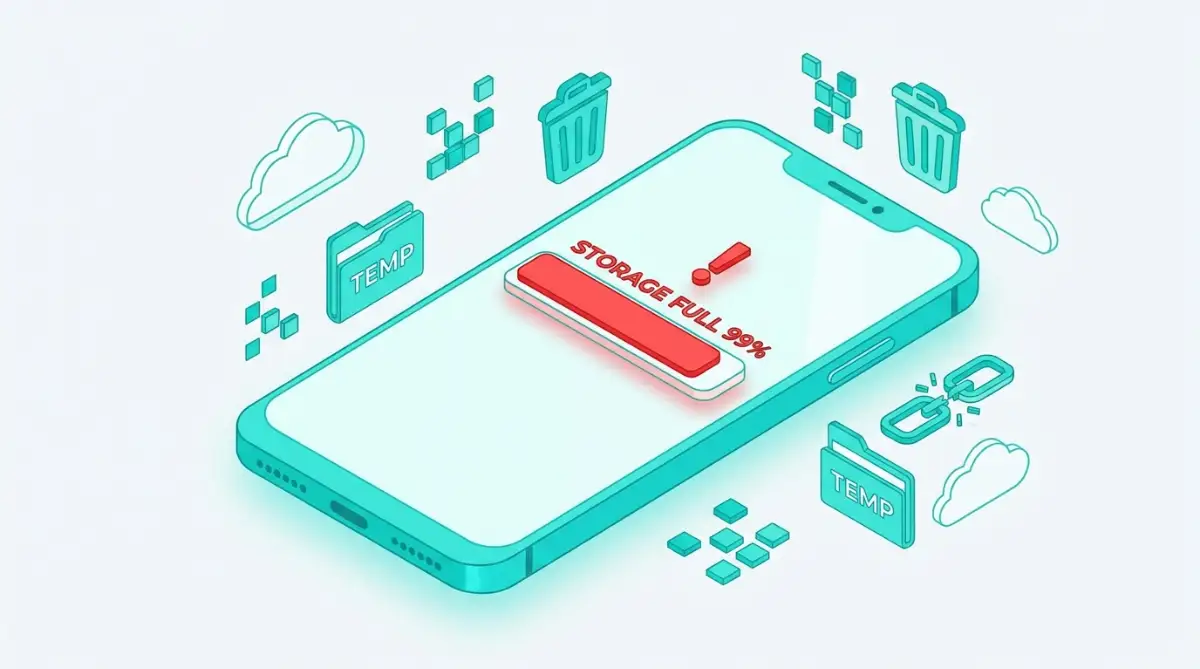
You must act like the restaurant manager and force the chef to throw the old trash out.
I actually made the terrible mistake of completely ignoring my phone's cache for two whole years because I was terrified I would accidentally delete my saved passwords. My biggest realization was that the cache folder only holds temporary, useless files, and wiping it out is the absolute safest way to speed up a sluggish device without losing any real personal data.
Navigating Your Phone's Internal Filing System
Now that you know what cache data actually is, you need to know how to locate it. Android phones are manufactured by many different companies, so the exact names of the buttons might look slightly different depending on your specific brand.
However, the core biological structure of the Android operating system is exactly the same across every single device. You do not need to connect your phone to a computer or download any sketchy, third-party "cleaning" applications to do this job.
Most third-party cleaning apps actually slow your phone down even more because they constantly run in the background, secretly showing you aggressive advertisements and draining your battery. We are going to use the safe, built-in tools that Google specifically designed for this exact purpose.
Locating the Primary Settings Menu:
Unlock your phone and swipe down from the very top of your screen to open the notification panel. Look for the small icon that looks like a little mechanical gear, which is your main Settings button.
Tap the gear icon, and slowly scroll down the list until you find a section labeled "Apps," "Apps & Notifications," or "App Management." When you tap on this section, your phone will generate a massive list of every single application currently installed on your internal hard drive.
If you are feeling totally overwhelmed by your phone's settings menu, you must watch this clear, step-by-step visual breakdown on how to locate your hidden app files.
The Surgical Strike: Clearing Heavy Data Hogs
When you see the massive list of your installed apps, it is highly tempting to just tap on the very first one and start clearing. But we want to be incredibly strategic with our time.
You do not need to clear the cache of your simple calculator app or your basic alarm clock, because they generate almost zero temporary data. You want to hunt down the massive "data hogs" that are actively eating your storage space alive.
Identifying the Worst Offenders:
The absolute worst offenders on your phone are applications that constantly stream heavy media from the internet. This includes your web browsers (like Google Chrome), social media platforms, and high-definition video streaming services.
Scroll through your list of apps and tap on your most frequently used social media application. This will open a dedicated "App Info" page specifically for that single program.
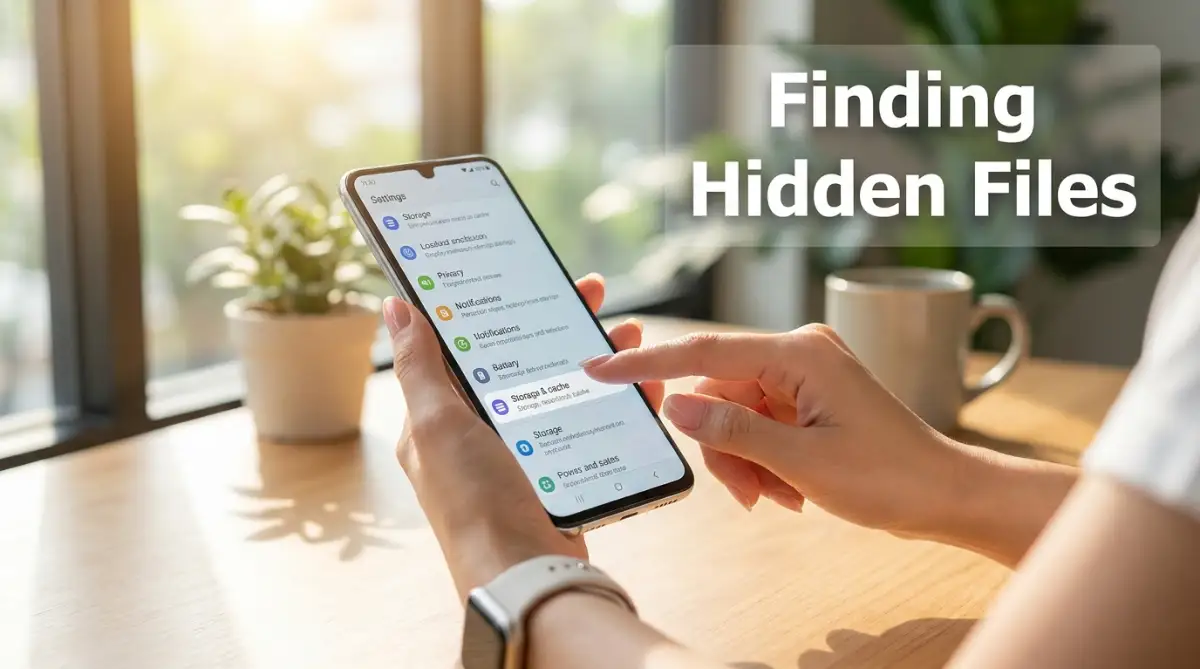
On this page, you will see a button labeled "Storage" or "Storage & cache." Tap this button, and your phone will show you exactly how much space that specific app is stealing from you.
The Magic Button:
You will clearly see two different numbers listed on the screen: "User Data" and "Cache." Right below these numbers, you will see two corresponding buttons: "Clear Storage" (sometimes called Clear Data) and "Clear Cache."
You must tap the Clear Cache button.
Do not tap the "Clear Storage" button by mistake. If you tap clear storage, the phone will completely reset the application back to its factory default settings, erasing your login details, your saved game progress, and all your downloaded offline content.
Tapping the clear cache button is a perfectly safe, surgical strike. It instantly deletes the massive mountain of temporary junk files without touching a single piece of your personal, saved information.
You can repeat this exact surgical process for the top five or ten heaviest apps on your phone. Within less than five minutes of tapping, you can easily free up three to five gigabytes of pure, usable storage space on your device.
Advanced Techniques for Managing Memory Storage
Once you understand what cache data is and how to delete it, we have to look slightly deeper into your phone's biological systems. Your phone does not just store temporary pictures; it also stores deep system files that keep the basic operating system running smoothly.
If you ignore these deep system files for too long, clearing your regular app cache will only provide a very short, temporary fix. According to mobile security guidelines from the Federal Communications Commission (FCC), maintaining a clean internal storage drive is highly important for receiving essential software security updates [1].
If your phone is packed with invisible junk, the manufacturer literally cannot install the tiny digital locks needed to keep hackers out. We must learn to manage these deeper files without causing massive system errors.
Managing your digital space requires the same proactive mindset as managing your physical environment. Just like learning troubleshooting home Wi-Fi dead zones without buying an expensive router prevents frustrating internet drops, learning to audit your storage prevents unexpected phone crashes.
You also need to protect your phone's actual physical lifespan. The heavy processing power required to search through thousands of junk files creates intense internal heat, which directly leads to overlooked habits that quietly destroy your smartphone battery lifespan over time.
Let us explore the advanced, pro-level secrets you can use to keep your Android device running like it is brand new.
The Magic of the Hidden Storage Manager
Most everyday users try to delete their applications one by one, manually tapping through the settings menu for hours. This is incredibly slow and highly frustrating.
Android developers actually built a secret, highly intelligent assistant directly into your phone to do this hard work for you. It is called the "Free Up Space" or "Storage Manager" tool, and it is usually hidden right at the very top of your main Storage settings page.
The Digital Janitor Analogy:
Think of the Storage Manager like hiring a highly trained, professional digital janitor to clean your office. Instead of you opening every single drawer to find old trash, the janitor instantly scans the entire room and builds a neat pile of all the useless junk for you to review.
When you tap this button, your phone's brain rapidly scans thousands of hidden folders. It automatically identifies old cache files, duplicate photographs you accidentally took twice, and massive video files you downloaded years ago but never watched.
Your Immediate Action Plan:
You must run this automated janitor tool at least once every single month. The software will show you a clean, simple list of the junk it found, categorized by file type.
You simply tap the empty circles next to the items you agree are trash, and hit the delete button. This one-minute habit can easily pull five to ten gigabytes of dead weight right off your processor.
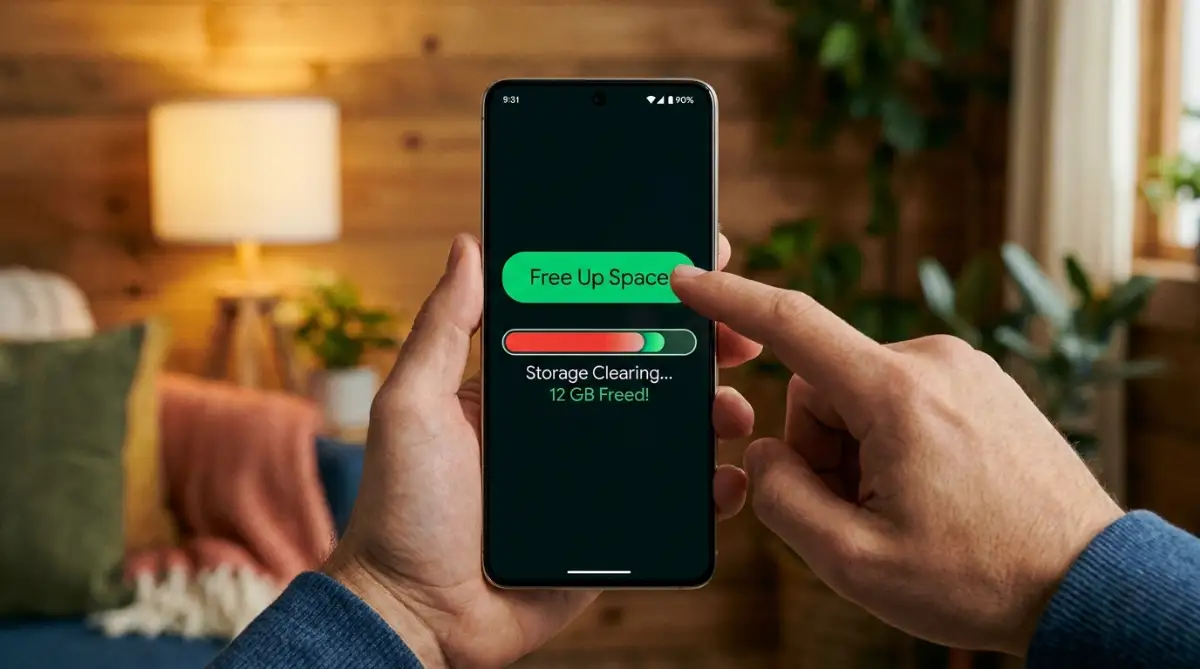
It is an incredibly powerful feeling to watch your storage bar instantly drop from red back to a healthy green. By doing this regularly, you prevent the trash from ever building up high enough to trigger that terrifying "Storage Full" error message again.
Auditing Your "Lite" Application Alternatives
If your phone simply has a very small internal hard drive, no amount of cache clearing will solve your problem permanently. Large social media applications, like Facebook and TikTok, are heavily bloated with massive amounts of unnecessary tracking code.
To fix this, you must switch your heavy apps out for their official "Lite" versions. Technology researchers at Consumer Reports often suggest using lite applications because they collect significantly less background data and require much less processing power [2].
A standard social media app might take up 500 megabytes of space just sitting on your home screen. The exact same app in its "Lite" version might only take up 15 megabytes.
The lite version strips away the heavy, complicated animations and simply gives you the basic text and pictures you actually care about. Swapping your three heaviest apps for their lite versions instantly rescues your phone from a slow, painful death.

Silent File Management Pitfalls That Will Destroy Your Device
Even highly intelligent people make terrible choices when they are desperate to fix a frozen, sluggish smartphone. The heavy panic of missing an important text message or a phone call makes us tap aggressive warning buttons without reading them first.
If you fall into these incredibly common traps, your digital life will experience a complete, permanent failure. This frustrating cycle can easily ruin your weekend, destroy your personal memories, and wipe out your digital identity.
Here is exactly what you must avoid to keep your mobile device completely safe and secure.
The "Clear Data" Catastrophe
I mentioned this briefly before, but it is so incredibly dangerous that it requires a much deeper explanation. When you are looking at the storage settings for a specific app, the "Clear Data" button sits directly next to the safe "Clear Cache" button.
Many people assume these two buttons do the exact same thing. They tap "Clear Data," expecting their phone to just get a little faster.
This is a massive, highly destructive psychological trap.
The Etch A Sketch Scenario:
Think of the "Clear Data" button exactly like shaking a plastic Etch A Sketch toy violently. When you tap it, the phone literally wipes the application completely blank, returning it to the exact state it was in the minute you downloaded it from the store.
Cache vs. Data: The Quick Comparison ⚡
- Cache: Temporary junk files (like website logos). Safe to delete anytime!
- Data: Your actual account files (passwords, game saves, chat histories). Never delete unless you want to log back in from scratch!
If you tap "Clear Data" on your favorite mobile game, you will instantly lose all three hundred hours of your saved progress. If you tap it on your banking app, you will completely delete your saved login details and biometric fingerprint settings.
If you accidentally delete the passwords required to manage your online business, the sudden financial block can build up fast.
Always look closely at the screen and deliberately tap "Clear Cache" only. Treat the "Clear Data" button like a dangerous, bright red self-destruct switch.
Trusting Third-Party "Speed Booster" Apps
When a phone gets slow, millions of people rush to the Google Play Store and download free apps with names like "Turbo Speed Booster" or "Battery Cache Cleaner 3000." They look at the fake five-star reviews and assume this magic software will fix their phone instantly.
This is an absolute disaster waiting to happen. These third-party cleaning apps are often highly aggressive malware programs wearing a clever disguise.
They demand access to your entire file system, promising to clean it. In reality, they silently harvest your private contact lists and browsing history to sell to marketing agencies.
Even worse, these fake cleaning apps run constantly in the background, putting a massive, heavy strain on your processor. They literally cause the exact sluggishness and battery drain they promise to cure.
Maintaining your digital security requires a strong, active protective habit. Just like making dangerous password management mistakes that leave your digital identity exposed ruins your online life, downloading shady booster apps ruins your physical phone.
Never download a third-party app to do a job that your Android operating system can already do natively for free. Trust the built-in storage manager and ignore the flashy, fake advertisements.
Ignoring Your Hidden Downloads Folder
Many users successfully clear their app caches but still find their storage bar completely full. They get highly frustrated, completely forgetting about the massive, hidden "Downloads" folder sitting deep inside their phone.
Every single time you save a funny PDF from an email, download a massive restaurant menu, or save an MP3 audio file, it goes directly into this hidden folder. Because this folder does not have an icon on your main home screen, it is incredibly easy to ignore it for years.
DO's and DON'Ts For Android Health:
- DO use the official Google "Files" app to easily locate and empty your hidden downloads folder.
- DO NOT rely on cloud backup apps if they are not set to "Free Up Space" automatically after uploading.
- DO set a monthly calendar reminder to perform a five-minute manual cache sweep of your top three heaviest apps.
- DO NOT download heavy software updates using cellular data; always wait for a stable Wi-Fi connection.
If your phone is struggling to find a solid connection to download these large files, the constant searching drains your battery.
Your Mobile Master Plan for Digital Freedom
Navigating the hidden files and settings of your Android device does not have to be a scary, mysterious, or overwhelming experience. You now hold the exact same strategic knowledge that professional mobile technicians use to fix broken phones every single day.
By taking a few short minutes to understand cache data, use the native storage manager, and avoid fake booster apps, you completely remove the fear of a sudden storage crash. You are no longer crossing your fingers and hoping your camera works when you need it.
Instead, you are confidently commanding your own digital hardware like a seasoned technical professional. This simple shift in your digital routine gives you incredible power over your entire mobile future.
My personal phone runs faster today than it did three years ago because I strictly follow this five-minute monthly cleaning habit. Stop letting your device control your stress levels, take five minutes right now to tap that clear cache button, and instantly feel the massive relief of having your digital freedom back.
Common Questions About Managing Android Storage
Will clearing the cache delete my saved passwords or photos?
No, clearing the app cache is completely safe and will not delete any of your personal files, saved passwords, or photographs. It only removes the temporary, hidden background files that the app downloaded to load faster.
How often should I really clear the cache on my phone?
You do not need to do this every single day, as doing it too often forces your apps to redownload data constantly. A good rule of thumb is to clear the cache of your heaviest apps, like social media or web browsers, exactly once a month.
Why does my phone still say storage is full after I deleted my photos?
Your phone likely has a "Recently Deleted" or "Trash" folder that holds onto your deleted photos for thirty days just in case you change your mind. You must manually go into your gallery settings and empty the trash folder to permanently free up the space.
What is the difference between clearing cache and clearing data?
Clearing cache only removes temporary junk files and leaves your account perfectly intact. Clearing data acts like a total factory reset for that specific app, erasing all your personal settings, login details, and saved progress completely.
Disclaimer: The information provided in this article is for educational and general informational purposes only and does not constitute professional technical support or hardware repair advice. Android operating systems, menu layouts, and storage management tools vary heavily by smartphone manufacturer, brand, and software version. Always consult with your device's official user manual or a certified mobile technician regarding the exact specifications, settings, and file management rules for your personal smartphone.