
The Silent Nightmare of Broken Systems
Waking up to an inbox flooded with 75 bright red "Workflow Failed" notifications is enough to ruin anyone's morning. When I first started automating my business, I spent hours building the perfect system, only to watch it completely crash the very next day because a single customer typed their phone number weirdly. It turns out, fixing broken automations isn't about being a master coder—it's just about knowing exactly where the digital bridge broke. Let's look under the hood and fix your crashing workflows so you can finally get the quiet, automated business you were promised.

Your 4-Step Automation Rescue Plan:
- Most workflows crash because of bad data formats (like extra spaces, dashes, or emojis) entered by the user. Use a "Filter" or "Formatter" step to clean incoming data automatically.
- If your workflow shows an "Authentication Failed" error, your security token expired; you must log in and reconnect your apps immediately.
- Avoid the deadly "Infinite Loop" by never letting two apps trigger each other back and forth—always make sure your data flows in one straight line.
- Always test a new workflow with fake, messy data before pushing it live to real customers to spot hidden crashing points.
Demystifying the Digital Handshake
To stop this endless cycle of frustration, we have to look under the hood and understand how these tools actually talk to each other. When you use a popular workflow tool, you are basically hiring a digital translator. This translator is trying to pass messages between two completely different companies that speak different languages.
For example, your email provider speaks one specific coding language, and your spreadsheet software speaks another. The workflow tool uses a special bridge called an API to connect them. You can think of an API exactly like a busy post office sorting mail between two different towns.
When the workflow crashes, it rarely means the entire software platform is completely broken. Almost every single automation crash happens because the specific mail being sent through the API was formatted incorrectly. The post office simply rejected the package because the address label was missing or unreadable.
If we can figure out exactly why the post office is rejecting your specific packages, we can fix the system permanently. You do not need to be a professional programmer to understand this. You just need to follow a very simple, logical path to find the exact point of failure.

The Mystery of Changing Data Formats
The absolute most common reason your automation suddenly stops working is a sudden change in the incoming data. Computers are incredibly strict rule followers. They do not have the human ability to guess what you mean if something looks slightly different than expected.
Imagine you built a workflow that specifically expects a customer to type their phone number using only numbers, like "5551234567." The system runs perfectly for three weeks. Then, a new customer decides to get fancy and types their number using dashes, like "555-123-4567."
To a human brain, those two things mean the exact same thing. To a strict computer program, the addition of those tiny dashes completely breaks the mathematical rule. The software looks at the new format, panics, throws a massive error code, and shuts the whole process down to prevent bad data from entering your database.
You must look very closely at the exact piece of data that caused the crash. Go into your workflow history and find the exact moment the red error popped up. Compare the broken data side-by-side with the data from a successful run.
You will almost always spot a tiny, annoying difference. Maybe an extra space was added, maybe a date was formatted European style instead of American style, or maybe a required field was left completely blank.
My Quick 3-Step "API Detective" Checklist 🕵️
When a workflow crashes, don't panic and delete the whole thing. Do this instead:
- Open the exact Error Log: Find the specific run that failed (usually marked with a red X).
- Look at the "Data In" tab: Look exactly at what the user typed. Did they add a weird symbol, an emoji, or an extra space?
- Compare it to a "Success Log": Open a green checkmark log from yesterday. What is mathematically different between the good data and the bad data? That difference is your culprit!
Implementing Smart Data Filters
Once you find the formatting problem, you cannot just manually fix it and hope it never happens again. You have to build a specific filter into your workflow to catch the mistake automatically next time. Think of this filter like a security guard standing at the front door of your system.
Almost all modern automation platforms offer a "Formatter" or "Filter" step that you can insert directly into the middle of your process. If the problem is extra spaces ruining your names, you simply add a formatting step that automatically trims away empty spaces before passing the data to the next step.
My Personal Pro Tip: I used to have a massive problem with my email automation crashing because people would type their email addresses in all capital letters. The system hated it and would completely lock up. I finally added a tiny, one-second formatting step that forces all incoming text into lowercase letters. That one tiny adjustment permanently stopped ninety percent of my daily error emails.
If you are dealing with blank answers crashing your system, you can use a filter that says, "Only continue this workflow if the phone number field actually exists." If the field is blank, the workflow gracefully stops without throwing a scary error code, keeping your error logs completely clean.
Watch How To Build A Safe Data Filter
If you want to see exactly how to insert one of these protective filters into your own daily workflow, take a quick look at this clear visual guide.
The Nightmare of Expired Security Tokens
Sometimes, your data format is absolutely perfect, but the system still crashes completely. If you log in and see an error message mentioning the word "Authentication" or "Unauthorized," you have a security problem. This is the second biggest killer of automated workflows.
When you first connect your email account to your workflow software, you perform a digital handshake. You grant the workflow tool a special, invisible security badge that allows it to log into your email on your behalf. This badge proves that the software has your official permission to read your private data.
For your safety, many massive tech companies force these invisible security badges to expire automatically after a certain number of days. They do this to prevent hackers from maintaining a permanent back door into your private accounts.
When the security badge finally expires, your workflow software suddenly gets locked out of the building. It tries to grab a new email, the email provider asks for the badge, and the connection is aggressively rejected. This causes an immediate, full-system crash.
Fixing this is incredibly simple, but it requires manual intervention. You have to go into the connection settings of your workflow tool and completely disconnect the broken app. Then, you simply click the "reconnect" button, log back into your email provider, and generate a brand-new, fresh security badge.
Whenever you change your main password for an app like Gmail or Slack, you instantly break every single automation connected to it. You must make a strict mental note to re-authenticate your workflow tools the exact same day you update your passwords.
Pro Tip: The Secret "App Password" Trick 🔐
If you use Google Workspace or Microsoft 365, changing your main password constantly breaks your automations. To fix this permanently, go to your Google/Microsoft security settings and generate an "App Password." This is a special, unique 16-digit password just for your workflow tool (like Zapier or Make). If you change your main login password later, this specific App Password stays active, and your workflow never crashes!
Battling the Invisible Rate Limits
As your business grows, you might run into a highly frustrating problem that feels completely unfair. Your workflow runs perfectly on a slow Tuesday, but completely crashes during a massive Friday sale. This unpredictable behavior is almost always caused by hitting an invisible wall called a "Rate Limit."
Every software company in the world has a strict limit on how fast their servers can process information. If you try to force thousands of new email contacts through an API in a single minute, the receiving server will panic. To protect itself from crashing, the server will intentionally block your connection and throw a "Too Many Requests" error.
It is exactly like trying to shove a massive crowd of people through a single, tiny revolving door. The door physically cannot spin fast enough, and a dangerous bottleneck forms instantly.
If you are running a massive marketing campaign, you cannot expect standard, cheap automation tools to handle enterprise-level volume all at once. You must design your workflow to be polite and patient.
Many advanced tools offer a specific feature called a "Delay" or a "Queue." Instead of sending one thousand emails in one second, you tell the workflow to wait three seconds between every single action. This forces your software to slowly drip the information through the door, keeping the receiving server happy and completely preventing the bottleneck crash.
The Danger of the Infinite Feedback Loop
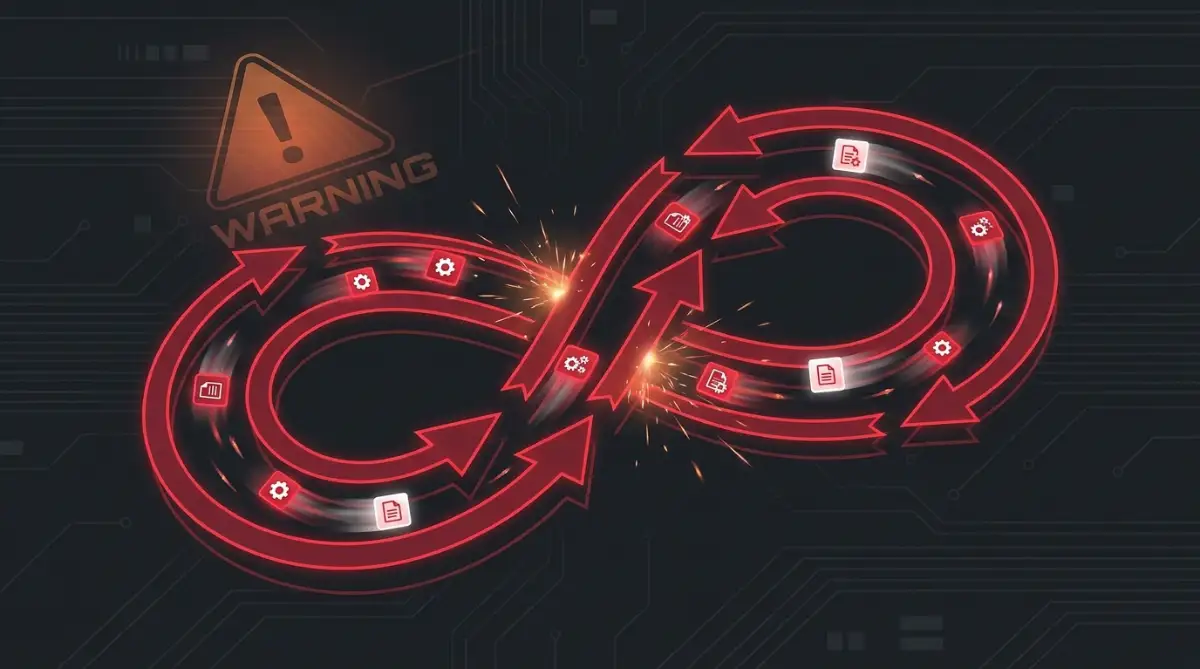
There is one specific workflow error that is so dangerous it can actually get your business accounts permanently banned. It is known in the software world as an infinite loop. This happens when two different automations accidentally trigger each other in a never-ending, highly destructive circle.
Imagine you set up a rule that says: "When a customer updates their phone number in my spreadsheet, automatically update it in my email software." But then, a week later, you forget about that rule. You set up a brand new rule that says: "When a customer updates their phone number in my email software, automatically update it in my spreadsheet."
Do you see the massive problem? The second a customer makes a change, Rule A fires and tells Rule B to fire. Rule B fires and tells Rule A to fire again. The two systems start screaming at each other back and forth, thousands of times a second.
This massive explosion of data will instantly trigger every security alarm at your software provider. They will assume you are a malicious hacker trying to crash their system, and they will completely lock your account down.
You must map out every single automation on a physical piece of paper before you ever turn them on. If you see two arrows pointing back and forth at the exact same data point, you are building a highly dangerous infinite loop. Always ensure your data flows in one single, straight direction, like water flowing safely down a river.
Expert Secrets For Bulletproof System Stability
Once you understand how to fix the basic data errors, you need to start thinking like a senior software engineer. Your ultimate goal is not just fixing crashes when they happen; your goal is building a system so strong that it practically never breaks in the first place. You want an automated business that runs silently and perfectly in the background while you focus on bigger things.
The smartest engineers always build something called an "Error Path" into their most critical workflows. Think of this like a digital safety net. When a standard workflow hits a bad piece of data, it usually crashes and completely stops moving forward.
If you build an error path, you are giving the software a backup plan. You tell the system: "If this email fails to send, do not crash the whole system. Instead, send a private Slack message to my phone telling me exactly which customer got stuck." This single trick prevents total system shutdowns and keeps the rest of your healthy data flowing smoothly.
You also need to become obsessed with aggressive testing before you ever push a new automation live. Never build a complex, ten-step workflow and immediately send real customer data through it. That is incredibly reckless and almost always leads to an embarrassing public disaster.
You must use fake, dummy data to test every single possible path. Run a fake email address through the system with weird capital letters, strange symbols, and completely blank fields. If you intentionally try to break your own system in a safe environment, you will spot the weak points long before a real customer ever sees them.
For a much deeper dive into how professional teams test their automated connections, you can review the best practices for testing software APIs published by SmartBear. Learning how to properly test your digital bridges will save you from thousands of future headaches.

Silent Traps That Destroy Your Digital Business
Even after learning all the technical fixes, it is incredibly easy to fall back into terrible administrative habits. I have watched brilliant entrepreneurs completely ruin their own companies because they let their systems turn into a massive, tangled mess. We need to expose these dangerous traps so your business stays protected.
The absolute most destructive habit is failing to document exactly what your automations actually do. You might build a brilliant, complex workflow on a Tuesday afternoon and feel like a total genius. But six months later, when that specific workflow suddenly crashes, you will have absolutely no idea how it was originally put together.
Trying to fix an undocumented workflow is exactly like trying to defuse a bomb blindfolded. You start clicking random buttons, deleting steps, and hoping for the best. This careless behavior usually ends up breaking three other connected systems, making the entire problem much worse.
Always keep a simple, running document that lists every single automation you have turned on. Write down exactly what triggers it, what software it connects to, and what the final output is supposed to be. This documentation acts as your master blueprint when things inevitably go wrong.
Another terrifying mistake is letting old, unused automations run quietly in the background forever. Many business owners test out a new software tool, build a quick connection, and then completely forget about it. These "zombie workflows" continue pulling data, draining your monthly API limits, and confusing your main database.
Just like making dangerous password management mistakes that leave your digital identity exposed, leaving zombie workflows active creates a massive security vulnerability. If one of those old, forgotten apps gets hacked, the hacker can use that open connection to easily walk right into your main email server. Always ruthlessly delete any automation you are not actively monitoring.
You also have to stop treating your automation software like a magical cure for a bad business process. If your manual sales process is already a complete disaster, automating it will only create a faster, much more expensive disaster. Software cannot fix a fundamentally broken customer journey.
Many desperate founders try to automate their way out of deep financial holes. They ignore their core product issues and start researching how to get unsecured loans with bad credit and actually get approved just to pay for more expensive marketing tools. You must always fix the actual human problem before you let a computer take over the task.
Finally, do not let the stress of managing these digital tools completely destroy your physical health. When a massive system crashes, it is easy to panic and stay up all night trying to fix it. This heavy anxiety leads to dangerous morning routine mistakes that secretly destroy your daily productivity, leaving you completely exhausted and unable to think clearly.
If a non-critical workflow crashes at midnight, simply turn it off and go to sleep. The problem will still be there in the morning, and you will be much better equipped to solve it after a strong cup of coffee. You have to maintain clear boundaries between your digital business and your actual life.
If you want to read more about how complex software bugs impact real-world business operations, you can study the massive financial impact of IT downtime and system failures from the enterprise experts at Atlassian. Seeing how often major corporations deal with expensive crashes will make you feel much better about your own small automation issues.
Your Action Plan For A Crash-Free Business
We have completely decoded the frustrating mystery behind why your digital tools keep breaking down. You no longer have to stare helplessly at a screen full of red error codes. You now have the exact diagnostic skills needed to find the broken bridge, fix the data format, and permanently secure the connection.
Your immediate assignment for this weekend is to perform a massive spring cleaning of your entire automation dashboard. Log into your primary workflow tool and review every single active connection. Ruthlessly turn off any test projects, outdated marketing campaigns, or zombie workflows that are draining your resources.
Once your dashboard is clean, go find your most important, critical workflow. Add a simple data filter right at the beginning to catch any empty fields or weird formatting mistakes. This one tiny, five-minute adjustment will literally save you hours of stressful troubleshooting next month.
My Personal Final Thought: I used to literally sweat every time my phone buzzed with an automation error alert. Once I finally stopped blindly trusting the software and started actively filtering my incoming data, my business completely transformed. Stop letting the machine bully you, set up your protective filters today, and finally enjoy the quiet, automated business you always dreamed of!
Common Questions About Fixing Software Connections
Why does my automation software always crash when a customer uses an emoji?
Many older databases and email providers simply cannot process the complex coding required to display an emoji. When your workflow tries to force an emoji into a strict text field, the receiving server crashes instantly. You can easily fix this by adding a quick text-formatting step that automatically strips all emojis from the incoming data before passing it along.
Is it safer to use direct, native integrations instead of third-party workflow tools?
Whenever possible, yes. If your email software has a built-in, direct connection to your spreadsheet software, you should always use that native option first. Native integrations are built and maintained directly by the official engineers of those companies, making them significantly more stable and less prone to crashing than a middleman tool.
What exactly does a "Timeout 504" error mean in my workflow logs?
A 504 Timeout error simply means that the receiving server was taking entirely too long to answer the digital knock at the door. Your workflow software got tired of waiting in the cold and completely abandoned the task. This usually happens when the receiving company is doing unexpected server maintenance or experiencing a massive surge in their own web traffic.
How do I know if my workflow crashed because of a bad password?
If your security badge or password has expired, your workflow log will almost always display an "Authentication Failed," "Unauthorized," or "401 Error" message. The exact moment you see any of those specific words, you immediately know you need to go to your connection settings and log back into that specific application.
Can a broken automated workflow accidentally delete all my customer data?
If you set up a workflow specifically designed to update or modify existing database records, a severe crash or an infinite loop can absolutely overwrite and destroy good data. This is exactly why you must manually rescue your lost files before it is too late by keeping a strict, daily backup of your master customer list on a separate, completely disconnected hard drive.
Disclaimer: The information provided in this article is for general educational and informational purposes only and does not constitute professional IT support or guaranteed software engineering advice. Automation platforms, API limits, and software security protocols change rapidly. Always test new workflows thoroughly using dummy data, and consult directly with your software provider's official technical support team before making major changes to business-critical systems.