When your laptop fan suddenly starts roaring like a vacuum cleaner while you are simply reading an article, your first thought is that your computer is dying or infected with a virus. But in most cases, the real culprit is not your hardware—it is the ten or fifteen "free" browser extensions silently scanning, syncing, and running background code in the top corner of your screen. In this guide, I will show you how to use a hidden browser shortcut to catch power-hungry extensions in real time, how to eliminate software conflicts, and how to get a whisper-quiet computer back today.
📌 What You Must Know About Browser Extensions and Laptop Heat:
-
Extensions behave like desktop software: Every add-on you install runs background code that constantly eats your system RAM and processor cycles.
-
Use the Shift + Esc shortcut: Instantly open your browser’s internal task manager to spot which specific tool is eating your battery and causing fan noise.
-
Never stack duplicate tools: Running two grammar checkers or three ad blockers simultaneously creates infinite software loops that overheat your hardware.
-
Audit and disable weekly: Follow the "Rule of Three" by keeping only your daily essentials active, toggling specialty tools on only when you need them.
Unmasking the Silent Performance Killers
If your computer sounds like it is preparing for takeoff, you need to become a digital detective immediately. You cannot fix a performance problem by just randomly guessing which tool is causing the issue. The absolute best way to stop the overheating is to find the exact source of the massive power drain.
Most modern web browsers have a hidden tool built directly into them specifically for this exact situation. It works just like the main task manager on your computer, but it only looks at what is happening inside the browser window. Using this tool is the very first step toward getting your quiet, fast computer back.
Locating the Hidden Browser Task Manager
If you use Google Chrome, Microsoft Edge, or a similar browser, finding this hidden diagnostic tool takes only three seconds. Simply open your browser and press the "Shift" key and the "Esc" key on your keyboard at the exact same time. A plain, somewhat boring-looking window will immediately pop up on your screen.
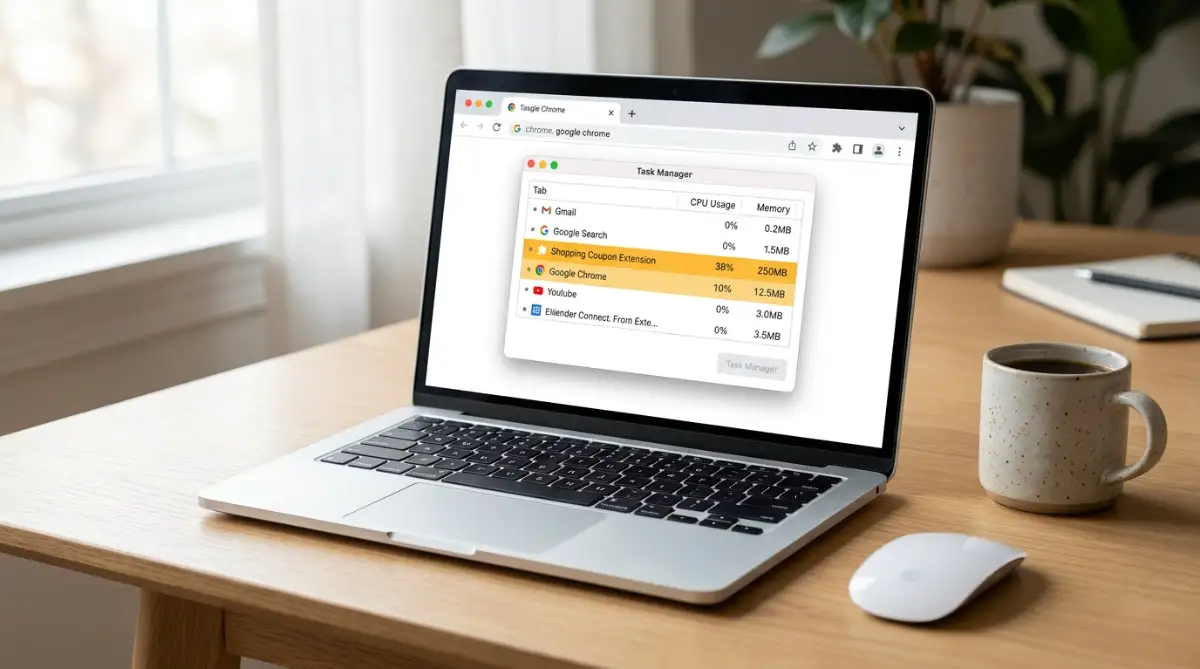
This window is your new best friend for troubleshooting slow internet performance. It shows a highly detailed list of every single open tab and every single active extension currently running. More importantly, it shows you exactly how much memory and CPU power each item is actively eating.
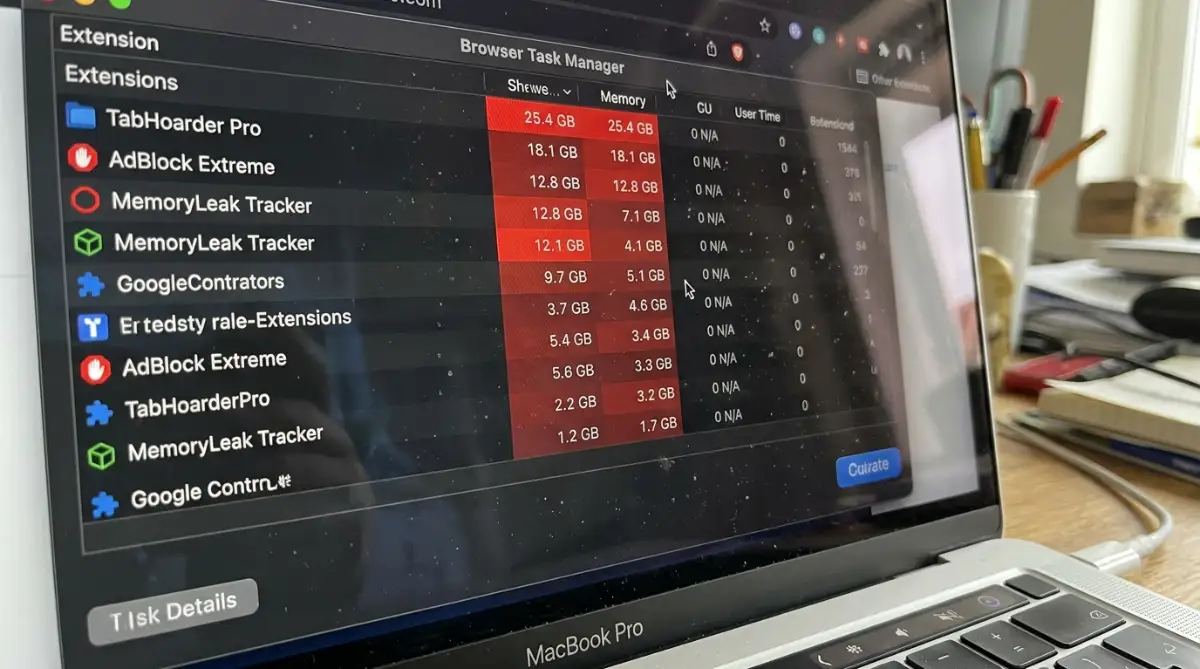
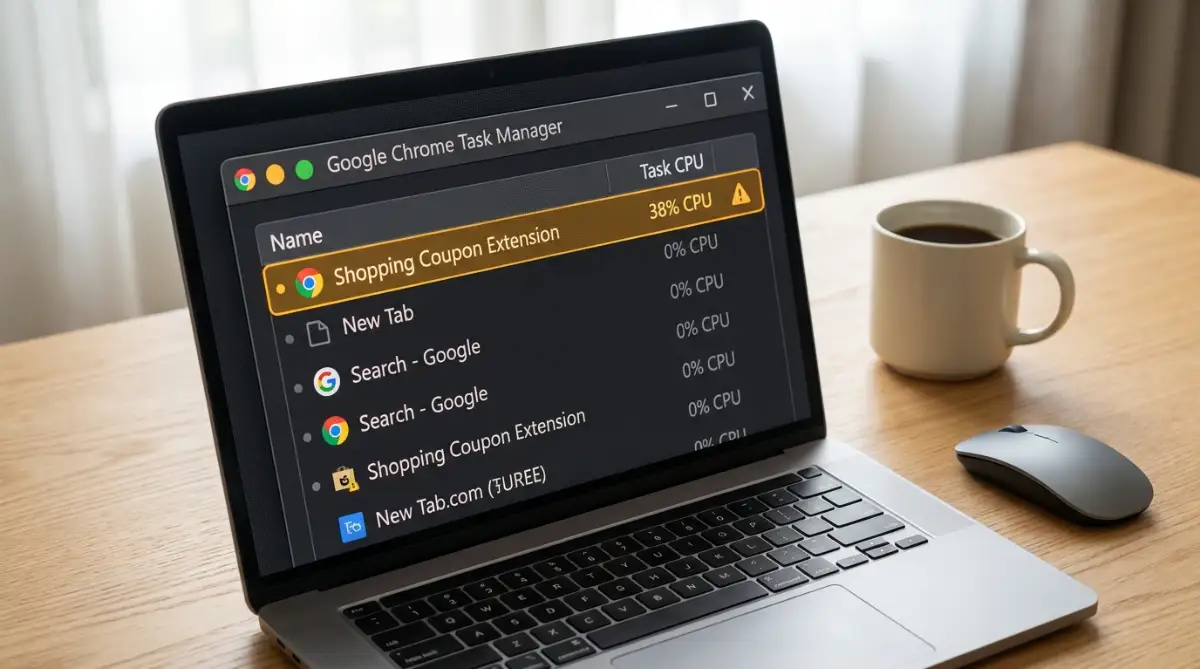
You want to look specifically at the column labeled "CPU" or "Processor." If you see a small grammar-checking tool or a coupon finder consistently using twenty or thirty percent of your CPU, you have found the main culprit. A healthy, normal extension should sit quietly at zero percent until you actively click on it.
⌨️ The 30-Second Triage: How to Catch Rogue Extensions Right Now
Don't guess which add-on is overheating your processor. Check the hard numbers immediately:
-
Step 1: While in Chrome or Edge, press Shift + Esc on your keyboard (Mac users: click Window → Task Manager).
-
Step 2: Click the CPU column header twice to sort the highest power-drainers to the top.
-
Step 3: If any extension consistently consumes more than 5% CPU while you are not actively using it, click on it and hit End Process.
What You Will Notice: Your cooling fans will spin down and go completely silent within fifteen seconds of killing the offending background process!
🎬 Chrome Power Hack: Stop Background Battery Drain
If your laptop gets burning hot and your battery percentage drops like a rock while using Google Chrome, watch this quick visual walkthrough from growhat. He exposes the hidden background setting in Chrome that lets hungry extensions keep running even after you close your tabs—and shows you how toggling it off cools down your machine immediately:
Now that you have stopped Chrome from running heavy tasks behind your back, let us look at why constant background syncing eats up so much processing power:
I used to think my computer was broken because it always crashed when I watched videos online. I finally opened this hidden task manager and saw that a random currency converter extension was using sixty percent of my processing power. The moment I turned that single tool off, my laptop went completely silent and cool again.
Understanding How Constant Syncing Destroys Power
You might wonder why a tiny tool that just checks your spelling needs so much computer power to function. The problem is usually tied to a feature called background synchronization. Many of these tools are designed to constantly talk to external internet servers, even when you are just staring at a blank page.
For example, a shopping extension is constantly scanning every single word on the webpage you are currently reading. It sends that data back to its home server to see if there is a matching coupon available. This continuous cycle of reading, sending, and waiting for a reply requires massive amounts of processing power.
When you have five different tools all doing this exact same heavy scanning process simultaneously, your processor simply cannot keep up. The processor gets overworked, gets incredibly hot, and tells the cooling fan to spin at maximum speed to prevent a fire.
📊 Extension Resource Tax: What Popular Add-Ons Actually Cost You
My Rule of Thumb: If an extension does not save you ten minutes of real work every single day, it does not earn the right to burn your battery and heat up your laptop.
Implementing the "Rule of Three" for Browsers
To keep your system running smoothly, you need to adopt a very strict, minimalist mindset. I personally follow what I call the "Rule of Three" for my daily web browsing. This rule states that you should never have more than three extensions actively running in the background at any given time.
You might argue that you need your password manager, your ad blocker, your grammar checker, and your screen recording tool all day long. But do you actually use the screen recording tool every single hour of the day? Probably not.
Go into your browser settings and look at the master list of everything you have installed. You need to disable the tools you only use once a week. Disabling an extension is not the same as deleting it; it just puts the tool to sleep until you actually need to wake it up again.
The Hidden Danger of Overlapping Tools
Another massive issue happens when people install multiple tools that try to do the exact same job. I often look at my friends' computers and see three different ad-blocking extensions running right next to each other. People assume that running three blockers at once gives them triple the protection against annoying popups.
This is a terrible mistake that causes massive software conflicts deep inside the browser. When a website tries to load a banner ad, all three blockers instantly rush to intercept it at the exact same millisecond. They end up fighting each other for control, creating a massive loop of wasted processing power.
You only ever need one highly rated, trusted tool for any specific job. Pick the absolute best grammar checker and delete the other two you downloaded last year. Removing these overlapping software conflicts will instantly drop your average CPU usage by a noticeable margin.
Identifying Abandoned and Malicious Code
Sometimes the high CPU usage is not caused by an accident, but by a developer intentionally stealing your power. There are thousands of abandoned tools sitting in the web store that have not received a security update in over three years. Hackers love to buy these old, abandoned tools and secretly inject malicious code into them.
This hidden code often turns your computer into a quiet cryptocurrency mining machine without your permission. The extension uses your computer's electricity and processor to mine digital money for a stranger living halfway across the world. This is exactly why your fan spins aggressively even when you are just reading a simple text document.
You must routinely check when an extension was last updated by its original creator. If a tool has not seen an update since three years ago, you must delete it from your system immediately. Modern web browsers change their internal rules constantly, and old code will always cause heavy performance leaks.
Pro-Level Habits for a Silently Fast Computer
If you want to keep your computer running perfectly cool for the next five years, you have to completely change how you treat your web browser. A browser is no longer just a simple window to read articles; it is practically a full operating system. You should manage your extensions exactly like you manage the heavy software installed on your actual hard drive.
One of the smartest tricks IT professionals use is creating entirely separate browser profiles for different tasks. Instead of cramming all your tools into one single window, set up a dedicated profile just for online shopping and another just for work. This means your heavy coupon extensions will only load when you actually plan to spend money, leaving your work profile completely clean and lightning-fast. Reviewing official performance optimization guidelines from Google confirms that limiting active background tools drastically reduces the overall strain on your hardware.
Another incredible habit is utilizing the built-in "suspend" features that most modern browsers now offer. Tools like Google Chrome's "Memory Saver" automatically put inactive background tabs to sleep if you have not clicked on them in a while. By freezing these hidden tabs, you instantly stop the attached extensions from constantly pulling data and demanding processing power.
Think about managing your digital workspace just like finding simple ways to spot and avoid overheating issues with your expensive gaming console. You would never leave a heavy video game running in the background for three days straight, so you should not leave heavy tabs open either. Closing tabs you do not actively need is the absolute fastest way to give your CPU room to breathe.
You must also develop the habit of completely restarting your web browser at least once a day. Many people leave their browser open for weeks at a time, allowing tiny memory leaks from extensions to slowly build up into a massive problem. A quick restart completely flushes the system memory, giving your processor a clean, fresh start every single morning.