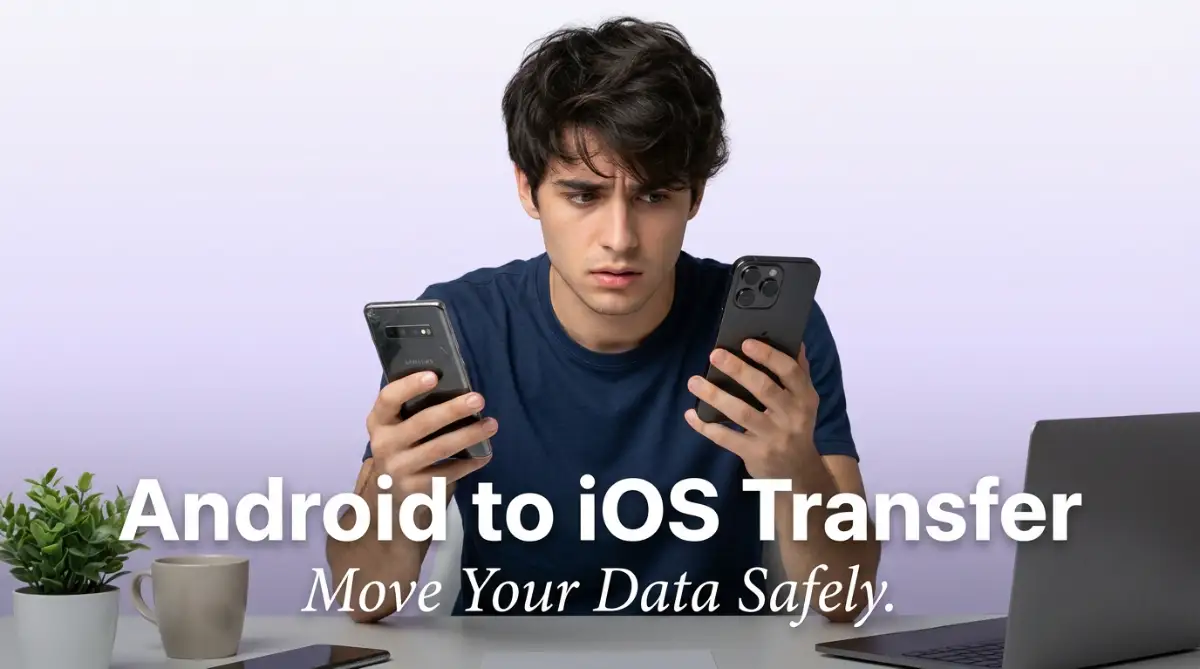
The Terrifying Leap Between Two Digital Worlds
I spent three hours completely paralyzed with anxiety when I switched from an Android to my first iPhone. I stared at the two screens, terrified that hitting the wrong button would permanently delete thousands of family photos and all my business contacts. Moving your entire digital life across two rival operating systems feels like trying to defuse a bomb. Let me show you the exact, safe method to transfer everything over without losing a single text message or photo.
My 60-Second Data Transfer Survival Guide (TL;DR)
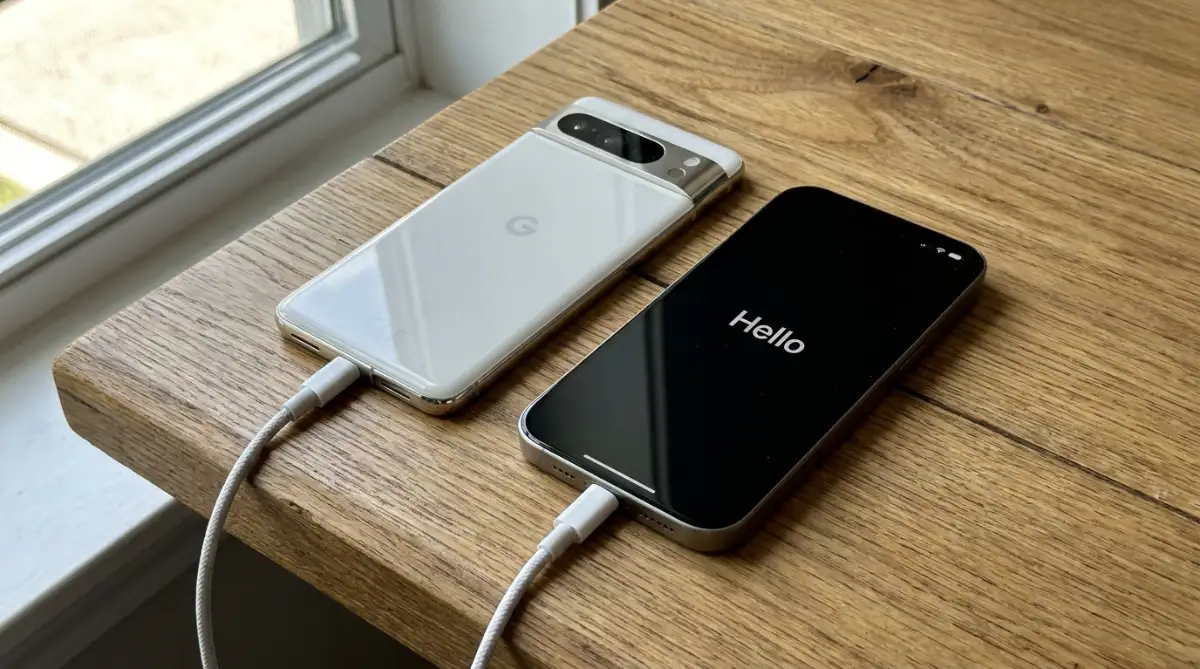
- Plug both the Android phone and the new iPhone into a wall charger before starting; heavy data transfers drain batteries incredibly fast.
- Only use the official "Move to iOS" app from the Google Play Store; avoid sketchy third-party desktop programs.
- Your new iPhone must be on the original factory "Hello" setup screen to catch the data properly.
- Do not minimize the app or check a text message on your Android during the transfer, or the connection will instantly crash.
Building the Invisible Bridge: The Pre-Transfer Checklist
Before you download any magic transfer software or start clicking buttons randomly, you have to prepare both of your physical devices. You cannot move massive amounts of heavy data if the connection between the two phones is weak or unstable.
The Cargo Ship Analogy:
Imagine you are trying to move a massive load of expensive cargo from one ship to another in the middle of the ocean. You would never start moving the heavy boxes while the ships are bouncing around in a violent storm, running out of fuel.
You would wait until the water is completely calm, drop a heavy anchor, and securely tie the two ships together. Your two smartphones require this exact same level of environmental stability.
If your old Android phone dies in the middle of sending your photo gallery, the data will become instantly corrupted and permanently unreadable.
Your Actionable Preparation Strategy:
You must plug both your old Android phone and your brand new iPhone directly into a reliable wall outlet. Do not rely on your current battery percentage, even if both phones say they are fully charged.
The heavy background processing required to compress and send gigabytes of data will drain a battery significantly faster than playing a high-end video game.
Next, you must connect both devices to the exact same, highly stable home Wi-Fi network. Do not attempt this transfer using a public coffee shop network or a weak cellular data connection.
If you are struggling to find a strong, stable internet connection in your house, you must fix your hardware setup first. Just like learning troubleshooting home Wi-Fi dead zones without buying an expensive router prevents frustrating internet drops, securing a perfect Wi-Fi signal prevents your photo transfer from suddenly freezing at ninety-nine percent.
Utilizing the Official "Move to iOS" Application
Once your physical environment is perfectly secure, you are ready to initiate the actual software transfer. For years, people had to use highly sketchy, third-party software programs downloaded from random websites to force the two phones to talk.
You do not have to do that anymore. Apple officially built a dedicated, highly secure application specifically for Android users, and it is completely free to use.
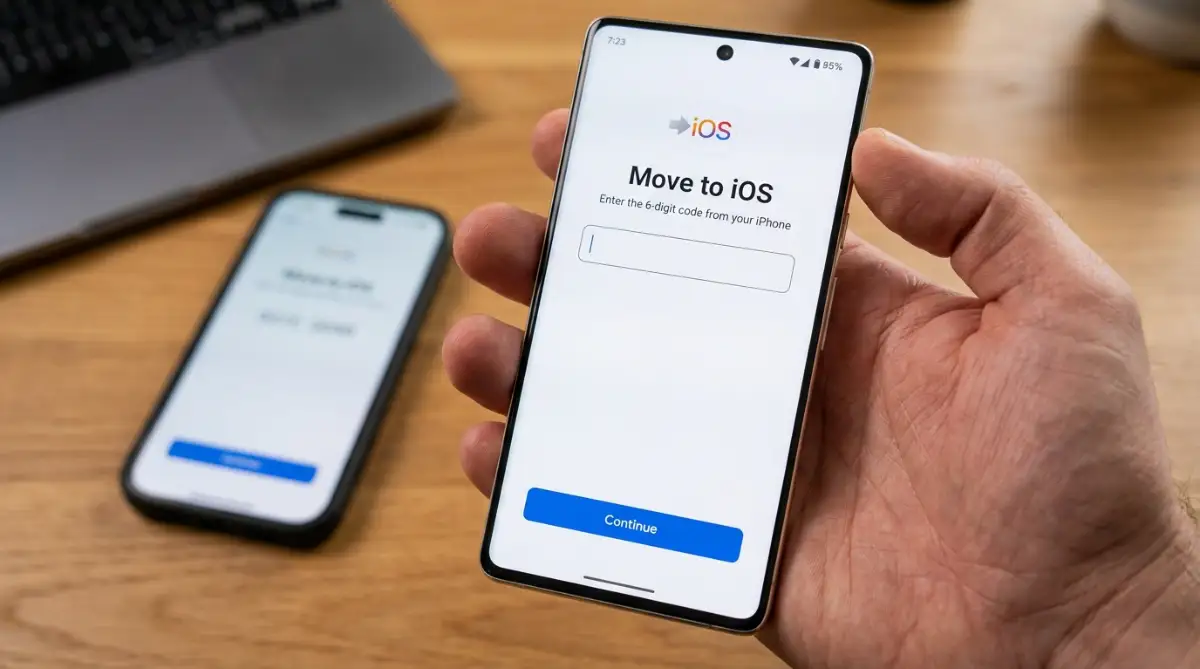
Grab your old Android phone, open the Google Play Store, and search for the app called "Move to iOS." This is the only official, Apple-certified software you should ever use for this process.
I actually made the terrible mistake of trying to use a cheap, third-party desktop transfer program I found on a random blog a few years ago. My biggest realization was that the shady software did not actually transfer my files; it just uploaded my entire contact list to a random advertising server, and I received massive amounts of spam calls for the next six months.
My 60-Second Data Transfer Survival Guide (TL;DR)
- Plug both the Android phone and the new iPhone into a wall charger before starting; heavy data transfers drain batteries incredibly fast.
- Only use the official "Move to iOS" app from the Google Play Store; avoid sketchy third-party desktop programs.
- Your new iPhone must be on the original factory "Hello" setup screen to catch the data properly.
- Do not minimize the app or check a text message on your Android during the transfer, or the connection will instantly crash.
If you are terrified of downloading the wrong software and exposing your personal data, you absolutely must watch this clear, visual breakdown of how the official Apple app actually works.
The Secure Pairing Protocol
Now you must turn on your brand new, completely unconfigured iPhone. You must start this process while the iPhone is still on the factory "Hello" setup screen.
If you have already played around with the new iPhone and set up the home screen, this official transfer method will not work. You will have to go into the settings and perform a total factory reset to return the phone back to the initial "Hello" screen.
As you follow the basic setup prompts on the new iPhone, you will eventually reach a specific screen labeled "Apps & Data."
On this specific screen, tap the option that clearly says, "Move Data from Android."
When you tap this button, your new iPhone will generate a secure, private, six-digit or ten-digit digital code on the screen.
The Secret Handshake:
Now, open the "Move to iOS" app on your old Android phone. The app will ask you to enter a code.
Type the exact numbers displayed on your new iPhone into your old Android device. This specific code acts exactly like a secret handshake between the two devices.
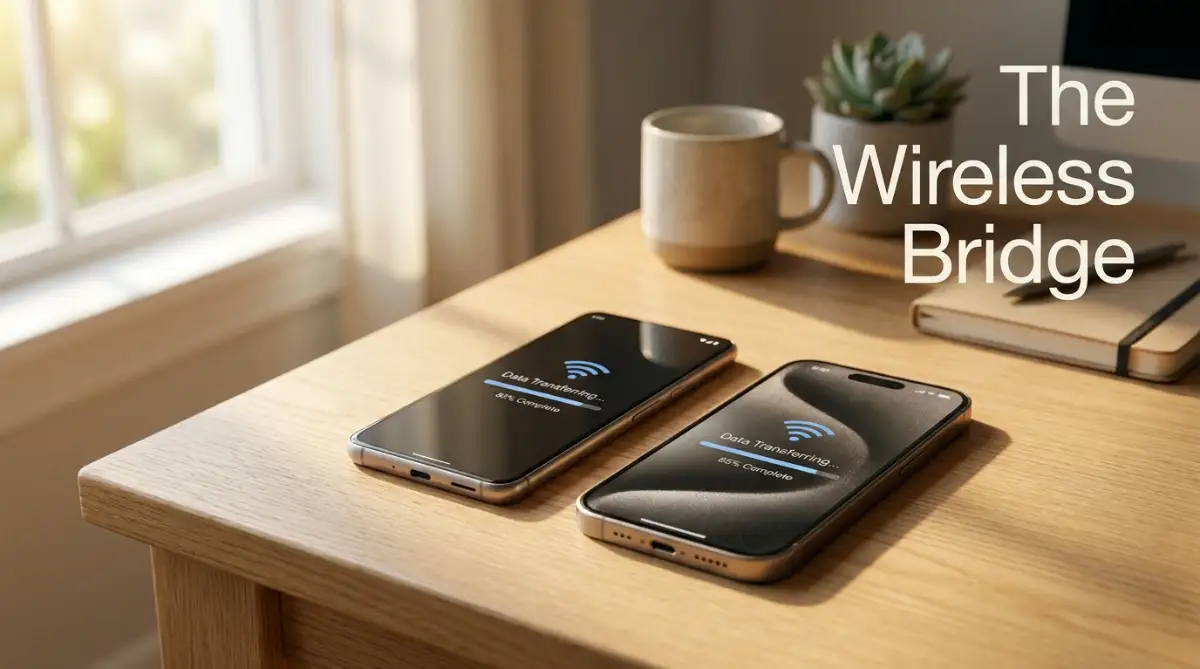
It tells the two completely different operating systems to drop their corporate firewalls and open a temporary, highly encrypted Wi-Fi connection directly between them. This connection does not use your home internet data; the two phones actually create their own private, invisible Wi-Fi network just for this specific transfer.
Selecting Your Digital Cargo
Once the secret handshake is successful, your old Android screen will display a list of all your available data. You will see checkboxes for your Contacts, Message History, Camera Photos, Web Bookmarks, and Calendar events.
You get to decide exactly what makes the journey across the bridge. This is an excellent, highly strategic time to do some digital spring cleaning.
If you have massive, hour-long video files stored on your old Android that you never actually watch, do not select them for transfer. Moving gigabytes of useless, heavy video files will dramatically slow down the transfer process and instantly clog up the hard drive on your brand new phone.
Select only the absolute essential checkboxes. Once you hit the "Next" button, the heavy lifting officially begins.
You must leave both phones completely alone. Do not open another app on the Android phone to send a quick text message, and do not pick up the iPhone to check the progress bar.
If you minimize the transfer app on the Android device for even a single second, the operating system will forcefully cut the Wi-Fi connection to save battery power, completely ruining the entire transfer process. Just let the two devices sit quietly on the desk until the loading bar on the new iPhone is one hundred percent full.
My Pre-Transfer "Spring Cleaning" Checklist:
Before you even download the app, do a 5-minute cleanup on your old Android:
- Delete massive, useless screenshots from your gallery.
- Empty your "Recently Deleted" photo folder.
- Uninstall heavy games you no longer play.
- (This simple cleanup can make the Wi-Fi transfer 30 minutes faster!)
What to Do After the Transfer is Complete
Once the loading bar finally finishes and your new iPhone reboots, your journey is almost complete. However, the "Move to iOS" app does not transfer your active logins for security reasons. You will need to manually log back into your email, banking, and social media applications.
This fresh start is the absolute perfect time to audit your cybersecurity. Do not use the same weak passwords you used on your old Android. Avoid making dangerous password management mistakes that leave your digital identity exposed by taking advantage of Apple's highly secure, built-in iCloud Keychain password manager.
Furthermore, you will notice that your new iPhone's battery might drain quickly during the first 48 hours. Do not panic; the phone is simply indexing all your newly transferred photos and files in the background. To keep your new device healthy long-term, make sure you avoid overlooked habits that quietly destroy your smartphone battery lifespan, such as leaving it plugged in under your pillow all night.
If you happen to experience any rare connection drops or specific error codes during the initial Wi-Fi pairing phase, you can always consult the official Apple support guide for Android transfers for real-time technical troubleshooting.
Common Questions About Switching from Android to iPhone
Will transferring my data delete everything on my old Android phone?
No, absolutely not. The "Move to iOS" app simply creates a digital copy of your files and sends them across the Wi-Fi bridge. Your original text messages, photos, and contacts will remain perfectly intact on your old Android device until you manually factory reset it.
Why is the transfer taking several hours to complete?
The transfer speed depends entirely on how much data you selected and the stability of the local Wi-Fi connection the phones created. If you have fifty gigabytes of high-definition videos in your camera roll, the transfer can easily take over two hours. You must be patient and leave both devices plugged into wall chargers.
Can I use my Android phone to make calls while the transfer is happening?
No. If you minimize the "Move to iOS" app on your Android phone, check a text message, or answer a phone call, the operating system will immediately break the Wi-Fi connection. You will receive an error message and have to start the entire transfer process completely over from the beginning.
What happens to my purchased Android apps?
Because Google Play Store apps are coded in a completely different language than Apple App Store apps, your purchased software cannot transfer over. The setup process will attempt to find the free iOS equivalents of your apps and download them, but you will have to manually repurchase any paid applications on the Apple ecosystem.
Disclaimer: The information provided in this article is for educational and general informational purposes only and does not constitute professional technical support. Operating systems, software features, and transfer protocols are frequently updated by Apple and Google. Always ensure you have a complete, verified physical backup of your data on a local computer or hard drive before initiating any major device transfers or factory resets.