
There is nothing quite like the heavy sinking feeling of watching hours of meticulous work vanish into thin air because your screen suddenly freezes. I still remember the exact afternoon my workstation decided to quit on me right before a major client deadline. My timeline was packed with heavy 4K footage, color grades, and complex audio transitions. Without a single warning box or error code, the entire application just blinked out of existence. I sat there in total silence, staring at my desktop wallpaper, wondering where all my progress went.
If you are reading this, chances are you have lived through that exact same nightmare yourself. You try to launch the app again, cross your fingers, and pray that your auto-save file is recent enough to salvage your sanity. This frustrating cycle drains your energy and makes every single click feel like a gamble. You might think your computer is just too old or weak, but the truth is often much more hidden. Heavy software requires a delicate balance of system resources that goes far beyond just having a good processor.
Most people blame the obvious culprits right away, like running out of memory or overheating components. Yet, even high-end machines packed with top-tier hardware fall victim to these sudden shutdowns. The problem usually lies deep within overlooked system conflicts, background micro-services, and invisible cache management loops. Understanding these hidden triggers is the only real way to stop the bleeding and get back to a smooth creative flow. Let us pull back the curtain and look at what is actually happening beneath your timeline.
When an editing suite shuts down unexpectedly, it leaves behind cryptic log files that look like ancient hieroglyphics to most users. Digging through those text documents rarely gives you a clear answer on how to prevent it from happening again tomorrow. Instead of guessing blindly, we need to inspect the silent killers of software stability. These issues creep into your workflow slowly until a single heavy effect pushes the entire system over the edge. By identifying these blind spots, you can bulletproof your editing setup for good.
Many creators spend thousands of dollars upgrading random parts of their computers hoping for a miracle fix. They buy a new graphics card or add more memory sticks only to watch the software crash during the exact same transition effect. This happens because hardware is only as good as the software instructions guiding it. If your operating system and your editing environment are stepping on each other's toes, no amount of raw power will save you. Let us break down these hidden software traps one by one.
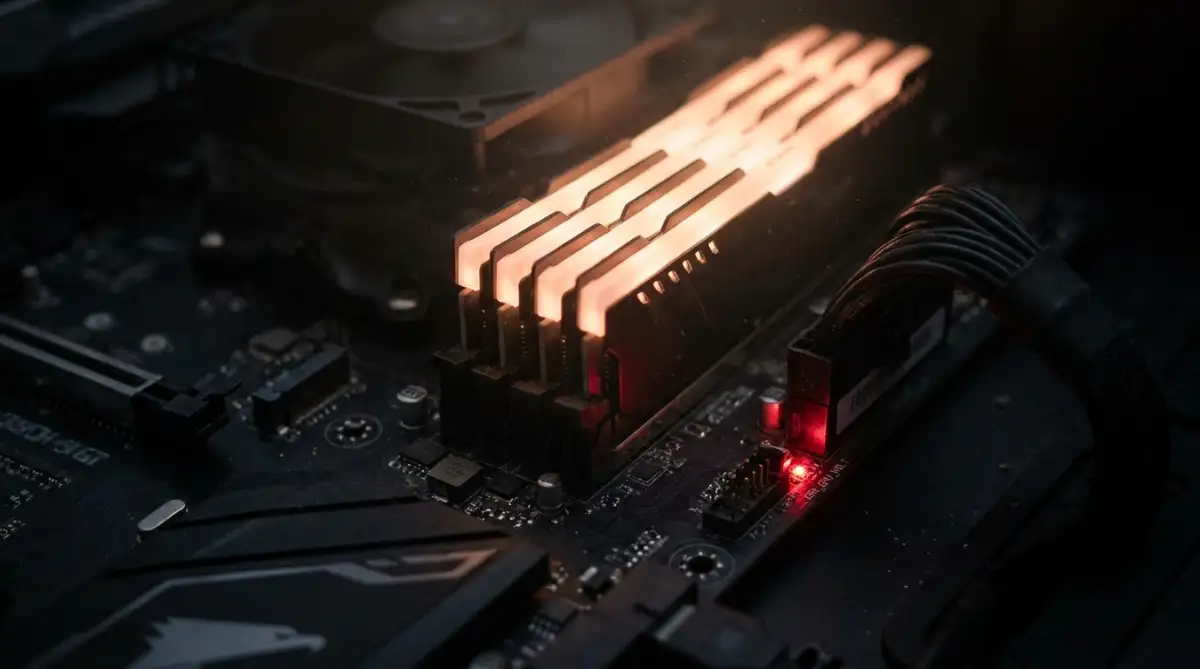
The Hidden RAM Leak Trap in Modern Timelines
We often assume that having thirty-two or sixty-four gigabytes of memory is an absolute shield against performance failures. While high memory capacity helps, it does not stop applications from hoarding data and refusing to release it back to the system. This phenomenon is known as a memory leak, and it is a silent project killer. As you clip, trim, and drop effects onto your timeline, background processes hold onto temporary data caches longer than they should. Eventually, the operating system panics and cuts off the application to protect itself, resulting in a sudden crash.
You can easily spot this behavior by keeping your task manager or activity monitor open while you scrub through heavy footage. Watch how the memory percentage creeps upward steadily even when you are just sitting idle on the timeline. To combat this, you need to manually purge your memory caches regularly rather than relying entirely on the software to clean up after itself. Setting strict limits on how much memory your application is allowed to dedicate to media cache can completely change your stability game.
A great real-life analogy for this is a kitchen sink with a partially clogged drain while the faucet runs at full blast. At first, the water drains fine, but as debris piles up, the water level rises until it overflows onto your floor. Clearing your cache files is equivalent to cleaning out that drain before the water level gets out of hand. Make it a daily habit to clear out old render files from projects you finished weeks ago. Your project files will load faster, and your system will breathe a lot easier.
Background Bloatware and Micro-Service Conflicts
Your editing computer has a secret social life happening behind the scenes that you probably know nothing about. Cloud synchronizers, automatic updater agents, and hardware monitoring tools are constantly pinging your system resources. When your heavy software tries to render a complex video frame, it demands absolute priority over your central processing unit. If a background cloud service decides to sync a massive file at that exact millisecond, a resource clash occurs. The editing suite loses its timing window, stutters, and ultimately crashes to protect data integrity.
Taking control of your startup apps is one of the most effective preventive measures you can take today. Disable every single background utility that does not directly contribute to rendering video or managing audio tracks. You do not need printer monitors, software update checkers, and rgb lighting controllers running high-priority tasks while you edit. Stripping your operating system down to a lean, focused workspace eliminates half of the mysterious crashes people face daily.
Pro Tip: Whenever I sit down to tackle a heavy editing session, I disconnect my workstation from the internet entirely. Turning off Wi-Fi stops cloud apps from syncing and blocks annoying background update prompts that love to steal focus right in the middle of a render.
The GPU Acceleration Backfire Dilemma
Hardware acceleration is marketed as the ultimate savior for video producers, pushing rendering workloads from the processor to the graphics card. For the most part, this technology works brilliantly and turns sluggish timelines into buttery-smooth previews. However, driver instability between your graphics card manufacturer and your editing software version creates a ticking time bomb. A minor graphics driver update can introduce a subtle bug that conflicts directly with how your editing suite handles video decoding. When you apply a heavy color grade or a third-party plugin, the graphics pipeline chokes and crashes the entire application window.
If your software tends to collapse whenever you toggle certain preview effects on, your graphics drivers are the prime suspects. Sometimes, the absolute newest driver release is actually less stable for heavy production work than a mature, older version. Reverting to a studio-ready or enterprise-grade driver profile often brings instant peace of mind. Always test new updates on a secondary project file before trusting them with your main commercial deadlines.
The Danger of Codec Mismatches on the Timeline
Mixing vastly different video codecs on a single timeline forces your editing suite to work overtime on the fly. Dropping variable frame rate footage from smartphones right next to high-bitrate professional cinema files creates severe decoding stress. Your software has to translate these conflicting mathematical structures simultaneously for every single frame it displays. When the processor fails to keep up with this real-time transcoding demand, it simply drops the connection and shuts down.
Converting your source media into a unified editing-friendly format before you start cutting is a proven industry standard. Proxies and intermediate codecs might take a little extra storage space upfront, but they save you hours of heartbreak later.
Watch this quick walkthrough on optimizing your media cache settings to prevent unexpected application shutdowns:
Navigating Storage Drive Bottlenecks and Fragmentation
Many creators invest heavily in their processors and graphics cards while completely ignoring the speed and health of their storage drives. If your project files, media cache, and operating system are all crammed onto a single aging mechanical hard drive, crashes are inevitable. Heavy editing demands lightning-fast read and write speeds to pull massive video frames instantly. When the drive needle cannot physically move data fast enough to satisfy the timeline, the software hangs up and crashes.
Moving your media cache onto a dedicated, high-speed solid-state drive separates the read-write heavy lifting from your main system drive. This division of labor keeps data flowing smoothly without creating communication bottlenecks inside your computer architecture. Keeping at least twenty percent of your drive space completely empty also gives the system room to breathe for virtual memory swapping. Simple storage hygiene goes a remarkably long way in keeping your creative sessions stable and stress-free.
Mastering Advanced Stability Tactics for Your Editing Suite
When you work with demanding multi-cam sequences and high-resolution raw files, standard troubleshooting measures only take you halfway. I learned this lesson the hard way after losing an entire weekend of rendering progress to a silent background error. Professionals who handle massive projects every single day rely on disciplined system hygiene and advanced structural habits. Implementing these deeper changes protects your hardware investments and keeps your timeline fluid. Let us explore the deeper workflows that separate amateur setups from bulletproof editing stations.
Setting Up Dedicated Scratch Disks for Maximum Performance
Your editing application needs a safe, lightning-fast parking lot to write temporary data while you chop up clips. Leaving your scratch disks and media cache on your main system drive invites disaster when storage space gets tight. When Windows or macOS needs breathing room for virtual memory swap files, it aggressively competes with your editing software for writing space. This direct competition causes micro-stutters that quickly escalate into full application lockups.
Creating a dedicated physical partition or installing a separate high-speed NVMe solid-state drive purely for scratch data solves this headache instantly. You can check out this technical guide on Puget Systems Hardware Recommendations to understand how drive separation optimizes heavy rendering loads. Your main operating system handles background tasks in isolation while your secondary drive handles raw frame generation. This division of labor eliminates communication lag and gives your software the clear runway it needs to run smoothly.
Managing Project Database Health and Inflated File Sizes
As projects grow larger, project files accumulate massive amounts of undo history, rendered previews, and orphaned database links. If you keep saving over the exact same project file for months, that document becomes bloated and fragile. A corrupted metadata string deep inside an old timeline sequence can trigger an instant crash the moment you open it. Establishing a clean project versioning routine prevents this digital decay from ruining your hard work.
Whenever I start a major milestone on a big project, I save a fresh file with a new version number rather than overwriting yesterday's progress. You can also explore professional workflow insights on Puget Systems Premiere Pro Hardware Guides to learn how proper hardware configuration reduces project file bloat. Regularly clearing out old sequence markers and unlinking unused bins keeps your project database lightweight and responsive. If your hard drive has ever given up on you during a major project, you will understand why backing up project iterations is non-negotiable.
Monitoring Thermal Throttling and Power Delivery Surges
Many creators fail to realize that software crashes are often physical hardware distress signals disguised as application errors. When your central processing unit or graphics card hits maximum thermal limits during a heavy export, it protects itself by throttling speed. If the power supply unit fluctuates even slightly during this intense thermal spike, voltage drops instantly to critical levels. Your editing software cannot function without stable voltage, so it terminates itself immediately to prevent data corruption.
Investing in a reliable uninterruptible power supply protects your rig from subtle electrical sags and dirty wall power fluctuations. You should also monitor your internal component temperatures using trusted hardware monitoring utilities while rendering complex visual effects. Keeping your cooling fans clean and replacing thermal paste every couple of years ensures your hardware performs at peak efficiency. For those working with older desktop hardware or custom builds, keeping an eye on cooling is just as important as saving your console with simple ways to spot and avoid overheating issues.

The Dangerous Traps That Trigger Sudden Application Failures
Even with high-end hardware, simple workflow habits can trigger unexpected software shutdowns. Recognizing these hidden hazards helps you avoid costly mistakes that threaten your project deadlines. Let us look at some common pitfalls that trip up even experienced video producers.
Editing Directly From Unstable External USB Hubs
One of the most tempting shortcuts is plugging a portable external hard drive into a cheap USB hub to edit footage directly. External hubs often share power delivery across multiple ports, leading to micro-disconnections during heavy data transfers. If your editing suite loses contact with your source media for even a fraction of a second, the software panics and crashes. Always plug your primary media drives directly into high-speed motherboard ports rather than relying on unpowered hubs.
Ignoring Software and Plugin Compatibility Matrices
Installing every new third-party transition and color grading plugin available online creates a recipe for software instability. Many plugins rely on outdated code libraries that clash violently with modern editing application updates. Before installing new plugins, always verify that they match your specific software version and operating system build. Keeping your toolset lean and updating plugins through official channels prevents mysterious background conflicts.
Neglecting Routine Digital Maintenance and Cache Hygiene
Letting your media cache folders expand infinitely until they consume hundreds of gigabytes of storage is a massive mistake. When cache directories become overly fragmented, read times slow down significantly, forcing your CPU to wait on data retrieval. Make it a monthly ritual to clear out temporary files and optimize your storage drives using built-in system tools. Taking care of your digital workspace keeps your software running as fast as the day you installed it. If you want a smoother experience across all your personal devices, adopting good cache-clearing habits is similar to speeding up your phone with simple steps to clear app cache on android.
Building a Reliable Creative Future Without Technical Roadblocks
Overcoming unexpected software shutdowns is all about understanding how your computer manages resources behind the scenes. By identifying hidden RAM leaks, organizing your scratch disks, and avoiding messy project habits, you create a stable digital environment. Editing should be about storytelling and creative expression, not fighting with error messages and frozen screens. Taking control of your technical setup gives you the freedom to focus entirely on bringing your video vision to life.
I know how frustrating it feels to stare at a frozen timeline when a deadline is breathing down your neck. Take things one step at a time, clean up your workspace today, and enjoy a smoother editing experience tomorrow.
Common Questions About Video Editing Software Stability
Why does my video editing software crash only on specific projects?
Specific projects often contain corrupted media files, unsupported codecs, or heavy third-party plugins that strain system resources. Isolating the problematic clip or clearing render files for that specific timeline usually resolves the issue.
Does increasing my computer RAM completely stop software crashes?
While more memory helps handle large files, it does not stop crashes caused by driver conflicts, background bloatware, or corrupted project databases. Hardware balance matters much more than simply maxing out a single component.
How often should I clear my media cache files?
You should clear your media cache folders at least once a month or whenever you finish a major video project. This prevents temporary files from fragmenting and clogging up your fast storage drives.
Can background internet browsing cause my editing app to freeze?
Yes, running heavy web browsers alongside an editing suite consumes significant memory and graphics card resources. Closing unnecessary browser tabs frees up valuable system headroom for rendering your video timeline.
Disclaimer
The information provided in this article is for educational and informational purposes only. While every effort has been made to ensure accuracy, technical troubleshooting results may vary depending on individual hardware configurations, operating systems, and software versions. We make no guarantees regarding system stability or data recovery. Always back up your critical project files and system data before making major hardware or software modifications.